

Picture math worksheets for kindergarten
Picture math problems with answers work like a riddle: each picture stands for a number, and the child works out which one. An apple plus an orange makes 7, an apple plus 2 makes 5, so what is the apple worth?
If you sell worksheets on Teachers Pay Teachers, you can make these pages in themed packs, each with its key. The pages here come from Picture Math, a module of Puzzle Maker Pro, the Windows desktop software that generates printable puzzles. Picture Math makes rebus-style equations where each picture stands for one hidden whole number. It is not a count-the-objects page: the pictures are stand-ins for numbers, not things to count.
What a picture math page is (and who it suits)
A page is a few equation rows made of pictures, plus signs and numbers, with a solution block underneath. In the default solution block, the puzzle shows each picture next to an answer box (empty, or with the placeholder character set under Symbol on the Style tab). On the key, the same boxes read “= 3” and “= 4”.
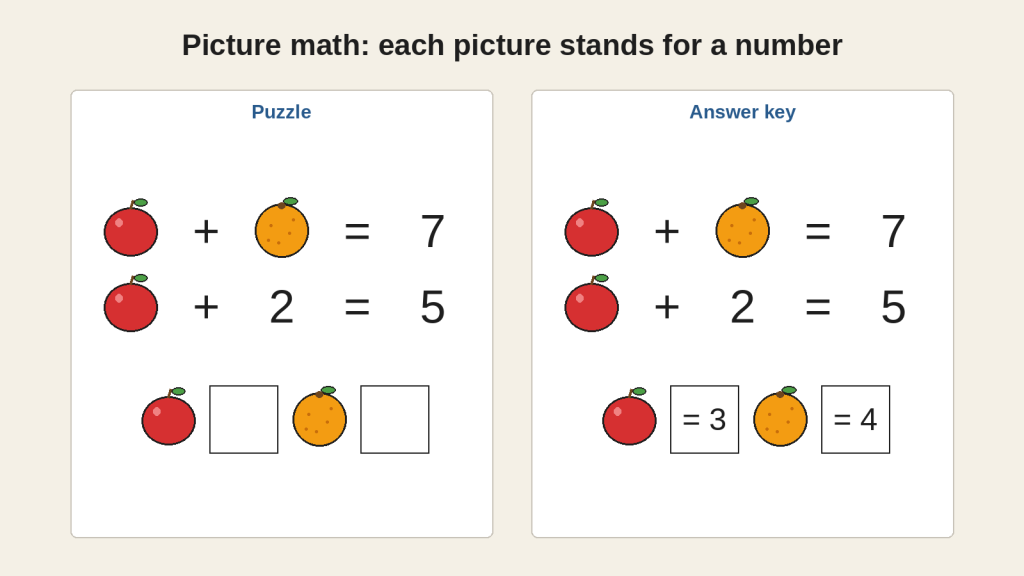
On the page above, the child finds the apple from the bottom row first (apple + 2 = 5), then uses it in the top row to find the orange. For children who are not reading yet, one spoken line covers the rules: each picture is a number, find it.
At its gentlest, a page has one or two pictures, addition only, and totals no higher than 10. This article labels that version late kindergarten and grade 1 (about ages 5 to 7). The label is ours, not the software’s: nothing in Picture Math maps a setting to an age. The grade in your listing title is a promise you make, so make one the page can keep.
Kindergarten-level settings: Level 1 and one picture
The difficulty settings sit on the Settings tab. The Difficulty Level box has two rows of buttons: Education (Level 1 to Level 6) and Recreational / Social Media (Easy, Medium, Hard). Each button fills in the numbers below it, and you can change them afterwards.
Level 1 is the place to start. It sets:
- Number of Symbols to 2 (two different pictures on the page)
- Symbol Maximum Value to 5 (no picture is worth more than 5)
- Equation Maximum Value to 10 (no side of an equation goes past 10)
- Allow Subtraction off
The Level buttons leave Symbol Minimum Value alone, so check that it reads 1 before you click Level 1. A higher minimum also raises the lowest Symbol Maximum Value the box accepts.
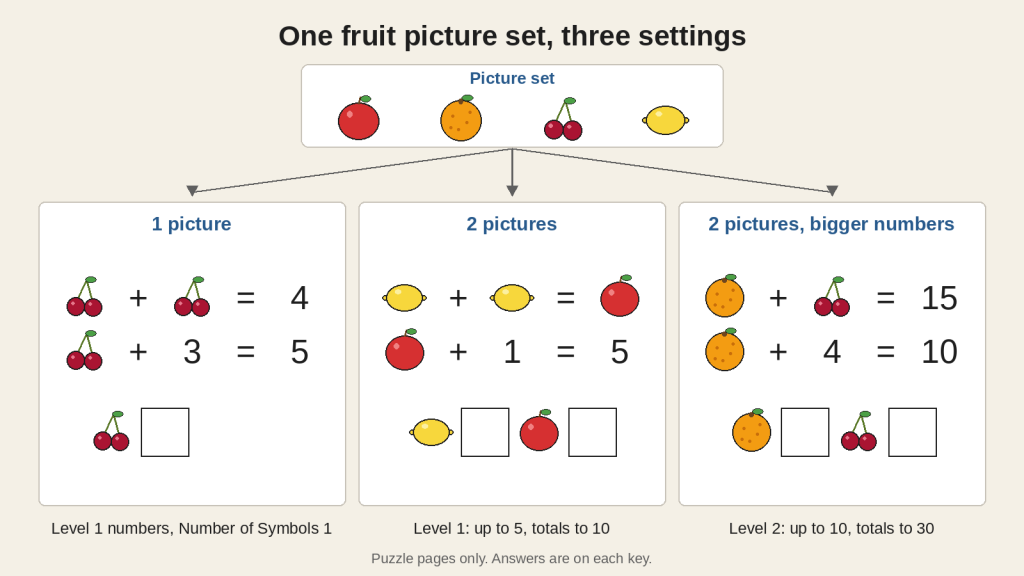
For the gentlest page of all, click Level 1 and then set Number of Symbols to 1. A one-picture page has two rows: a picture added to itself, and the picture plus a number. Both rows point at the same answer, so the child can check one against the other. Level 2 keeps two pictures but lets them run to 10, with totals up to 30.
Two things to know before you title a pack:
- A two-picture page can include a row with no numbers at all, like “lemon + lemon = apple” in the middle page above. The child solves the other row first and carries that value back, which is a step up from a one-picture page.
- Each picture gets its own number. Two pictures on one page never share a value, and no number printed in the rows is the value of a picture, so a value never sits in plain sight.
From Level 3 up, the buttons use three or four pictures and turn subtraction on. If you turn on Allow Subtraction for a younger group, tick Kids (Easy Subtraction) next to the Adjustment caption. It swaps in gentler minus rows on two- and three-picture pages, and it has no effect at one, four or five pictures.
Picture sets per theme
The pictures come from you. On the Content tab, leave Images selected (the other choice, Letters, prints letters instead of pictures) and add your picture files: PNG, JPG or WebP, one at a time or a whole folder. One theme per folder keeps a pack tidy: fruit, farm animals, vehicles, space.
Each puzzle draws its pictures at random from the list, so a folder of ten fruit gives varied pages. Put at least as many pictures in the list as the Number of Symbols you chose, and more for variety. With fewer, the software reuses pictures, and two different numbers can end up on the same picture, which breaks the page.
Two settings help a theme look finished:
- With Use branding on image ticked on the Titles tab (it applies your branding template to the image), set the title to Image Folder Name, and each page is named after its picture folder, so “Fruit” or “Farm” lands in the title by itself.
- Crop Image (Remove extra whitespace) on the Style tab trims empty space around clip art, so the drawing fills its space on the page.
Use pictures you drew, own, or bought with resale rights.
Answer keys: Symbols or Equation
Solution Type on the Settings tab decides what the solution block asks for.
- Symbols (the default) lists each picture with an answer box. The key fills each box with the picture’s value, as in the apple and orange page at the top.
- Equation adds one more row whose last number is hidden in a box. The child uses the pictures’ values to finish it. The key shows only that final number, not each picture’s value.
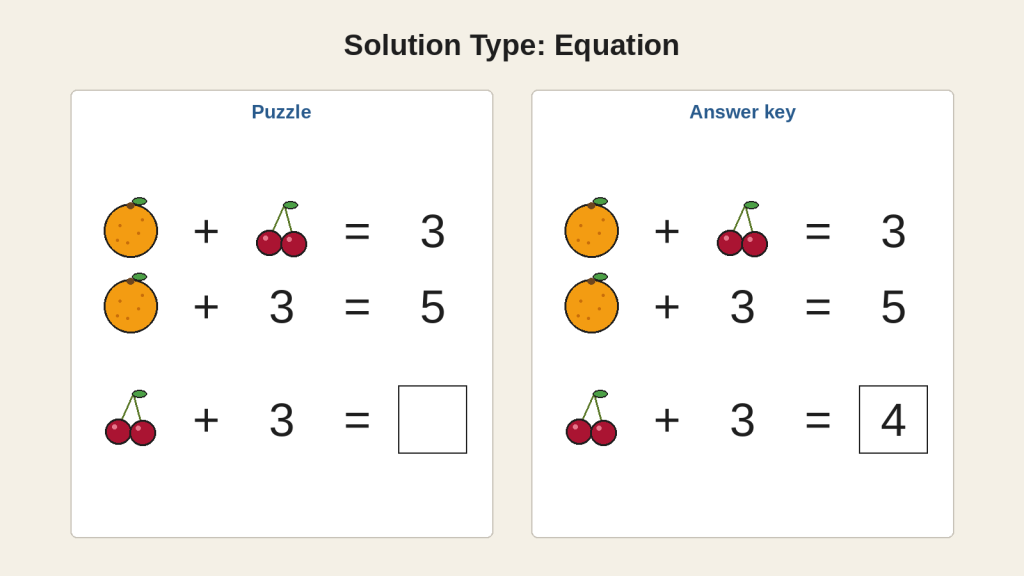
Symbols suits the youngest pages, because every answer is a value the child found directly, and a teacher can check each picture at a glance. Equation adds one more step at the end. With Number of Symbols at 1, the page uses the Symbols layout either way.
The box itself is on the Style tab: Add Solution Box, Square or Circle, and Symbol for the placeholder character.
Check each page against its key. Picture Math finds one set of values that makes every row true, but it does not prove that no other set fits. One- and two-picture addition pages are short, so solve each one yourself before it goes in a pack.
Keys and page count per pack
Every puzzle comes with its key. Set Quantity (1 to 1,000) to the number of puzzles you want, and one Create writes each puzzle and its answer key as image files you can export as PNG or JPG. A Level 1 puzzle is only two rows plus an answer block, so decide how many puzzles go on each printed page before you choose the number.
For a multi-page PDF, Instant Puzzle Books, the book builder inside Puzzle Maker Pro, lays pages out as a PDF or PowerPoint file. Its default order is Print Solutions With Puzzles, which puts each key straight after its page. For keys at the back, choose Puzzles First, Then Solutions under Content Collation for Instant Puzzle Books in Book Settings.
Before you upload:
- Title the specification. “Picture Math, Addition to 10, Two Pictures, Fruit, 12 Pages + Keys” tells a teacher the operation, the range, the theme and the length in one line. Math puzzles for publishers makes the case for labeling a page this way.
- Keep one setting per listing. A pack that jumps from Level 1 to Level 3 halfway through is two packs.
- Show a page and its key together in the listing preview.
- Size the file for the slot. Classroom warm-up vs homework packet covers the choice between one page plus its key and a packet with one key section at the back.
Picture Math lets you sell the finished worksheets, books and packs you make to your own readers and customers, Teachers Pay Teachers included.
The demo makes one watermarked puzzle at a time, which is enough to try Level 1, a one-picture page and your own picture folder before you buy.
Get the free Puzzle Maker Pro demo now
Other puzzles you might like
- TPT visual puzzle worksheets: spot-and-count pages and picture cut-outs, for the teacher who wants counting rather than equations.
- Math puzzles for publishers: picture math, geometry, math sudoku and cross sums, and how to label a page by operation, range and grade.
- TPT math puzzle worksheets: Ikura, Smart Numbers and Number Blocks, short reasoning boards that are not another drill sheet.
- How to make an activity book for preschoolers: tracing, patterns and mazes for ages 3 to 5.
- Puzzle books for kids by age: what the age on the cover has to mean inside the book.
- Cut and paste worksheets: themed cut-and-paste and copy-and-color pages from your own pictures.