

Summary: Time Practice makes elapsed-time worksheets: every problem gives a start time and an end time, and the child works out how many minutes passed. This walkthrough covers the two problem shapes, the built-in story themes, the three difficulty levels, the time-of-day setting, answer tiles, and (on Creative) writing your own story theme, through to a finished worksheet set with answer keys.
Overview
Time Practice is one of the worksheet makers that come with Math Mystery: if you own Math Mystery, it is already on your Math menu. Each sheet is a numbered set of elapsed-time problems with a matching answer key. The answer is always a number of minutes, never a clock time, so it can be written on a short line, checked at a glance, and printed on an answer tile.
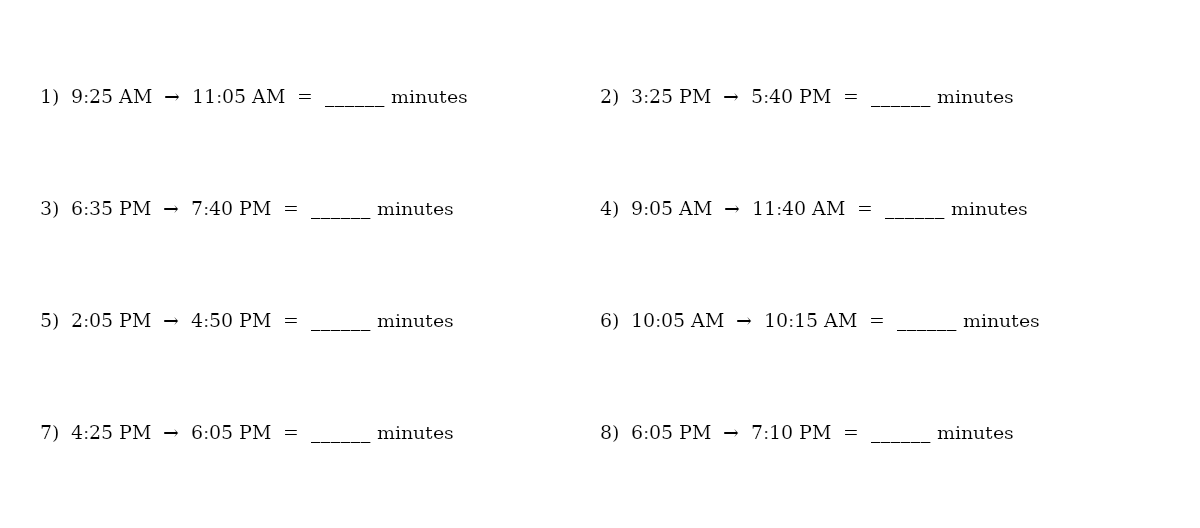
You choose between two shapes. Formula prints each problem as a single line, 9:15 AM → 10:00 AM = ______ minutes, which is quick to read and fits many problems on a page. Story turns each problem into a short word problem with a name and an activity from a theme, such as “Jonas trained with the team from 6:35 PM to 7:40 PM. How many minutes was that?” Both shapes use the same difficulty levels, so you can make a formula drill and a matching story sheet at the same level.
Required Modules
Math Mystery opens Time Practice alongside Math Mystery, Simple Math, Visual Fractions and Story Math, plus Bar Model Math on Creative and up. A free demo lets you try the settings first; it makes one watermarked sheet at a time.
Math Mystery makes Formula and Story worksheets with all six built-in story themes, exports PNG, JPG, SVG and print PDF with an answer key for every sheet, and includes Instant Puzzle Books (a book PDF assembled straight from your current settings) and Puzzle Book Studio for one collection. Creative adds your own story themes on the My theme tab. Productivity adds Time Saver for batch runs, Puzzle Book Studio Productivity for books that combine several collections, and JSON export. Creative + Interactive and Productivity + Interactive add online play, so the puzzles can be played in a web browser. You can move up to any higher edition at any time after you buy: up the ladder for more production power, and/or add Interactive for online play. See Puzzle Maker Pro Editions Explained.
Commercial rights: Math Mystery and Math Mystery Creative both carry the licence to sell the finished worksheets and books you make to your own readers and customers, including on KDP, Etsy and Teachers Pay Teachers. Productivity adds the right to sell or supply the generated puzzles to other publishers and sellers.
Preparation
There is nothing to collect first: Time Practice writes its own times, and Story sheets take their names and activities from a built-in theme. Pick a difficulty and a shape (both explained below); each sheet you create comes with its answer key.
Planning a graded workbook? Build it as a short run of sets at rising difficulty: Easy Formula sheets, then Easy Story sheets, then Medium, then Hard, which brings in times across noon. Make each set with one Create, then combine them with Puzzle Book Studio. On Productivity, Time Saver runs the whole list in one pass, one row per set, and each row can carry its own story theme.
Step-by-Step Instructions
Open Time Practice
Choose Math → Time Practice. The module opens with the Main, Style, Layout and My theme tabs. Every worksheet setting below sits on Main, apart from titles (Layout), styling (Style) and your own story themes (My theme).
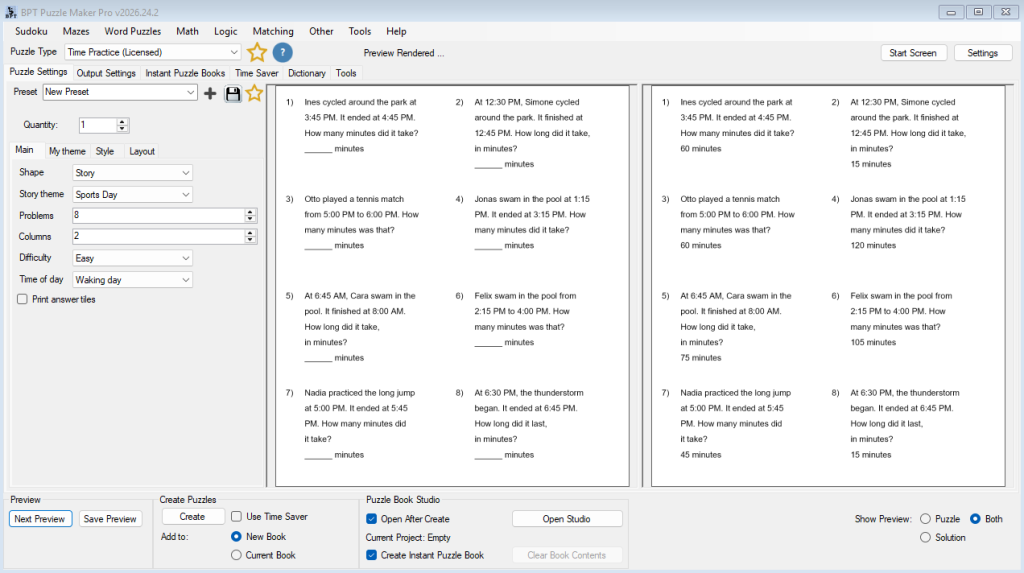
Screenshot to capture (Windows):
Choose the Shape
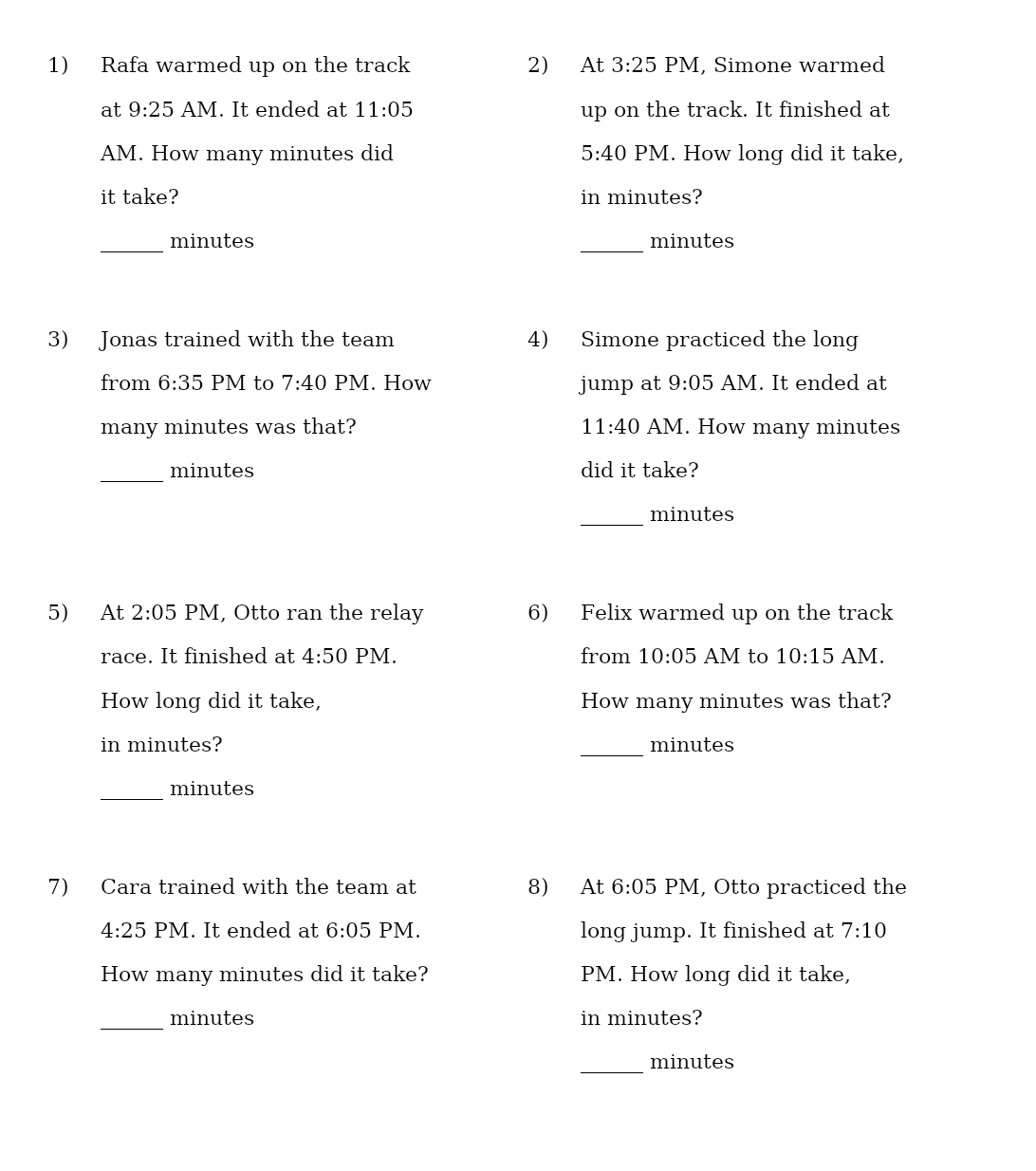
Shape sets what a problem looks like. Formula (the default) prints one line per problem: the problem number, the start time, an arrow, the end time and a blank followed by “minutes”. Story prints each problem as a word problem of a few lines, with the answer blank on its own line underneath.
Story sheets use more space per problem, so on a story sheet you will usually want fewer problems or fewer columns than on a formula sheet. Every problem on a Story sheet is printed at the same text size, so a long story and a short one sit evenly on the page.
Pick a Story Theme
Story theme chooses the names and activities for Story sheets. There are six built-in themes, shared with Story Math:
- School Day — lessons, breaks and after-school activities (the default)
- Home Day — chores, meals and free time
- Sports Day — training, matches and races
- Bakery — fresh bread, cakes and the counter queue
- Pet Shop — animals, feed and the fish tanks
- Party — balloons, games and the birthday table
Each theme has its own cast of first names and its own activities, and some include an event that nobody does, such as rain or a thunderstorm, which reads “The thunderstorm started at … and ended at …”. The stories never use he, she, his or her, so any name can appear with any activity. The theme applies to Story sheets; a Formula sheet prints only times.
Set the Difficulty
Difficulty controls how fine the times are, how long a problem can last, and whether it can run past noon:
- Easy (the default): times on the quarter hour, problems from 15 minutes up to 2 hours.
- Medium: times in 5-minute steps, problems from 5 minutes up to 3 hours.
- Hard: any minute, so times such as 8:47 AM appear, problems from 1 minute up to 4 hours, and a problem may cross noon, so a child has to handle the change from AM to PM.
On Easy and Medium, every problem stays on one side of noon: it ends before 12:00 PM, or starts at 12:00 PM or later. Going from Medium to Hard is the biggest step, because Hard brings in single-minute times and noon crossings together. Choose by what the child can already do: Easy for children who are just reading times on the hour, half hour and quarter hour, Medium once they can count on in five-minute steps, and Hard when they are ready for any minute and for times that cross noon. The sample sheets in this tutorial are Medium.
Choose the Time of Day
Time of day sets which part of the day the problems happen in. Waking day (the default) places problems between 6:00 AM and 9:00 PM. School hours keeps every problem between 8:00 AM and 4:00 PM, which reads naturally on a classroom sheet or alongside the School Day theme. Every difficulty level works in both settings.
Set Problems and Columns
Problems sets how many problems are on each sheet, from 1 to 40 (default 8). Columns sets how many columns they are laid out in, from 1 to 6 (default 2). The problems are numbered 1), 2), 3) and so on across each row, and the answer key uses the same numbers, so marking is a matter of reading across.
Story sheets need more room per problem: two columns of 8 problems, as in the sample, leave room for the wording.
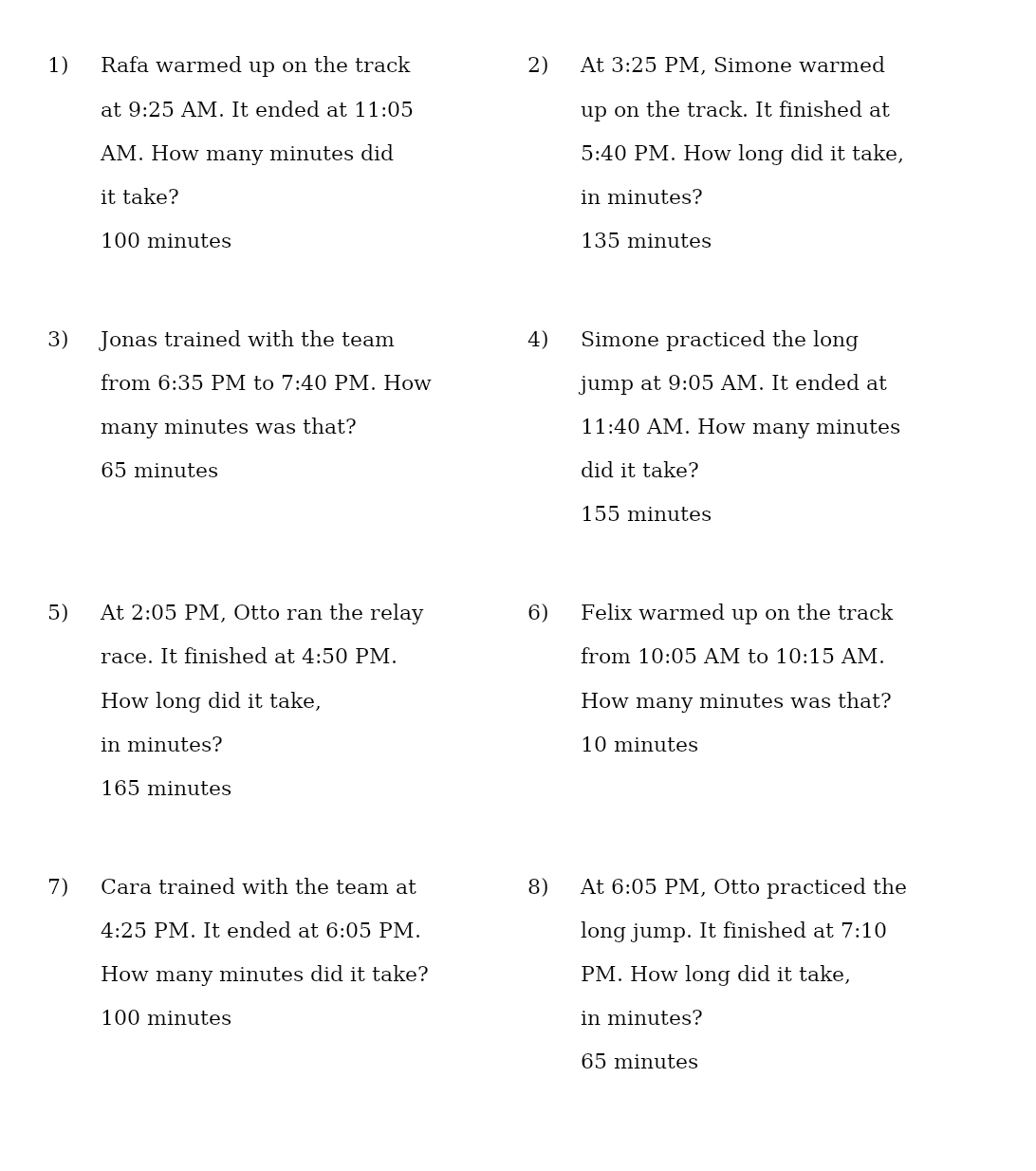
Within one sheet no problem repeats, though two different problems can share the same answer, as problems 1 and 7 do on the sample story sheet (both 100 minutes), and problems 3 and 8 (both 65 minutes). Turn on answer tiles if you want every answer on the sheet to be different.
Add Answer Tiles (Optional)
Tick Print answer tiles to add a row of answer cards below the problems: one tile per problem, shuffled, each showing a number of minutes. The tiles sit on the worksheet page, under the problems. The child solves a problem, finds the matching tile and crosses it off, or cuts the tiles apart along their borders. The tile border is set on the Style tab.
With tiles on, every answer on the sheet is different, so the number of problems has to fit the number of different answers the difficulty level offers: up to 8 problems at Easy (the eight quarter-hour durations from 15 minutes to 2 hours), up to 36 at Medium and the full 40 at Hard. If you ask for more, Time Practice tells you the most it can fit and suggests fewer problems, a higher difficulty or tiles off.
Check the Answer Key
Every sheet comes with its answer key: the same page with each answer written on its line, such as “100 minutes”. The key keeps the layout and numbering of the worksheet, so you can lay the two side by side.
Write Your Own Story Theme (Creative)
On Creative and above, the My theme tab lets you write a story theme of your own, so the problems can feature your class, a holiday camp or the characters from your book. On a Story sheet your theme replaces the story theme chosen on the Main tab.
- Open the My theme tab and click New…. The Story theme editor opens.
- Type a Theme name (up to 24 characters).
- Under People (one name per line), add at least 3 first names, up to 30.
- Under Activities that take a while (Time Practice), add at least one activity, up to 30. Each row has three parts:
– Activity: the activity as a name, such as “spelling test” or “bike ride”.
– What they did: what a person did, in the past tense, as it follows a name, such as “took a spelling test” or “rode a bike to school”.
– Someone does it: ticked by default. Untick it for something nobody does, such as rain; that activity is then written as an event, “The rain started at … and ended at …”. - The editor checks the theme as you type and lists anything to fix. Each phrase can be up to 40 characters, and names and phrases must not use he, she, his or her, because any name can be paired with any activity. The Works in: line shows whether the theme is ready for Time Practice. Click Save when it is.
- Back on the tab, choose your theme from the list and tick Use my own theme.
The same editor has a section for Things to count, share and buy (Story Math). Fill that in as well and the one theme works in Story Math too: the list on the My theme tab shows where each saved theme can be used. Saved themes stay on your computer for every later session, and a preset or a Time Saver row keeps its own copy of the theme it uses. Use Edit… to change a theme and Delete to remove it from your computer.
Style the Page
The Style tab sets the page and cell colours, the answer-tile border, an optional grid line around each problem, and one font that applies to the problems, the answers and the tiles together. The styling workflow is the same in every module: see How to Customize Puzzle Designs in Puzzle Maker Pro.
Set the Title
Titles live on the Layout tab. Smart Titles works as in other modules; here the options combine “Time Practice”, the Shape and the Difficulty, such as “Time Practice Story Medium” or just “Medium”, which labels each set in a graded pack. The same options fill the description, which defaults to “Work out how many minutes each one takes and write the answer on the line.” How the control works is covered once in How to Create Smart Puzzle Titles in Puzzle Maker Pro. The Layout tab also holds the crop setting and a Use branding toggle that applies your branding template to this collection’s images.
Set the Quantity and Create
Set the quantity, then Preview and Create as in any module, with the buttons at the bottom of the main window.
Scale Up to a Book
At every edition, Instant Puzzle Books turns a run into a book PDF, with your trim size, margins and page layout, and Puzzle Book Studio assembles one collection into a finished interior with the answer keys at the back.
On Productivity, Time Saver runs the graded-workbook list from Preparation in one pass. See How to Batch Create Puzzles with Time Saver and the Puzzle Book Studio Tutorials.
Use Elapsed Time on a Math Mystery Page
Math Mystery offers Elapsed time as one of its skills. On a mystery page the problems use the Formula shape (at Easy, a section holds up to 6 problems), and the child finds each answer in minutes among the page’s tiles, just as with every other Math Mystery skill. See How to Create Math Mystery Worksheets in Puzzle Maker Pro.
Outcome
You have a set of numbered elapsed-time worksheets, in the Formula or Story shape, at the difficulty and time of day you chose, each with a matching answer key and, if you wanted them, a row of answer tiles. They are ready to print as single sheets or to assemble into a workbook with Instant Puzzle Books or Puzzle Book Studio.
FAQ
Are the answers clock times or minutes?
Always minutes. Every problem asks how many minutes passed between the start time and the end time, and the answer key prints the answer as “65 minutes”, “100 minutes” and so on.
Which difficulty should I use for beginners?
Easy. All times are on the quarter hour, no problem lasts longer than 2 hours, and every problem stays on one side of noon. Medium moves to 5-minute steps, and Hard uses any minute and may cross noon.
Why does Time Practice ask me to reduce the problem count when answer tiles are on?
With tiles on, every answer on the sheet must be different, and Easy offers only eight different durations. Use up to 8 problems at Easy, up to 36 at Medium, or turn tiles off.
Can I keep all the problems inside the school day?
Yes. Set Time of day to School hours and every problem starts and ends between 8:00 AM and 4:00 PM.
Can I use my own names and activities in the stories?
Yes, on Creative and above. Write a theme on the My theme tab with at least three people and at least one activity, then tick Use my own theme. The same theme also works in Story Math once it has things to count, share and buy.
Which edition do I need to make a whole workbook in one pass?
Every edition makes a full set in one Create and turns it into a book with Instant Puzzle Books or Puzzle Book Studio. Productivity adds Time Saver, which runs several different setups, such as Easy, Medium and Hard, in one pass.
Further Reading
- How to Create Math Mystery Worksheets in Puzzle Maker Pro
- How to Create Word Problem Worksheets with Story Math in Puzzle Maker Pro
- How to Create Simple Math Worksheets in Puzzle Maker Pro
- How to Customize Puzzle Designs in Puzzle Maker Pro
- How to Create Smart Puzzle Titles in Puzzle Maker Pro
- How to Batch Create Puzzles with Time Saver
- Puzzle Book Studio Tutorials