

Summary: Math Mystery turns a page of practice problems into a puzzle the child solves by working them out: every answer crosses off a tile, and the one tile left over names the culprit, or the answers spell a secret message. This walkthrough takes you from choosing a page type, skill and difficulty to a printed set of worksheets with answer keys.
Overview
A Math Mystery page has two parts: a block of problems and a band of answer tiles. On Elimination and Themed pages the child solves a problem, finds the answer among the tiles and crosses it out. There is always one more tile than there are problems, so when every problem is done exactly one tile is left. That leftover is the answer to the mystery, and because the child reaches it by solving the problems, the page checks itself: a slip usually lands on no tile or leaves the wrong one standing, which tells the child to recheck. On Secret message pages the answers lead to letters instead, and the solved letters spell the message.
You choose between three page types:
- Elimination — plain number tiles. The leftover number is the answer. The simplest page to set up, suited to a warm-up or an exit ticket.
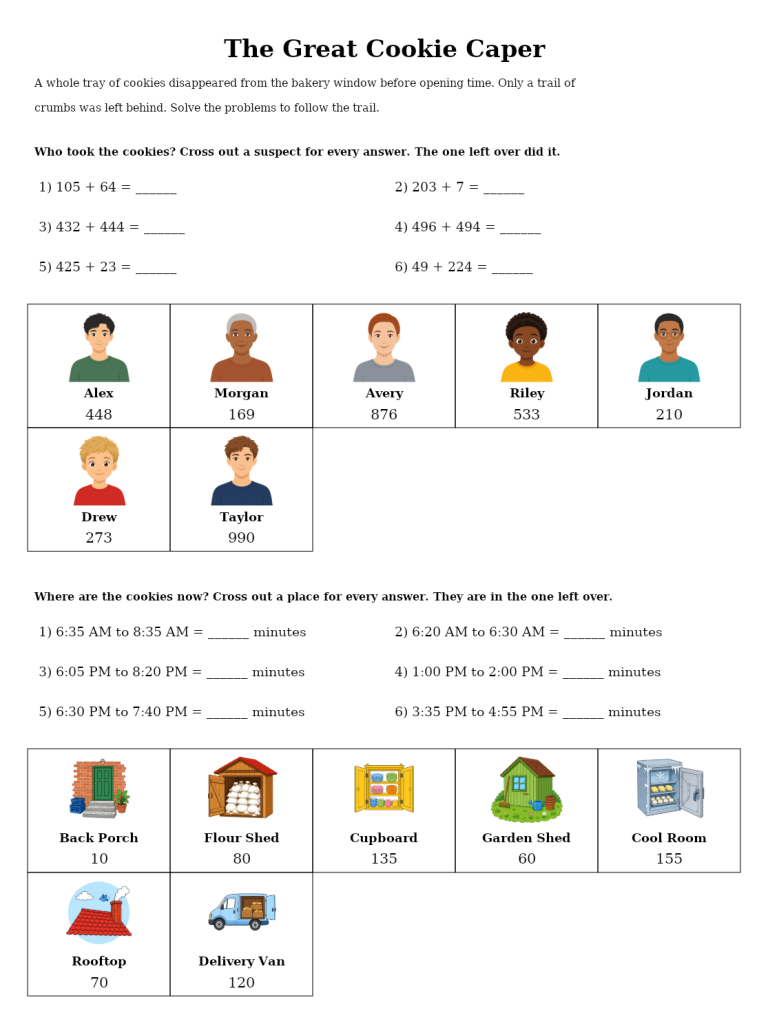
- Themed — a short detective story with suspects on the tiles: a picture, a name and a number. The suspect left over did it. Add a second section and its tiles become places, so the page also answers where.
- Secret message — every answer stands for a letter in a key, and the letters spell a message you write. Good for a class reward, an end-of-unit message, or a riddle with a punchline.
Every page is checked before it is printed, and a page that fails the check is rebuilt. On Elimination and Themed pages each answer appears on exactly one tile, the leftover matches no answer, and the leftover is never a number that a common slip would land on, so a careless mistake does not stumble onto the right suspect by accident. A Secret message page is checked letter by letter against your message, and a slip shows up as a garbled word the child can spot and fix.
Fastest route: open Math Mystery from the Math menu, choose Page type and Skill on the Main tab, set the quantity and press Create. Everything else in this walkthrough is optional.
Required Modules
Math Mystery — one product: the four skill modules (Simple Math, Visual Fractions, Time Practice and Story Math) are included, so Math Mystery is all you need. A free demo lets you try the page types and settings first; it makes one watermarked page at a time.
- Math Mystery (Standard) — all three page types with 13 skills, the built-in themes and pictures, your own secret messages and riddles, and the four skill modules. PNG, JPG, SVG and print PDF with an answer key for every page, plus Instant Puzzle Books and Puzzle Book Studio (one collection).
- Creative — adds Bar Model Math and its six Math Mystery skills, your own mystery themes with your own pictures, and your own story themes for word problems.
- Productivity — adds Time Saver for many different pages in one run, Puzzle Book Studio Productivity for books that combine several collections, and JSON export.
You can move up to any higher edition later. See Puzzle Maker Pro Editions Explained.
Commercial rights: Math Mystery and Math Mystery Creative both let you sell the finished worksheets, books and printable packs you make to your own readers and customers, including on KDP, Etsy and Teachers Pay Teachers. Productivity includes that, plus selling or supplying the generated puzzles to other publishers and sellers.
Preparation
Decide three things before you open the module: the skill the page practises, the level of the class or reader, and which page type fits the moment. To differentiate, make the same page type and theme at Easy, Medium and Hard and give each group its own set. For a secret-message page, write the message (4 to 24 letters) and, if you like, a riddle it answers. If you are on Creative and want your own suspects or places, gather the pictures in a folder you will keep in place, because a saved theme points to those files.
Output image size, file formats and the output folder live on the main window’s Output Settings tab (the folder under File and Folders → Output Location), the same for every module.
Step-by-Step Instructions
Open the Module
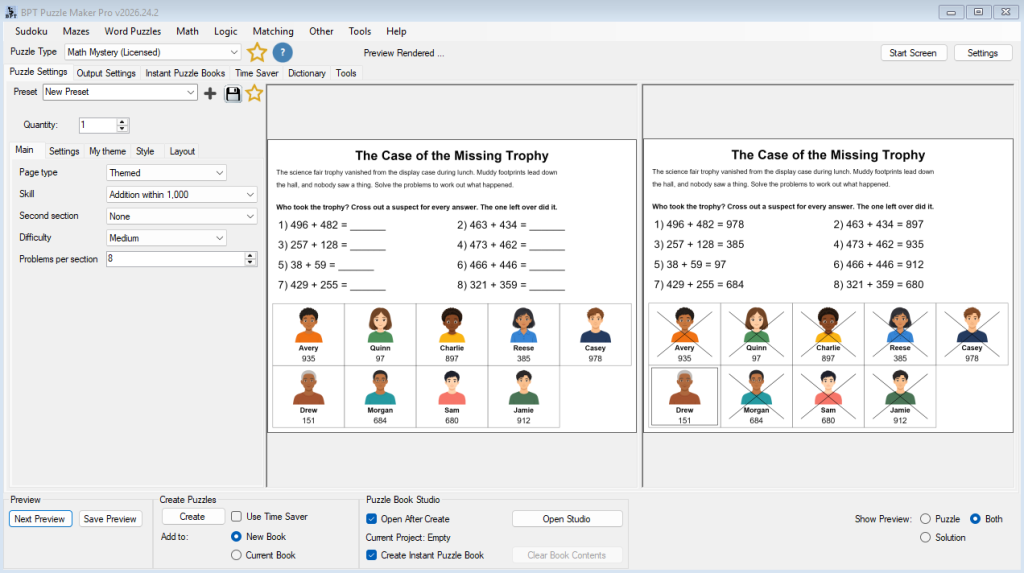
Pick Math Mystery from the Math menu. It is the module that makes the tile puzzle. The settings sit on tabs: Main holds what the page practises; Settings holds how it is arranged and the options for Themed and Secret message pages; Style and Layout work as in your other modules; and on Creative and above, My theme holds your own themes. Preview and Create sit at the bottom of the main window, as usual.
Choose the Page Type
On the Main tab, set Page type to Elimination (the default), Themed or Secret message. The rest of the setup follows from this choice: Themed pages use the theme settings, Secret message pages use the message settings, and both live on the Settings tab.
Pick a Skill and a Difficulty
Skill decides what the problems practise; the default is Multiplication facts. Difficulty is Easy, Medium (the default) or Hard, and each skill maps it onto its own range of numbers.
The skills come from the worksheet modules in the product:
- Simple Math — Multiplication facts, Division facts, Mixed multiplication and division, Addition within 1,000, Subtraction within 1,000, Multiply by multiples of ten, Addition within 10,000.
- Visual Fractions — Fractions: name the shaded part (each problem is a shaded picture).
- Time Practice — Elapsed time (answers in minutes).
- Story Math — Word problems: buy and total, make change, share equally, compare.
- Bar Model Math (Creative and up) — Bar model: find the whole, Bar model: find the missing part, Bar model: subtraction, Bar model: mixed, Ten frame: addition, Number line: addition.
Most skills run at all three levels. Three combinations to plan around: Division facts starts at Medium, the Word problems skills run at Easy and Medium, and Ten frame: addition is Easy only. Pick one of those at a level it does not offer and the run tells you so with the reason, so you can change the skill or the level.
Add a Second Section (Optional)
Second section adds another block of problems with its own tile band. Leave it at None for a one-section page, or choose any skill to pair two skills on one page — multiplication with elapsed time, addition with fractions. Both sections use the page’s difficulty and the same problem count, so pick two skills that both exist at that level.
On a Themed page the second section’s tiles are places: the first section finds who, the second finds where. On an Elimination page each section has its own leftover number. A Secret message page is a single section, so leave Second section at None there.
Set the Problem Count
Problems per section runs from 4 to 15, default 8. Each section prints one more tile than it has problems.
How many problems fit depends on the skill, because a skill needs enough different answers to fill the tiles without repeating. Most skills hold 15 at every level they run at. The ones that hold fewer:
- Word problems: share equally — up to 4.
- Division facts — up to 7 at Medium and 10 at Hard.
- Fractions: name the shaded part and Elapsed time — up to 6 at Easy.
- Multiplication facts and Mixed multiplication and division — up to 12 at Easy.
Ask for more than a skill can hold and the run names the largest count that fits rather than padding the page. With two sections, the smaller of the two sets the ceiling.
Arrange the Page
The Settings tab sets the layout. Problem columns runs from 1 to 3 (default 2): one column gives long word problems a full line each, and three suits short facts. Tiles places the tile band Below the problems (the default) or Above the problems.
Choose a Theme and Pictures (Themed Pages)
Under Themed pages only on the Settings tab, Theme picks the story: The Missing Trophy (the default, with school places), The Great Cookie Caper (bakery places) or The Museum Mix-Up (museum places). Each comes with a short story, a question over the suspects and another over the places, 16 suspects and 16 places, so even a 15-problem section has a full band.
Pictures chooses how the suspects and places are drawn: Colour (the default) or Line art (black and white). Line art prints cleanly on a school copier and children can colour it in once the case is solved.
Write the Secret Message (Secret Message Pages)
Under Secret message pages only on the Settings tab:
- Secret message — the message the answers spell, from 4 to 24 letters. Every letter is one problem, so the message sets the problem count and Problems per section does not apply. Spaces and punctuation print as you type them, so the solved message keeps its word breaks.
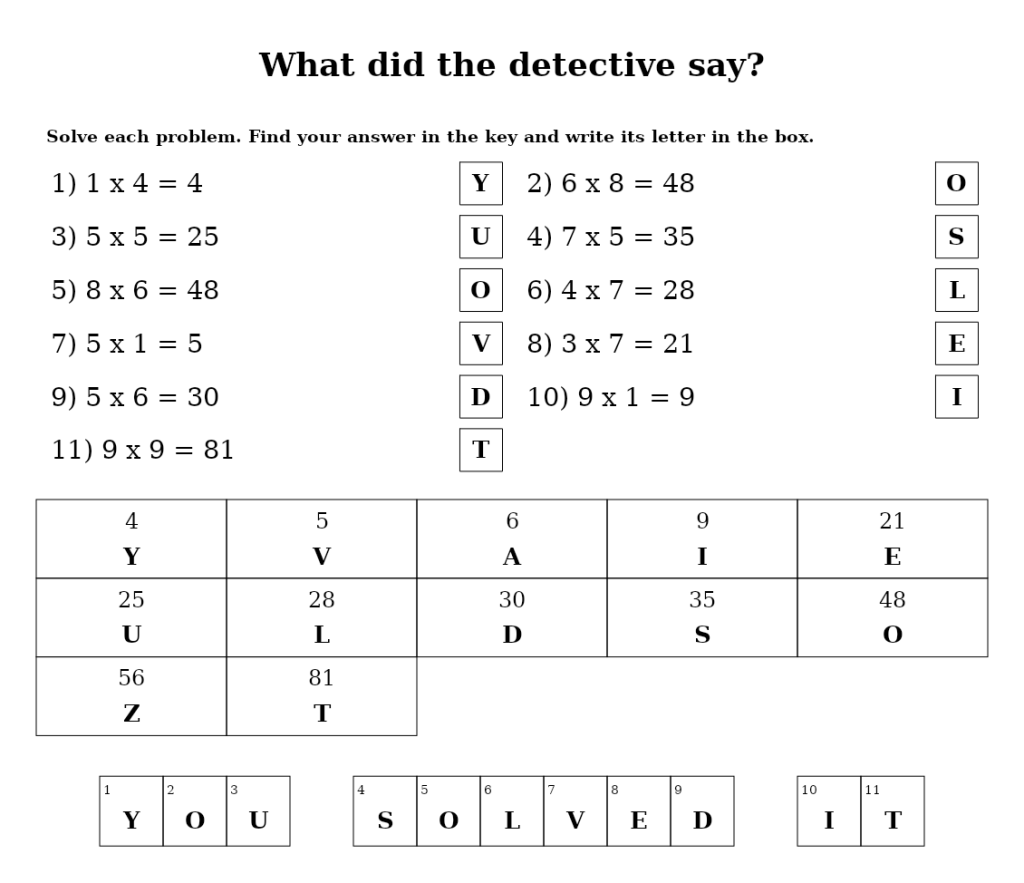
- Riddle — an optional question printed as the page’s title, which the message answers (“What did the detective say?” — “YOU SOLVED IT”).
- Extra key letters — 0 to 4 (default 2) letters in the key that are not in the message, so the last few letters cannot be guessed by elimination.
Each problem gets a letter box. The child finds the answer in the key, writes its letter in the box, and copies the letters into the numbered message strip at the bottom. A letter that appears more than once gets a different problem each time.
The skill has to offer enough different answers for the letters in the message plus the extras. If it cannot, the run says how many it needs: use a shorter message, fewer extra key letters, another skill or a higher difficulty.
Use Your Own Mystery Theme (Creative)
On Creative and above, the My theme tab lets you write the mystery yourself — your class pet as the culprit, your school’s rooms as the places. In the Mystery theme group, click New… to open the theme editor and fill in:
- Theme name — how it appears in your list.
- Page title — printed at the top of the page.
- The story — one sentence per line, up to 4. Keep the suspects out of it, or the page gives the answer away; the editor flags a story that names one.
- Question over the suspects and Question over the places — leave them empty to use the standard wording (“Who did it? Cross out a suspect for every answer. The one left over did it.” and “Where did it happen? Cross out a place for every answer. It is the one left over.”).
- Suspects — one name per line, 5 to 16. Places — optional, 5 to 16, needed when the page has a second section.
For pictures, click Update pictures under a list, then click a box to choose a picture file or one of the built-in pictures. Pictures are optional: a tile without one prints its name and number. The editor lists anything that still needs fixing as you type, and Save becomes available once the list is empty.
Back on the tab, tick Use my own theme, pick the theme, and set Page type to Themed. Your theme replaces the built-in one. Edit… and Delete manage saved themes; a preset or Time Saver row keeps its own copy of the theme it was saved with.
Use Your Own Story Theme for Word Problems (Creative)
The same tab’s Story theme for word problems group sets the people and things in the Word problems skills. These are the same story themes Story Math and Time Practice use, so a theme written once works in all three. Click New… and give it a theme name, at least three people, and the things to count, share and buy — each with its singular and plural, a price range and a quantity range. Tick The things have prices for buying and making-change problems. Tick Use my own theme and pick it; every word-problem section on the page then uses it.
Style the Page
The Style tab works as in your other modules. Math Mystery adds the tile fill and border, the line used for the answer-key marks, and a separate font for each text block: problems, word problems, section banners, tiles, tile names, story title and story. A thicker answer-key line makes a marked key easier to read at a glance. The full workflow is in How to Customize Puzzle Designs in Puzzle Maker Pro.
Set the Title
Titles live on the Layout tab. Math Mystery offers:
- Math Mystery — the module name, as the default title
- Custom — your own text, such as “Mystery Monday: Week 3”
The same options fill the description, which defaults to “Solve each problem and cross out its answer. One tile will be left over.” The story title on a Themed page and the riddle on a Secret message page print as part of the page itself. How Smart Titles work is covered once in How to Create Smart Puzzle Titles in Puzzle Maker Pro. The Layout tab also holds the crop control and a Use branding toggle that applies your branding template to this collection’s images.
Generate and Read the Answer Key
Set the quantity and press Create in the Create Puzzles panel at the bottom of the main window. Each page comes with its answer key, written to your output folder in the formats you set: PNG or JPG, plus SVG and print PDF. The worksheet and its answer key are separate files, so you can print the pages for the class and keep the keys for yourself.
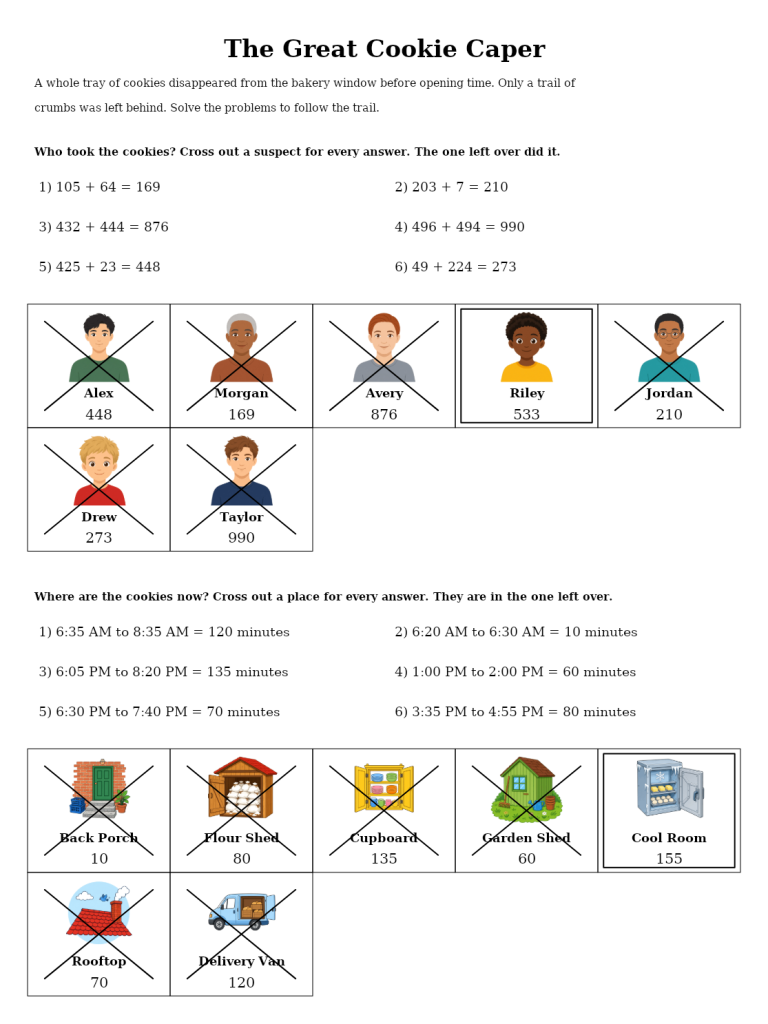
On an Elimination or Themed key, every answer is written into its blank, every matched tile is crossed out, and the leftover tile is outlined, so you can mark a page by checking the one tile the child left standing. On a Secret message key, the answers are written in, every letter box is filled, and the message strip at the bottom reads in full.
Make Many Pages
One Create with the quantity set to the number of pages produces the whole set, each page generated anew with its own answer key. Tick Create Instant Puzzle Book in the Puzzle Book Studio panel next to Create, and Instant Puzzle Books assembles the run into a book PDF with the trim size and margins set on the main window’s Instant Puzzle Books tab (the whole route from one page to a book is in How Puzzle Maker Pro Works), and Puzzle Book Studio lets you edit the book page by page.
On Productivity, Time Saver runs many different setups in one pass. Each row is a complete Math Mystery configuration — its own page type, skills, difficulty, theme or message — so a term’s worth of mysteries is a list of rows: Elimination warm-ups, a Themed page per unit, a Secret message to finish. Rows keep the own themes they were set up with. The workflow is in How to Batch Create Puzzles with Time Saver.
How the Worksheet Modules Fit Together
Every Math Mystery skill comes from a worksheet module, and each of those modules also opens on its own from the Math menu (Bar Model Math on Creative and above), where it makes a page of numbered problems of one kind with its answer key. Use the worksheet module for straight practice and Math Mystery when you want the same skill wrapped in a puzzle:
- Simple Math — arithmetic facts and multi-digit addition and subtraction: How to Create Simple Math Worksheets in Puzzle Maker Pro
- Visual Fractions — shaded fraction pictures: How to Create Fraction Worksheets with Visual Fractions in Puzzle Maker Pro
- Time Practice — elapsed time: How to Create Elapsed Time Worksheets in Puzzle Maker Pro
- Story Math — themed word problems: How to Create Word Problem Worksheets with Story Math in Puzzle Maker Pro
- Bar Model Math (Creative and up) — bar models, ten frames and number lines: How to Create Bar Model Worksheets in Puzzle Maker Pro
Outcome
You have a set of Math Mystery pages — Elimination, Themed or Secret message — each checked before printing, each with an answer key that shows the crossed tiles and the leftover or the finished message. Print them as worksheets or drop the run into Instant Puzzle Books or Puzzle Book Studio for a finished book.
FAQ
Why does a run refuse my skill, difficulty or problem count?
Some skills run at only some levels, and some hold fewer than 15 problems because they have fewer different answers. The message names the reason and, for the problem count, the largest number that fits, so you can change one setting and run again.
Can I put two different skills on one page?
Yes. Choose a Second section on the Main tab. Both sections use the page’s difficulty and problem count; on a Themed page the second section’s tiles are places.
Can I print the pages in black and white?
Yes. For Themed pages, set Pictures to Line art (black and white) on the Settings tab, and the suspects and places print as outlines a child can colour in.
Which edition do I need for my own suspects or the Bar Model skills?
Creative. It adds your own mystery themes with your own pictures, your own story themes for word problems, and Bar Model Math with its six Math Mystery skills. Productivity adds Time Saver for many different pages in one run.
Can a child find the leftover without doing the math?
Not reliably. On Elimination and Themed pages every answer crosses exactly one tile, the leftover matches no answer, and it is never a number a common slip lands on, so the only dependable route to it is solving the problems. On a Secret message page the message itself is the check: a slip shows up as a letter that does not fit.