

Summary: Story Math turns arithmetic into short stories — buying muffins, getting change from a note, sharing toys, comparing collections — and prints a numbered worksheet with a matching answer key. This walkthrough takes you from an empty Story Math screen to a finished set of sheets: choose the problem type and theme, set the problem count and columns, add answer tiles if you want them, and, on Creative, write a story theme of your own.
Overview
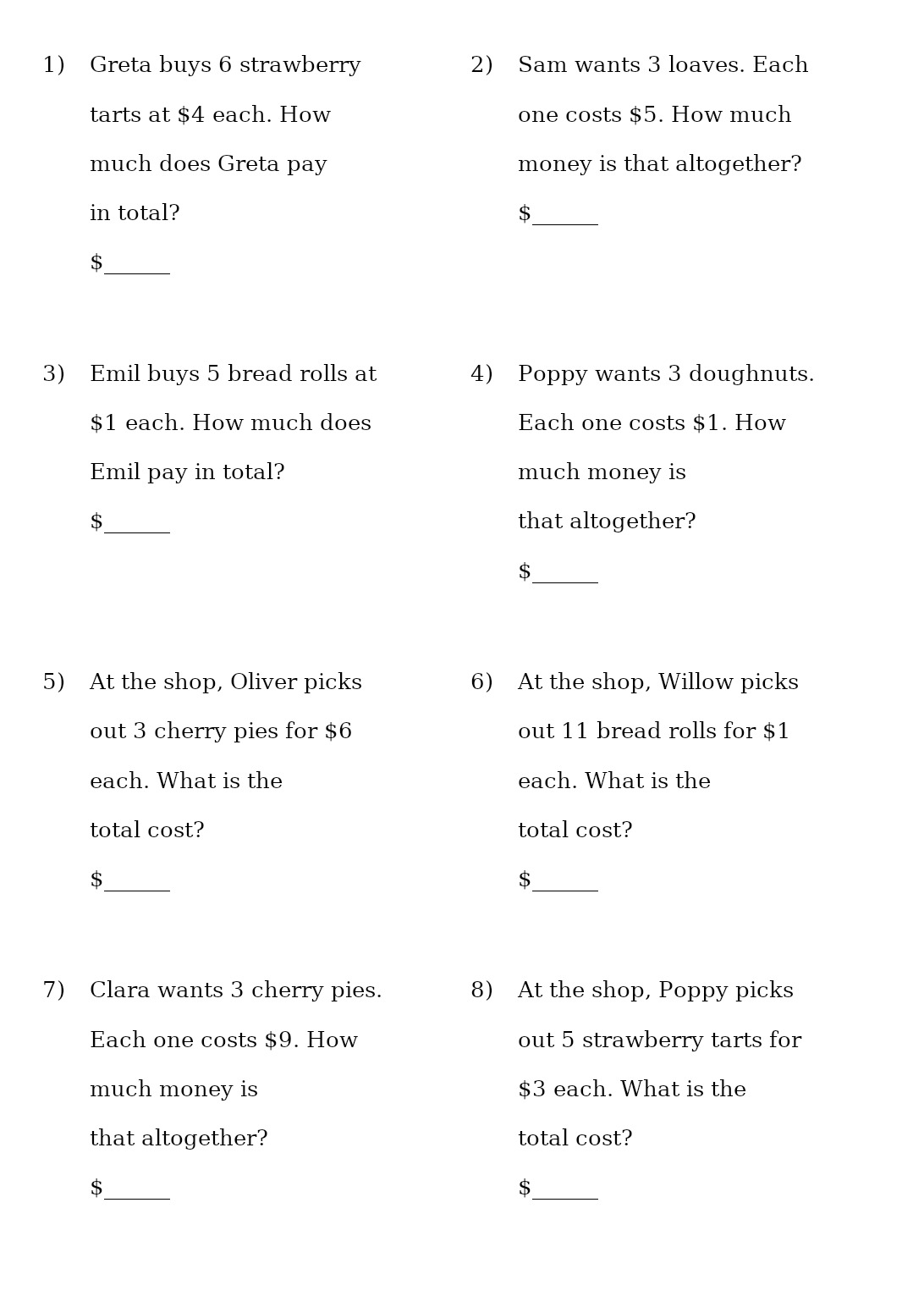
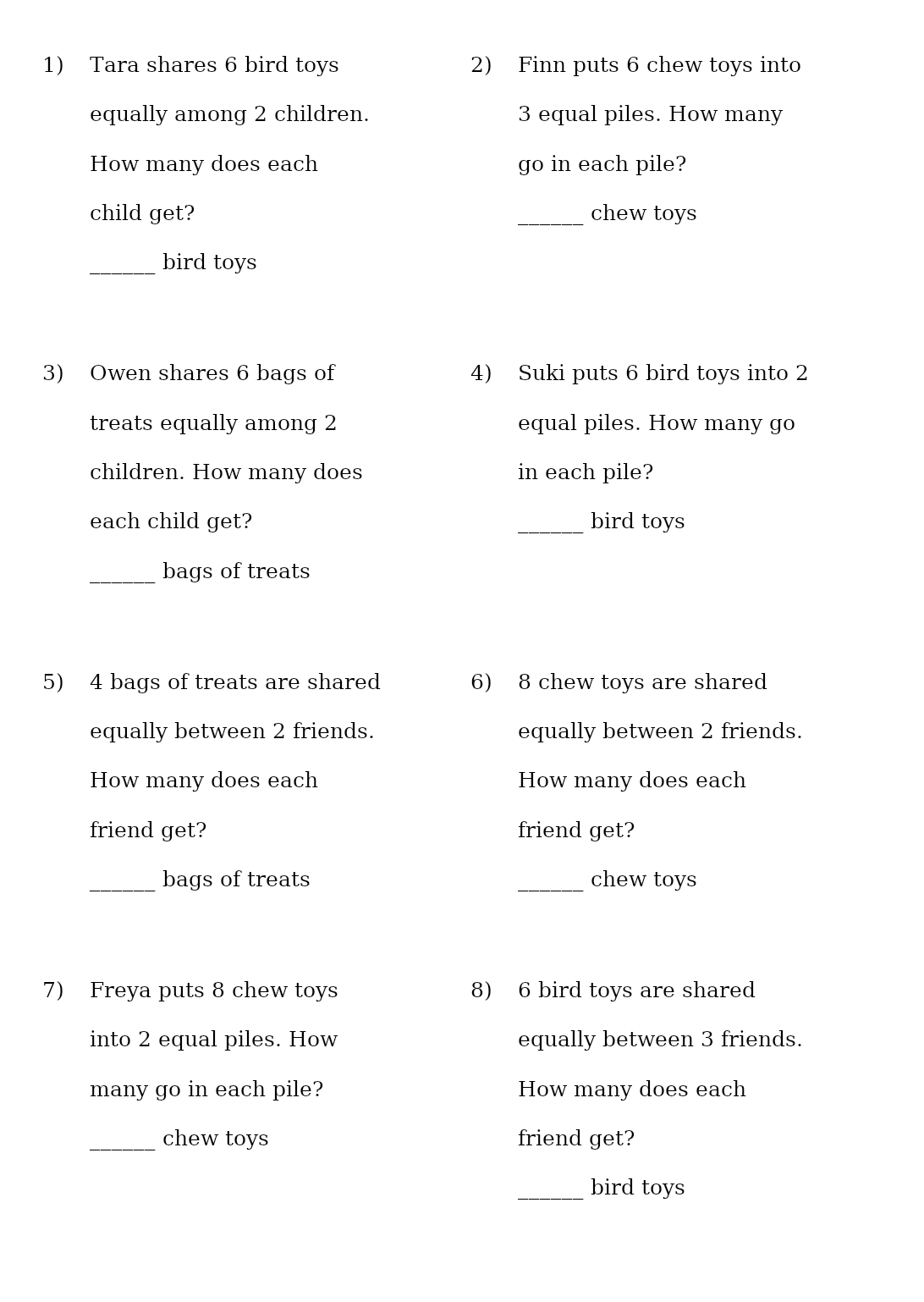
Every Story Math sheet is one page of word problems of the same kind, told with the people and things of one theme. “Greta buys 6 strawberry tarts at $4 each. How much does Greta pay in total?” is a Bakery problem; “Tara shares 6 bird toys equally among 2 children. How many does each child get?” is a Pet Shop one. The generator picks the names, the things and the numbers from the theme, and every answer is a whole number. The stories repeat the name (“How much does Greta pay”) rather than using he or she, so any name fits any story.
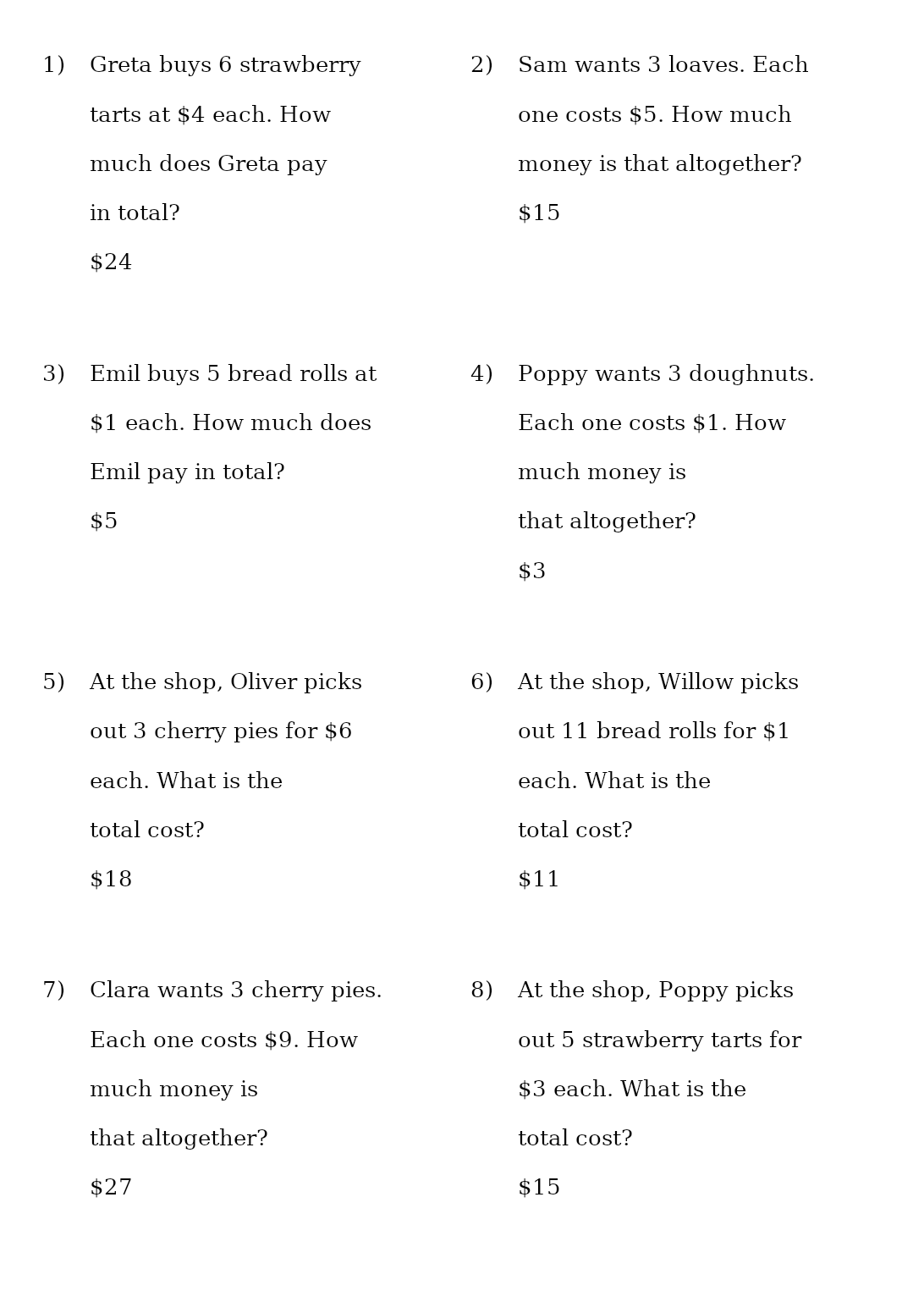
Each problem prints with its number and an answer line under the story. Money answers get the currency symbol in front of the line (“$“); counting answers get the thing’s name after it (“ bird toys”), so the child writes only the number. The answer key is the same sheet with each answer written where the line was.
Required Modules
Story Math comes with Math Mystery ([/product/math-mystery-generator/ - confirm]) and opens in every edition of it. A free demo lets you try the settings first; it makes one watermarked sheet at a time.
Math Mystery (Standard) makes Story Math worksheets from all six built-in themes, exports PNG, JPG, SVG and print PDF with the answer key, and includes Instant Puzzle Books and Puzzle Book Studio for one collection. Creative adds your own story themes, which work in Story Math, in Time Practice and in the word-problem sections of Math Mystery pages. Productivity adds Time Saver for batch runs, Puzzle Book Studio Productivity for books that combine several collections, and JSON export. Creative + Interactive and Productivity + Interactive add online play, so the puzzles can be played in a web browser. You can move up to any higher edition at any time after you buy: up the ladder for more production power, and/or add Interactive for online play. See Puzzle Maker Pro Editions Explained.
Commercial rights: Math Mystery and Math Mystery Creative both carry the licence to sell the finished worksheets and books you make to your own readers and customers, including KDP, Etsy and Teachers Pay Teachers. Productivity adds the right to sell or supply the generated puzzles themselves to other publishers and sellers.
Preparation
The built-in themes supply every name, thing and price, so you can open the module and generate straight away. Decide two things first: which kind of problem the sheet practises (one kind per sheet), and how many sheets you need. Each sheet comes with its own answer key, so a set of 10 worksheets is 20 pages.
If you plan to write your own theme on Creative, have ready: at least three names, a short list of things with their plurals (“loaf / loaves”), and a sensible price and quantity range for each.
Step-by-Step Instructions
Open Story Math
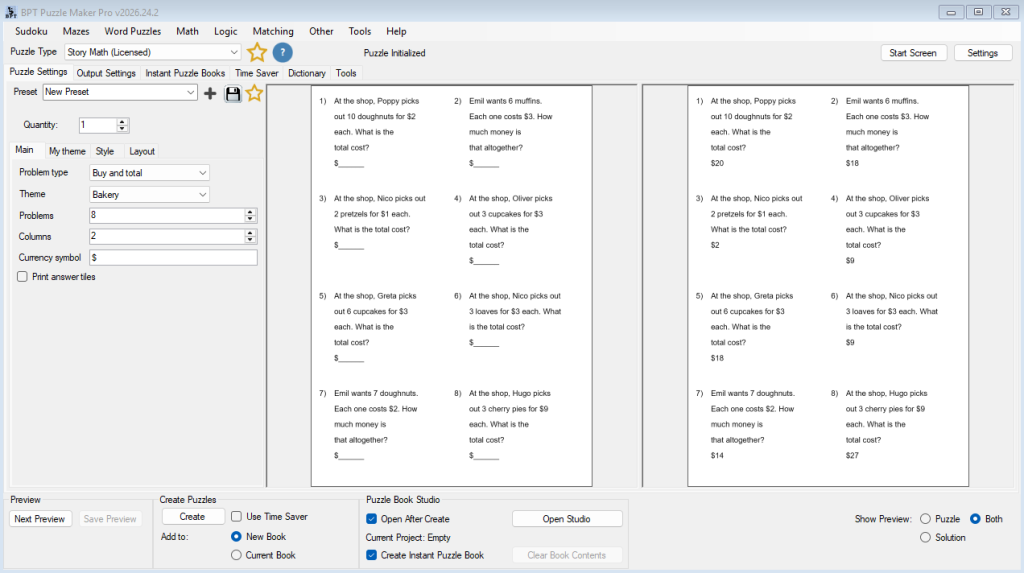
Open the Math menu and choose Story Math; it sits there with Simple Math, Time Practice and Math Mystery. Story Math opens on the Main tab, with Style and Layout beside it, plus a My theme tab for your own themes. The Main tab holds, top to bottom: Problem type, Theme, Problems, Columns, Currency symbol and Print answer tiles.
Choose the Problem Type
Problem type sets what every problem on the sheet asks. There are four:
- Buy and total — buying several of one thing at one price: “Maya buys 3 muffins at $2 each. How much does Maya pay in total?” The answer is quantity × price. This is the default.
- Make change — paying with a note and working out the change: “Hugo buys 2 cupcakes at $3 each and pays with a $10 note. How much change does Hugo receive?” The note is $5, $10, $20 or $50 (Pet Shop uses $10, $20 or $50) and always more than the bill.
- Share equally — sharing a set of things into equal groups: “12 cookies are shared equally between 4 friends. How many does each friend get?” The total always divides exactly, so there are no remainders.
- Compare — one person has some, another has more: “Ana has 9 stickers. Liam has 5 more. How many does Liam have?” The answer is the two numbers added.
Buy and total and Make change are money problems; Share equally and Compare are counting problems. Each type has three ways of telling the story, mixed through the sheet, so a page does not read as the same sentence eight times.
Choose the Theme
Theme decides who is in the stories and what they buy, share and count. The default is Bakery. Each theme offers the problem types that suit it:
- School Day — all four types; things such as pencils, notebooks, stickers and crayons, priced $1 to $4.
- Home Day — Share equally and Compare; things such as cookies, berries, marbles, storybooks and toy cars. Pick it with Buy and total or Make change and the run stops with a message naming the theme and the problem type, so choose another theme or type.
- Sports Day — all four types; things such as tennis balls, medals, caps and jerseys, priced $1 to $12, with shares among as many as 5.
- Bakery — all four types; things such as muffins, loaves, croissants, cherry pies, bread rolls, strawberry tarts and doughnuts, priced $1 to $9.
- Pet Shop — all four types; things such as chew toys, collars, leashes, bird toys, bags of treats, puppies and kittens, priced $2 to $12, with change from a $10, $20 or $50 note.
- Party — all four types; things such as balloons, party hats, gift boxes and goodie bags, priced $1 to $4, shared among 2, 3, 4 or 6.
The theme is Story Math’s difficulty setting: it sets every price and quantity range. School Day, Home Day, Bakery and Party are the easier themes; Sports Day and Pet Shop are the harder ones. On the easier themes a Buy and total answer is at most $30, while Sports Day reaches $48 and Pet Shop $36, because jerseys, puppies and kittens cost up to $12 each. On every theme a Compare answer is at most 24 and a Share equally problem shares 12 things or fewer. Start with the easier themes and move to Sports Day and Pet Shop once the smaller amounts are secure; Buy and total, Make change and Share equally lean on times tables and division facts, so use them once those are taught.
Set the Currency Symbol
Currency symbol is the sign printed in front of prices and on the money answer lines. It starts as $; type € or £ and the same problems print with that sign. Amounts are always whole units (“$3”, never “$3.00”).
Set the Problems and Columns
Problems sets how many stories go on a sheet, from 1 to 40 (default 8). Columns sets how many columns they run in, from 1 to 6 (default 2). Eight problems in two columns, as in the examples here, fill one page. Longer sheets work well in two or three columns; one column suits a large-print page.
Every problem is numbered automatically, and every sheet in a run prints its stories at the same text size, so a stack of worksheets looks consistent from the first page to the last.
Add Answer Tiles (Optional)
Tick Print answer tiles to add a band of tiles below the problems: one tile per problem, carrying that problem’s answer, in shuffled order. Children solve a story, find its answer on a tile and cross it off — a built-in self-check, and with the tiles cut out, a matching activity. The tiles print with a border so they are easy to cut.
With tiles on, every answer on the sheet is different, so each tile matches exactly one problem. That caps how many problems a sheet can hold. Money and comparing types have plenty of different answers; sharing has only a few small shares, so keep a Share equally sheet with tiles short. If you ask for more than the theme can give, the run tells you the largest count that fits.
Set the Quantity and Preview
Set the quantity, then Preview or Create as in any module. Within one Create the generator avoids repeating a sheet, so make a long series in one Create rather than several separate runs.
Write Your Own Story Theme (Creative)
On Creative and up (editions), the My theme tab lets you write a theme with your own people and things — your class’s names, the snacks at your school fair, the items in a farm shop. Your theme replaces the Theme chosen on the Main tab.
Click New… to open the theme editor:
- Theme name — the name you will pick it by, up to 24 characters. It also fills in the Theme part of a Smart Title.
- People (one name per line) — at least 3 names, each up to 24 characters. Names are paired with any thing at random, so they need no particular order. The stories repeat each name, so short names suit early readers.
- Things to count, share and buy (Story Math) — one row per thing, with One and Many (the singular and the plural written out, “berry” and “berries”), Price from and Price to, and How many from and How many to. Prices and quantities are whole numbers from 1 to 99. Story Math needs at least one thing.
- The things have prices (adds buying and making-change problems) — leave it ticked for a shop theme and all four problem types are available. Untick it for things nobody buys (leaves, shells, stars on a chart) and the theme offers sharing and comparing.
- Activities that take a while (Time Practice) — optional for Story Math. Each row has Activity (“spelling test”), What they did (“took a spelling test”) and Someone does it (untick for something nobody does, such as “started raining”). Add activities and the same theme also writes elapsed-time stories in Time Practice.
A theme holds up to 30 people, 30 things and 30 activities. Because any name can appear with any thing or activity, write the words without he, she, his or her. The editor lists anything that needs fixing as you type, shows where the theme works (“Works in: Story Math …, Time Practice …”), and enables Save once the theme is ready.
Back on the tab, tick Use my own theme, pick your theme from the list and generate. Edit… and Delete manage saved themes. Your themes are saved on your computer and reused on every later sheet, and the chosen theme travels inside your presets and Time Saver rows, so a saved setup always comes back with its own people and things.
The same themes appear in Time Practice (which uses the activities) and in Math Mystery, where the Story theme for word problems group on its My theme tab uses your theme for the word-problem sections of a mystery page.
Style the Sheet
The Style tab has one font control that restyles the problems, the answers on the key and the answer tiles together, so the whole page stays in one typeface. The other rows set the canvas, the cell fill, the grid line (off by default, since a worksheet reads best without boxes) and the answer tile border. The full workflow is in How to Customize Puzzle Designs in Puzzle Maker Pro.
Set the Title
Smart Titles on the Layout tab combine Story Math, the theme and the problem type in every combination, for example “Story Math Bakery Buy Total”, “Pet Shop Share Equally” or “Make Change”; the default is Custom (“Story Math”), and with your own theme in use the theme part is your theme’s name. See How to Create Smart Puzzle Titles in Puzzle Maker Pro.
Generate and Export
Each sheet comes with its answer key, in PNG or JPG, plus SVG and print PDF if you want them.
Scale Up to a Workbook
On every edition, Instant Puzzle Books turns a run into a book PDF with your trim size, margins and page layout, and Puzzle Book Studio assembles one collection into a finished interior with front matter, page numbers and the answer keys at the back.
On Productivity, Time Saver runs several setups in one pass, one row per configuration — for example a money unit with rows for Bakery Buy and total, Bakery Make change and Pet Shop Make change, then a sharing unit on Home Day. Each row keeps its own theme, including your own. Puzzle Book Studio Productivity then combines the collections into one workbook. The workflow is in How to Batch Create Puzzles with Time Saver.
Outcome
You have a set of numbered word-problem worksheets, each with a matching answer key, told in the theme you chose — built-in or your own — with optional answer tiles for self-checking. Every answer is a whole number the problem’s own story produces, and the sheets are ready for Instant Puzzle Books or Puzzle Book Studio.
FAQ
Can I mix problem types on one sheet?
Each sheet practises one problem type. For a mixed unit, make one run per type — or, on Productivity, one Time Saver row per type — and put the sheets together in Puzzle Book Studio.
Which theme suits younger children?
School Day, Home Day, Bakery and Party are the easier themes, with Buy and total answers of $30 or less. Sports Day and Pet Shop, with prices up to $12, are the next step.
Can I use euros or pounds?
Yes. Type the symbol into Currency symbol on the Main tab. Amounts stay in whole units, so no decimals appear.
Why does the run refuse my answer-tile sheet?
With tiles on, every answer on the sheet must be different, and some problem types have only a few different answers in a theme, sharing above all. The message names the largest count that fits; lower Problems or turn tiles off.
Can I use my own names and objects?
Yes, on Creative and up, on the My theme tab. A theme needs at least three people and one thing for Story Math; add activities and it works in Time Practice as well.
How do Story Math problems appear in Math Mystery?
A Math Mystery page can use four word-problem skills — Word problems: buy and total, make change, share equally and compare — at Easy or Medium, built from the same themes, and their answers solve the mystery like any other section. See How to Create Math Mystery Worksheets in Puzzle Maker Pro.