

Summary: Doppelblock puzzles are created in Puzzle Maker Pro by choosing a grid size and a difficulty, then exporting each puzzle with its matching solution as PNG, JPG, SVG or PDF. This tutorial covers the settings, the head start and every-line-clued options, styling the black cells, setting a Smart Title, exporting, and scaling one puzzle up to a finished book.
Overview
The Doppelblock module generates complete Doppelblock puzzles: it places two black cells in every row and column, fills the rest with numbers, works out the sum clues and decides which clues and cells to print. Every puzzle has exactly one solution that can be reached by logic alone, and it is graded Easy, Medium or Hard by the solving techniques it needs. The Creator has four tabs: Main, Settings, Style and Layout. New to the puzzle itself? Read How Doppelblock Puzzles Work first.

Required Modules
- Doppelblock — pick your edition on the product page.
Doppelblock Classic makes Doppelblock puzzles at every grid size and difficulty, with the head start and every-line-clued options and the full Style tab, and exports PNG, JPG, SVG and PDF with a matching solution. It includes Instant Puzzle Books, a book PDF assembled straight from your current settings, and Puzzle Book Studio for designing a book page by page from one puzzle collection. Doppelblock Productivity includes everything in Doppelblock Classic and adds Time Saver for saved multi-row runs, Puzzle Book Studio Productivity for books built from several collections, and JSON export. Add Interactive to either edition for online play, so readers can solve the same puzzles in the browser on your own WordPress site with the BookPublisherTools plugin.
A simple rule for choosing: if each of your books uses one size and difficulty, Doppelblock Classic does everything you need. If you want one book that mixes sizes or difficulties, or many sets at once, choose Doppelblock Productivity.
You can upgrade later: move up to Productivity, add Interactive, or both. Start with the edition that fits what you are making today. See Puzzle Maker Pro Editions Explained.
Commercial rights: Doppelblock Classic lets you sell the finished puzzle products you make, such as books, worksheets and printable packs, to your own readers and customers, including on KDP, Etsy and Teachers Pay Teachers. Doppelblock Productivity adds the right to sell or supply the puzzles themselves to other publishers and sellers.
Want to see it first? The free demo makes one watermarked puzzle at a time, so you can check the settings and the output before buying.
Preparation
Decide who the puzzles are for and where they will be printed. Everything comes from the generator, so there is nothing to gather first. The pages use black, white and gray only, so they print well in a black-and-white interior. On the answer key the black cells are filled and the solved numbers are printed in gray, so readers can tell your printed givens from the answers at a glance.
Choose the Main Settings

On the Main tab:
- Grid size: from 4 × 4 to 9 × 9, default 6 × 6. Each row and column uses the numbers from 1 to two less than the grid size, so a 5 × 5 grid uses 1 to 3 and a 9 × 9 grid uses 1 to 7. A 4 × 4 or 5 × 5 suits beginners and children; 6 × 6 and 7 × 7 fill a page comfortably; 8 × 8 and 9 × 9, with clues up to 21 and 28, give a long solve for experienced solvers.
- Difficulty: Easy (the default), Medium or Hard. Easy puzzles need only direct reasoning from the clues and the black-cell count. Medium adds listing the ways a whole row or column can still work. Hard adds testing one cell’s value against the clues. Every difficulty is available at every grid size. Hard puzzles take about a second each on 8 × 8 and around ten seconds on 9 × 9, so start a large 9 × 9 Hard batch and let it run.
The preview on the right shows a puzzle straight away: click Next Preview for another, and switch Show Preview to Both to check the answer key before you create a batch. Then set the number of puzzles in the Quantity box above the tabs. Every puzzle in a run is different: no board repeats within one Create run.
Head Start and Every Line Clued
The Settings tab holds two options that change how a puzzle is presented:
- Head start: None (the default), Low, Medium or High. It prints some of the solution’s black cells on the puzzle so solvers have somewhere to begin. On a 6 × 6 grid, Low prints 3 of the 12 black cells, Medium 6 and High 9. A head start makes the puzzle easier, so with a large head start a Hard request can come out at Medium; the difficulty in a Smart Title always shows the level the puzzle was actually made at.
- Every line clued: when ticked, every row and every column gets its sum clue. Extra clues give solvers more to start from; the grade still comes from the Difficulty setting, so pair it with Easy for a gentle first chapter. For a classroom set, try 5 × 5 Easy with Every line clued and a Low head start.

Style the Puzzle

On the Style tab you set the Font for the clues and printed numbers, the Background Color and Cell Fill Color, and the width and color of the Cell Border (the thin grid lines) and the outer puzzle border. The Black cell color is in the Colors group and sets the color of the black cells on both the puzzle and the answer key; the default is a deep near-black. The example above uses navy to match a book cover.
Full styling options are covered in How to Customize Puzzle Designs.
Set the Title
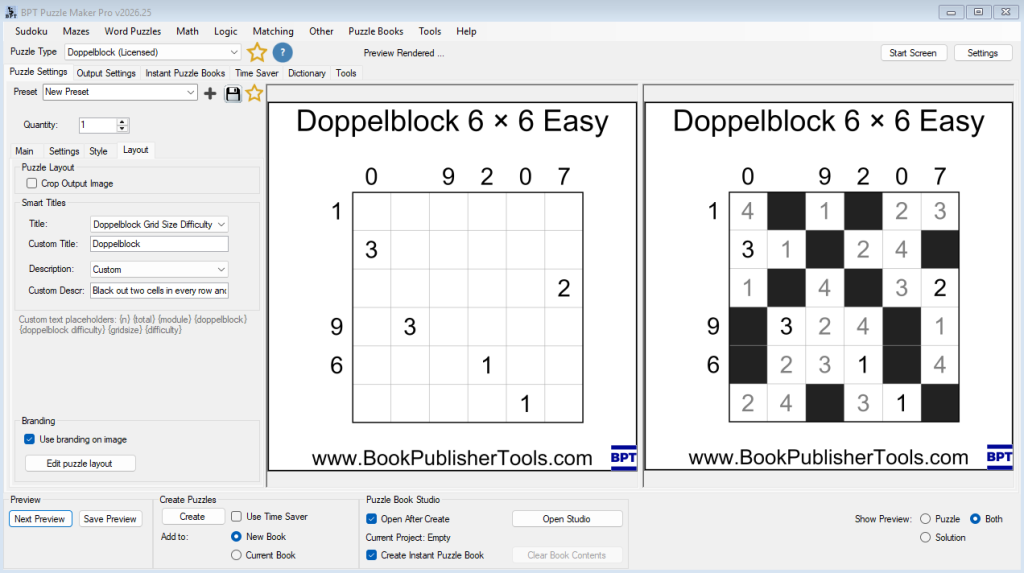
On the Layout tab, choose a Smart Title. A Smart Title fills in each puzzle’s details automatically, so every page in a batch is labelled correctly. Doppelblock offers these options; the examples are for a 6 × 6 Medium puzzle:
- Doppelblock Grid Size (the default) — e.g. “Doppelblock 6 × 6”
- Doppelblock — e.g. “Doppelblock”
- Doppelblock Difficulty — e.g. “Doppelblock Medium”
- Doppelblock Grid Size Difficulty — e.g. “Doppelblock 6 × 6 Medium”
- Grid Size, Difficulty and Grid Size Difficulty — the same details without the puzzle name, e.g. “6 × 6 Medium”
- Custom — your own text, used exactly as typed (the default reads “Doppelblock”)
The same options are available for the puzzle Description. Its default is Custom, with a short rules reminder that explains the black cells, the numbers and the sum clues, which is a good line to print under every puzzle in a book. The Layout tab also has Crop Output Image, which trims the outer margin. See the Smart Titles tutorial for how the control works.
Generate and Export
The preview updates as you change settings, and Show Preview switches between the Puzzle, the Solution or Both side by side. When the look is right, choose your formats on the Output Settings tab at the top of the main window (it is shared by every puzzle type): PNG, JPG, SVG or PDF for worksheets and books on every edition, plus:
- JSON (Productivity) — the puzzle data, for your own apps and workflows.
- HTML (with Interactive) — the files that drive online play, exported as HTML plus a ZIP for the BookPublisherTools WordPress plugin. In the browser, solvers type numbers or mark black cells, and the player flags a third black cell, a repeated number or a wrong sum as they go.
Then click Create. Puzzle and solution files are saved to your output folder, one pair per puzzle.
Scale to a Book
Once one puzzle looks right, the same settings make the whole book. On every edition, Instant Puzzle Books builds a ready-to-print book PDF from your current settings, with a title page, table of contents and a footer on every puzzle that tells your reader which page its solution is on. Puzzle Book Studio lets you open that set and design the book page by page.
With Doppelblock Productivity, build a graded book that mixes sizes and difficulties in one pass:
- Save one preset per chapter from the toolbar at the top of the panel, for example
Doppelblock-Easy-5x5,Doppelblock-Medium-6x6andDoppelblock-Hard-7x7. Each Time Saver row starts from a preset. - In Time Saver, add one Doppelblock row per chapter from those presets, each with its own quantity.
- Generate the set. Every puzzle keeps its matching solution, and no board repeats within a row.
- Open Puzzle Book Studio Productivity with the generated set to lay out the puzzle and answer-key pages and combine it with your other puzzle collections, then render the book PDF.
Time Saver and Puzzle Book Studio each have their own tutorial. See Further Reading.
Outcome
You can now create Doppelblock puzzles at any size from 4 × 4 to 9 × 9 and at three difficulties, give solvers a head start or a clue on every line, color the black cells to suit your book, title them automatically, export them with their answer keys, and scale them up to a finished puzzle book — with Doppelblock Productivity, one that gets harder chapter by chapter.
FAQ
What grid sizes can I make?
Any square grid from 4 × 4 to 9 × 9. The numbers in each line run from 1 to two less than the grid size.
How is the difficulty decided?
By the techniques a solver needs. Easy puzzles need only direct reasoning from the clues and the black cells, Medium puzzles add listing the ways a row or column can work, and Hard puzzles add testing a single cell’s value. Larger grids also take longer to solve.
Will every puzzle have exactly one solution?
Yes. Every Doppelblock puzzle is checked so that logic alone leads to its single solution, at every size and difficulty.
How do I make puzzles easier for beginners?
Choose a small grid and Easy, then add a Head start on the Settings tab to print some black cells, or tick Every line clued so every row and column has its sum.
Can I change the color of the black cells?
Yes. The Black cell color is in the Colors group on the Style tab, along with the font, background, cell fill and border settings.
Can my readers solve the puzzles online?
Yes, with an Interactive edition. Export HTML and publish the puzzles on your own WordPress site with the BookPublisherTools plugin, where readers type numbers and mark black cells in the browser.
How do I make a book that gets harder as it goes?
Use Doppelblock Productivity: add one Time Saver row per difficulty or size, then combine the rows into one book in Puzzle Book Studio Productivity. With Doppelblock Classic, build each book from one set — for example a 5 × 5 Easy book for beginners and a 7 × 7 Hard book for experienced solvers.