

Summary: Visual Fractions makes fraction-picture worksheets: each problem is a shape cut into equal parts with some parts shaded, and the child writes the fraction it shows, or adds or subtracts two of them. This walkthrough covers choosing the shapes, the three modes, the answer boxes, the difficulty, the page layout and the optional answer tiles, then exporting worksheets and answer keys and assembling them into a print-ready workbook.
Overview
A Visual Fractions worksheet is a numbered grid of fraction models. Each model is a shape — a bar, a grid, a polygon, a circle or a cross — cut into equal parts, with some of those parts shaded. Under each problem sits an answer block for the child to write in, and every worksheet comes with a matching answer key that fills the blocks in.
You choose which shapes may appear, whether the child names one fraction or adds or subtracts two, how the answer is written, how large the denominators get, and how many models fit on the page. Press Create and you get as many worksheets as you ask for, each with its own answer key — and, with Create Instant Puzzle Book ticked in the Puzzle Book Studio box at the bottom of the main window, the same Create also assembles them into a book PDF.
As a guide (check it against your own curriculum): Identify pages at Easy — halves to fifths — suit a first fractions unit around grades 2–3; Medium, with sixths to eighths, suits grade 3; Add and Subtract pages and the tenths and twelfths of Hard suit grade 4.

Required Modules
Visual Fractions comes with every edition of Math Mystery. It is also part of Visual Math Models, which opens Visual Fractions together with Bar Model Math; inside Math Mystery, Bar Model Math comes with Creative and up. A free demo lets you try the module first; it makes one watermarked worksheet at a time.
Standard makes the full Visual Fractions worksheet — all five shapes, all three modes, both answer styles and the answer tiles — exports PNG, JPG, SVG and print PDF with the answer key, and includes Instant Puzzle Books, a book PDF assembled straight from your current page settings, and Puzzle Book Studio for one collection. Productivity adds Time Saver for batch runs, JSON export, and Puzzle Book Studio Productivity, which combines several collections into one book. You can move up to any higher edition later. See Puzzle Maker Pro Editions Explained.
Commercial rights: Standard and Creative both carry the licence to sell the finished worksheets and books you make to your own readers and customers, including KDP, Etsy and Teachers Pay Teachers. Productivity adds the right to sell or supply the generated puzzles to other publishers and sellers.
Preparation
Visual Fractions draws its own shapes and picks its own fractions, so there is nothing to collect before you start. Decide three things first:
- What the child is practising — naming a shaded fraction, or adding or subtracting fractions with the same denominator.
- Which denominators they know — halves to fifths, up to eighths, or up to twelfths. This sets the difficulty.
- How many worksheets you need — one for tomorrow’s lesson, or a stack for a workbook.
Step-by-Step Instructions
Open the Module
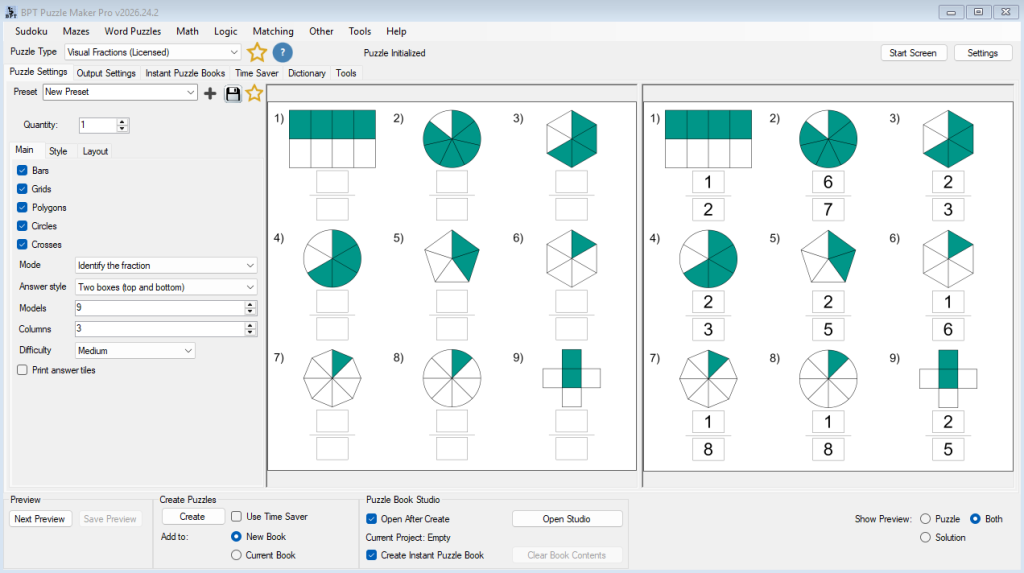
Open the Math menu and choose Visual Fractions. Every worksheet setting below is on the Main tab; colours are on Style, and titles on Layout.
Choose the Shapes
Five checkboxes decide which shapes may appear on the worksheet. All five are on by default, and the generator mixes them on one page. Every shape is cut into equal parts, which is what makes “count the shaded parts” a correct way to read it.
- Bars — a rectangle cut into equal vertical strips. Any number of strips the difficulty allows, from 2 up.
- Grids — a rectangle cut into rows and columns, at least two of each, laid out as evenly as possible: 2×2 for quarters, 2×3 for sixths, 2×4 for eighths, 3×3 for ninths and 3×4 for twelfths.
- Polygons — a pentagon, hexagon or octagon cut into triangles from the centre to each corner. At Hard, the pentagon and hexagon can also be cut to the middle of each side, giving tenths and twelfths.
- Circles — a pie cut into equal slices, always at least four.
- Crosses — five equal squares in a plus shape, so a cross always shows fifths.
Keep at least one box ticked. Narrowing the set is a good way to match a lesson: Bars and Grids alone suit a first look at fractions, while Circles and Polygons give the “pizza slice” pictures many children know.
The shaded parts sit together as one block — from the left on bars and grids, from the top and going clockwise on circles and polygons, and from the centre on a cross — so the child counts one run of shading. A model is never fully shaded and never empty.
Choose the Mode
Mode sets what each problem asks:
- Identify the fraction (the default) — one model per problem. The child writes the fraction the shaded parts show.
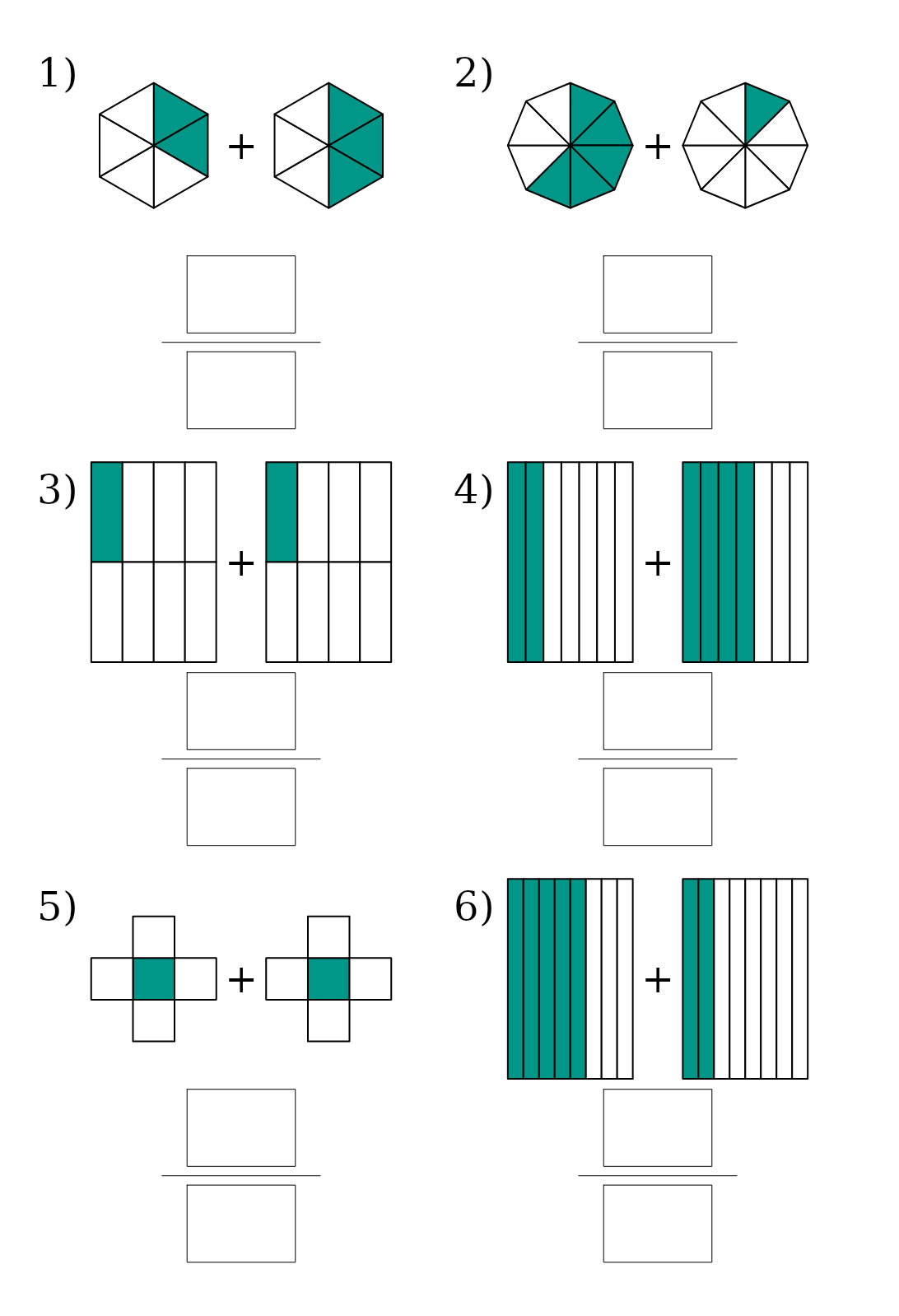
- Add (like denominators) — two models per problem with a plus sign between them. The child adds the two shaded fractions.
- Subtract (like denominators) — two models per problem with a minus sign between them. The left model always has more shaded parts than the right, so the difference is never negative.
In both operation modes the two models are the same shape cut the same way — two hexagons in sixths, two bars in sevenths — so the child sees the same unit twice and counts across it. The answer is always a proper fraction: a sum never fills the whole shape, and a difference never comes to zero.
Answers in Simplest Form
The answer key writes every answer in simplest form, in all three modes, and the answer tiles use the same form. A grid with 2 of its 8 parts shaded is answered 1/4, and in the Add example above, 5/8 + 1/8 on two octagons is answered 3/4.
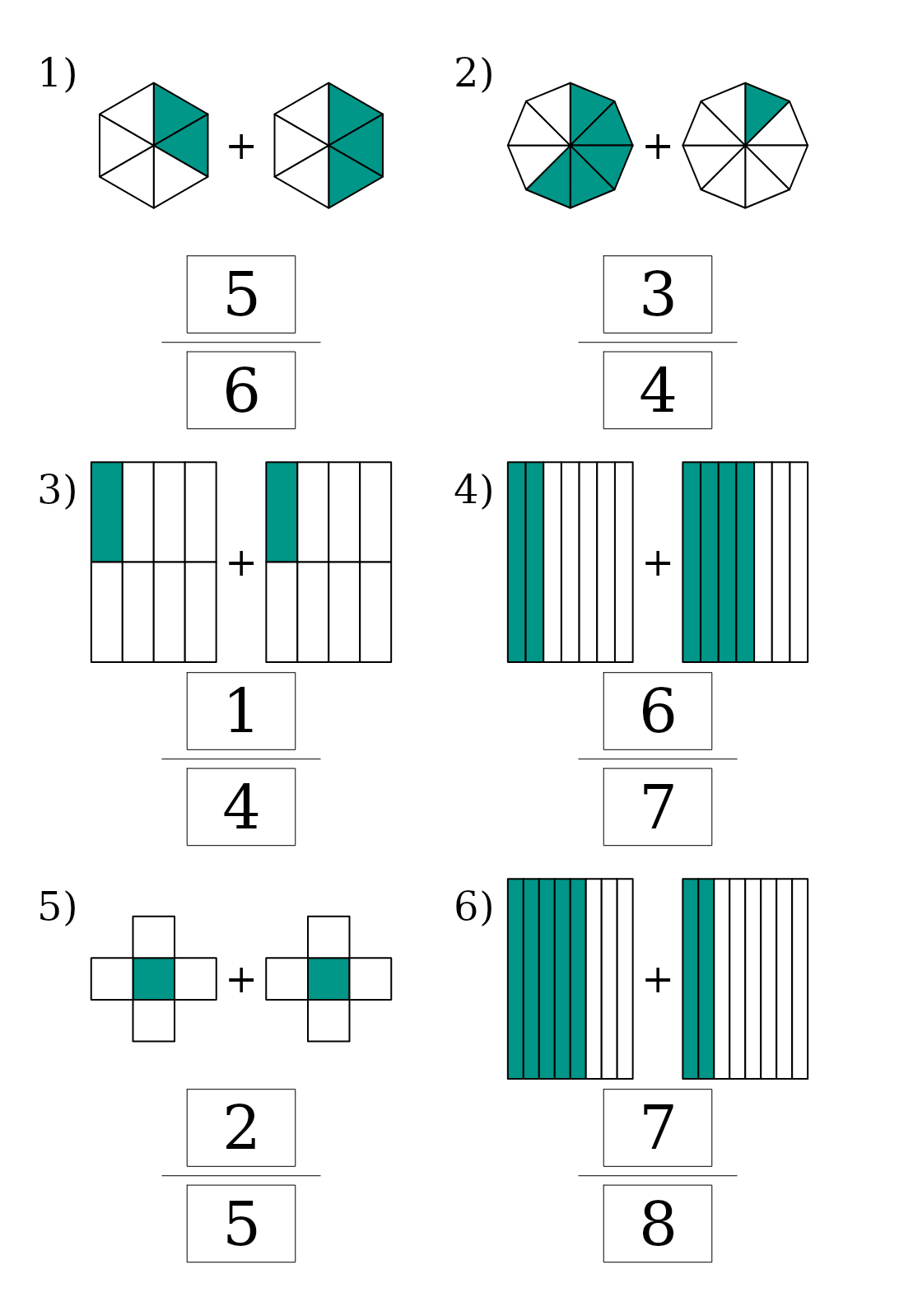
That makes every sheet a simplifying lesson as well as a counting one: the child counts 6 shaded eighths, then sees that 6 of 8 is the same amount as 3 of 4. Without tiles, you can also give credit for the counting step when you mark. With tiles on, the child has to simplify to find their tile, so the tile band doubles as a simplifying check.
For a class that is only starting to simplify, set the difficulty to Easy and keep to Identify mode: there the only answer that simplifies is two shaded parts out of four (2/4, keyed 1/2), which bars, grids and circles can show. Pentagons and crosses, always in fifths, never need it.
Choose the Answer Style
Answer style sets the block the child writes into:
- Two boxes (top and bottom) (the default) — a numerator box above a denominator box with a fraction bar between them. This is the form young children are taught to write into, and the answer key puts one number in each box.
- One blank — one wider box the child writes the whole fraction into, such as 3/4. The answer key writes it the same way.
The style changes only the printed block; the answers are the same either way.
Set the Difficulty
Difficulty sets how many parts a shape may be cut into — the denominator the child counts before any simplifying:
- Easy — 2 to 5 parts: halves, thirds, quarters and fifths.
- Medium (the default) — 2 to 8 parts, adding sixths, sevenths and eighths.
- Hard — 2 to 12 parts, up to twelfths.
Difficulty and your shape choice work together. Grids need a part count that splits into rows and columns, so at Easy a grid is always 2×2; polygons start at five parts, so at Easy the only polygon is the pentagon. The cross is fifths at every level.
Set the Number of Models and Columns
Models is how many problems go on one worksheet, from 1 to 40 (default 9). Columns sets how many models sit side by side, from 1 to 6 (default 3). The models fill the page row by row: nine models in three columns gives the three-by-three page in the Identify example.
For add and subtract, which put two shapes in each problem, two or three columns keep the shapes large enough to count; the Add example uses six problems in two columns. For an Identify page aimed at young children, nine to twelve models in three columns leaves room for big handwriting.
Every problem is numbered — 1), 2), 3) and so on in its top-left corner, on the worksheet and on the answer key — so you can mark by number or ask a class to “do the first row”.
Add Answer Tiles (Optional)
Tick Print answer tiles to add a band of tiles below the models: one tile per problem, each showing that problem’s answer in simplest form, such as 3/4, shuffled into a random order. The child finds the tile that matches each answer and crosses it off — a quick self-check, and a way to make a worksheet feel like a game. The tiles print in rows of up to five, with a border so they can be cut into cards.
With tiles on, every answer on the worksheet is different, so each tile matches exactly one problem. That caps the number of models at the number of different fractions your settings can reach. Easy has nine in Identify mode — 1/2, 1/3, 2/3, 1/4, 3/4, 1/5, 2/5, 3/5 and 4/5 — and fewer if you narrow the shapes or switch to Add or Subtract. If you ask for more models than that, the run tells you the largest number that fits and suggests fewer models, a higher difficulty or tiles off. Medium and Hard leave far more room.
Style the Page
The Style tab sets how the worksheet looks. The two settings that matter most here are Shaded part (a mid-tone teal by default) and Unshaded part (white). Next to them are the Shape outline, the Answer box lines, the Answer tile border, the canvas and cell fill colours, and one font setting that covers the answers, the tiles and the problem numbers together.
If you print in black and white, check that your shaded colour still stands out clearly from the unshaded one. Save the result as a preset from the buttons at the top of the screen, and your house style comes back with one click next time. The full styling workflow is covered in How to Customize Puzzle Designs in Puzzle Maker Pro.
Set the Title
Titles live on the Layout tab. The default is Custom with the text “Visual Fractions”; type over it with your own title, such as “Fractions Practice”, or pick a Smart Title that fills itself in from the worksheet’s settings:
- Custom — your own text (the default)
- Visual Fractions — e.g. “Visual Fractions”
- Visual Fractions Difficulty — e.g. “Visual Fractions Medium”
- Difficulty — e.g. “Medium”
The description below the title starts as Custom with “Write the fraction each shaded shape shows — and where there are two, add or subtract them.”, which fits all three modes; the same options are offered for it. How Smart Titles work is covered once in How to Create Smart Puzzle Titles in Puzzle Maker Pro.
The Layout tab also holds the crop setting and a Use branding toggle (off unless you turn it on), which paints your branding template onto this collection’s worksheet image.
Generate and Export
Set the quantity box to the number of worksheets you want and use the Preview and Create buttons at the bottom of the main window: Preview shows a single worksheet, and Create makes the full run, each worksheet a newly generated set of problems.
Each worksheet is written to your output folder with its answer key, in the formats from your output settings. On Productivity you can also tick JSON export.

Scale Up to a Workbook
One Create with the quantity set to the number of worksheets you need produces the whole run. Leave Create Instant Puzzle Book ticked in the Puzzle Book Studio box at the bottom of the main window (it is on by default) and Instant Puzzle Books assembles the run into a book PDF with the answer keys, at the trim size, margins and page layout set under the Settings button at the top right. Puzzle Book Studio adds page-by-page editing — your own title page, instruction pages and section breaks.
To grade a workbook — Easy identify pages first, then Medium, then addition and subtraction — make each section as its own run. On Productivity, Time Saver does that in one pass: each row is a complete Visual Fractions setup with its own mode, shapes, difficulty and count, and Visual Fractions rows can sit beside rows from other modules. The workflow is covered in How to Batch Create Puzzles with Time Saver.
Visual Fractions on a Math Mystery Page
The same fraction pictures also appear inside Math Mystery as the skill Fractions: name the shaded part. On an Elimination page, each problem is one shaded shape, and the fraction the child works out is the tile they cross off on the way to the solution. See How to Create Math Mystery Worksheets in Puzzle Maker Pro.
Outcome
You have a set of numbered fraction worksheets, each with its matching answer key: shaded models in the shapes you chose, at the denominators you chose, asking the child to name, add or subtract fractions, with optional answer tiles for self-checking. Drop them into Instant Puzzle Books or Puzzle Book Studio for a print-ready workbook, or print them straight off for class.
FAQ
Are the parts of each shape really equal?
Yes. Every shape is cut into parts of equal area — strips, grid cells, slices, triangles from the centre of a regular polygon, or the five squares of a cross — so counting the shaded parts always gives the true fraction.
Why does the answer key say 1/2 when the picture shows 2 of 4 shaded?
The answer key and the tiles write every answer in simplest form, while the picture keeps the parts it was drawn with. The child counts 2 of 4 and then simplifies to 1/2 — counting and simplifying on one sheet.
Which grades does it suit?
As a guide: Easy Identify pages (halves to fifths) suit grades 2–3, Medium suits grade 3, and Add, Subtract and Hard pages suit grade 4. Check the bands against your curriculum and pick the difficulty that matches the denominators your class knows.
How many problems fit on one worksheet?
From 1 to 40 models, in 1 to 6 columns. With answer tiles on, each answer must be different, so the limit is the number of different fractions your shapes and difficulty can reach — nine in Identify mode at Easy.
Can I print in black and white?
Yes. Set the Shaded part colour on the Style tab to a grey or black that stands out from the white unshaded parts, and the worksheet reads clearly on any printer.
Which edition do I need for a full workbook?
Every edition makes the worksheets and assembles them into a book with Instant Puzzle Books or Puzzle Book Studio. Productivity adds Time Saver, which builds a graded workbook from several different setups in one pass.