

Summary: This walkthrough takes you from an empty Block Views screen to a folder of print-ready spatial-reasoning puzzles with matching answer keys. You will pick the question, the format and the difficulty, choose colour or colouring-in pages, add a title that fills itself in, and export the whole run in one pass.
Overview
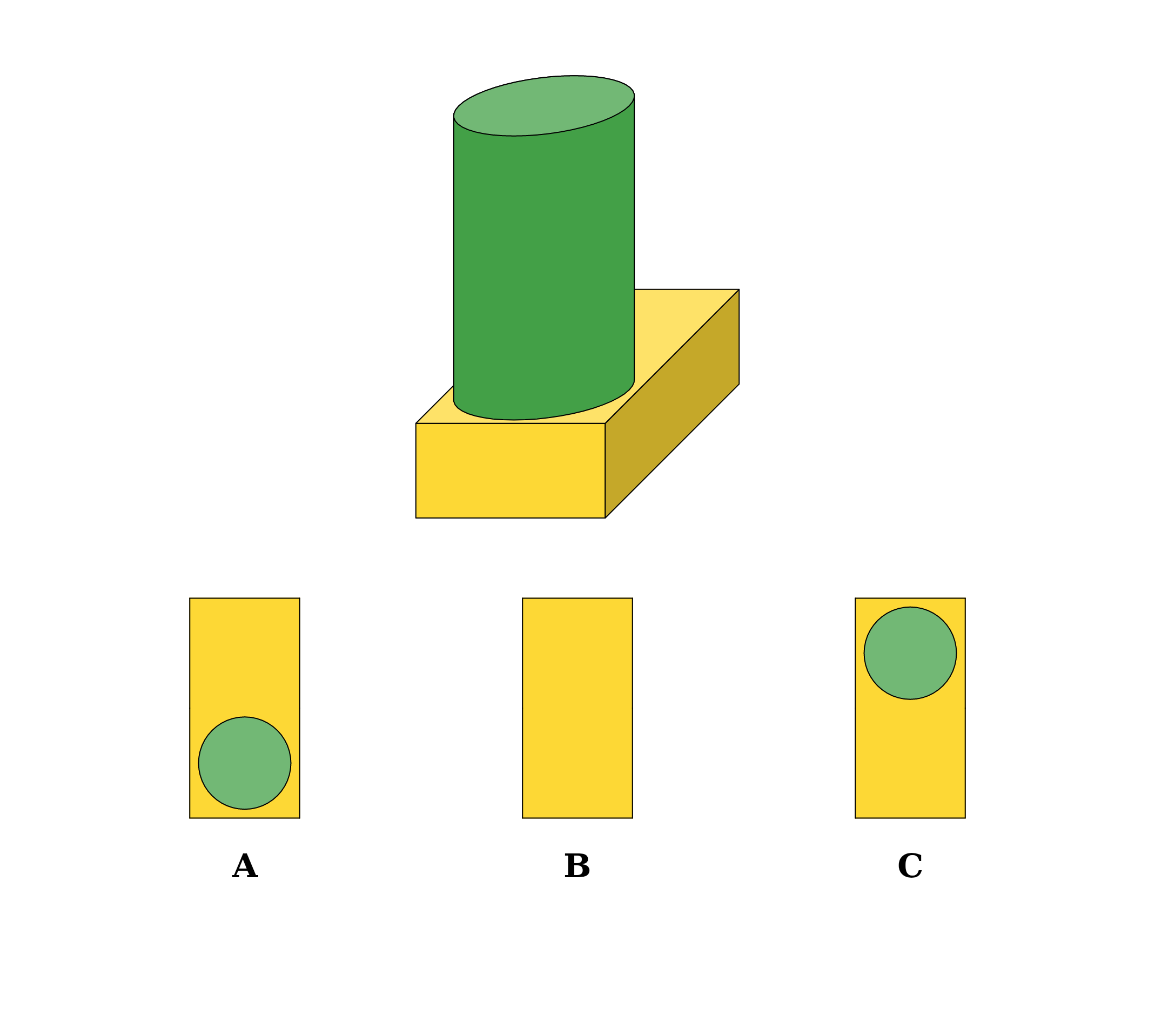
Block Views makes the “what does it look like from above?” puzzle that teachers, therapists and puzzle-book publishers usually have to draw by hand: a small building made of toy blocks, and its top view — or, on Creative, its front or side view. Every building is generated so that each block shows in the drawing, every wrong answer is a real building changed in one small way, and every puzzle has exactly one right answer — with its answer key written alongside it. A run of puzzles generates in seconds, so a worksheet pack is a coffee break rather than an afternoon at the drawing board.
If you want the solver’s side of it first, read How Block Views Puzzles Work.
Required Modules
Block Views — the module itself. A free demo covers every current module, so you can try the workflow before buying.
- Standard makes top-view puzzles — multiple choice in both directions (building to view and view to building) and matching worksheets — in colour or as colouring-in pages, with every block type and the Easy, Medium and Hard presets. It exports the static formats (JPG, PNG, SVG and print PDF), and includes Instant Puzzle Books and Puzzle Book Studio for a whole book from one puzzle collection.
- Creative adds the front view, the side view and mixed views, and full control on the Advanced tab — the number of blocks, how tall the buildings get, how many answers to offer and which trick answers to use.
- Productivity includes everything in Creative, and adds Time Saver for batch runs, JSON export, and Puzzle Book Studio Productivity, which combines several collections into one book.
- Creative + Interactive and Productivity + Interactive add online play, for multiple-choice sheets and matching worksheets alike.
You can move up to a higher edition later, so start with the one that fits what you are making today — see Puzzle Maker Pro Editions Explained.
Commercial rights: Standard and Creative both carry the licence to sell the finished puzzle products you make — books, worksheets and printable packs — to your own readers and customers, including KDP, Etsy and Teachers Pay Teachers. Productivity adds the right to sell or supply the puzzles themselves to other publishers and sellers.
Preparation
The generator builds every building from scratch, so there is nothing to collect first — open the module and you can generate. Decide two things up front: roughly how many puzzles you need, and whether the pages are for colour printing or colouring in, because that changes which trick answers the generator can use. Trim size, margins and page layout belong to the book stage, not this screen — Instant Puzzle Books and Puzzle Book Studio own them.
Step-by-Step Instructions
Open the Module
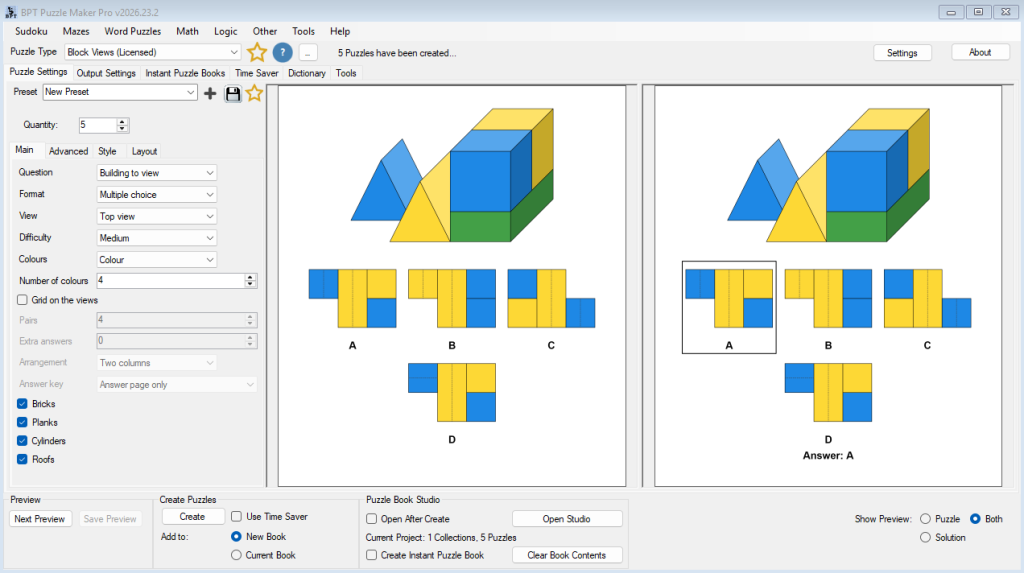
Pick Block Views from the puzzle list. The module screen opens with the preset buttons across the top, a quantity box, and a tab strip carrying Main, Advanced, Style and Layout.
Set the Quantity
Type how many puzzles this run should produce into the quantity box. The generator avoids repeating a building within a run, so a long batch stays varied.
Choose the Question
On the Main tab, Question sets which way round the puzzle asks:
- Building to view (the default) — the building is the clue, and the solver picks its view from the lettered options.
- View to building — the view is the clue, and the solver picks the building that has it.
The two directions practise the same skill from opposite ends, so a worksheet pack that alternates them keeps a learner thinking rather than pattern-matching.
Choose the View
View sets which side the building is seen from:
- Top view (the default) — straight down from above.
- Front view — straight at the front of the building.
- Side view — from the right-hand side, the side the 3D drawing shows.
- Mixed views — each puzzle in the run gets the top, front or side view, in a shuffled order, so every three puzzles have one of each.
Front, Side and Mixed are Creative views: on Standard the View box stays on Top view, and you can upgrade to Creative at any time to unlock them. The question printed on each sheet names its view — “Which building has this side view?” — so a solver always knows which side to picture, even in a mixed pack.
Choose the Format
Format decides what a page looks like:
- Multiple choice (the default) — one question per page, with lettered answers underneath.
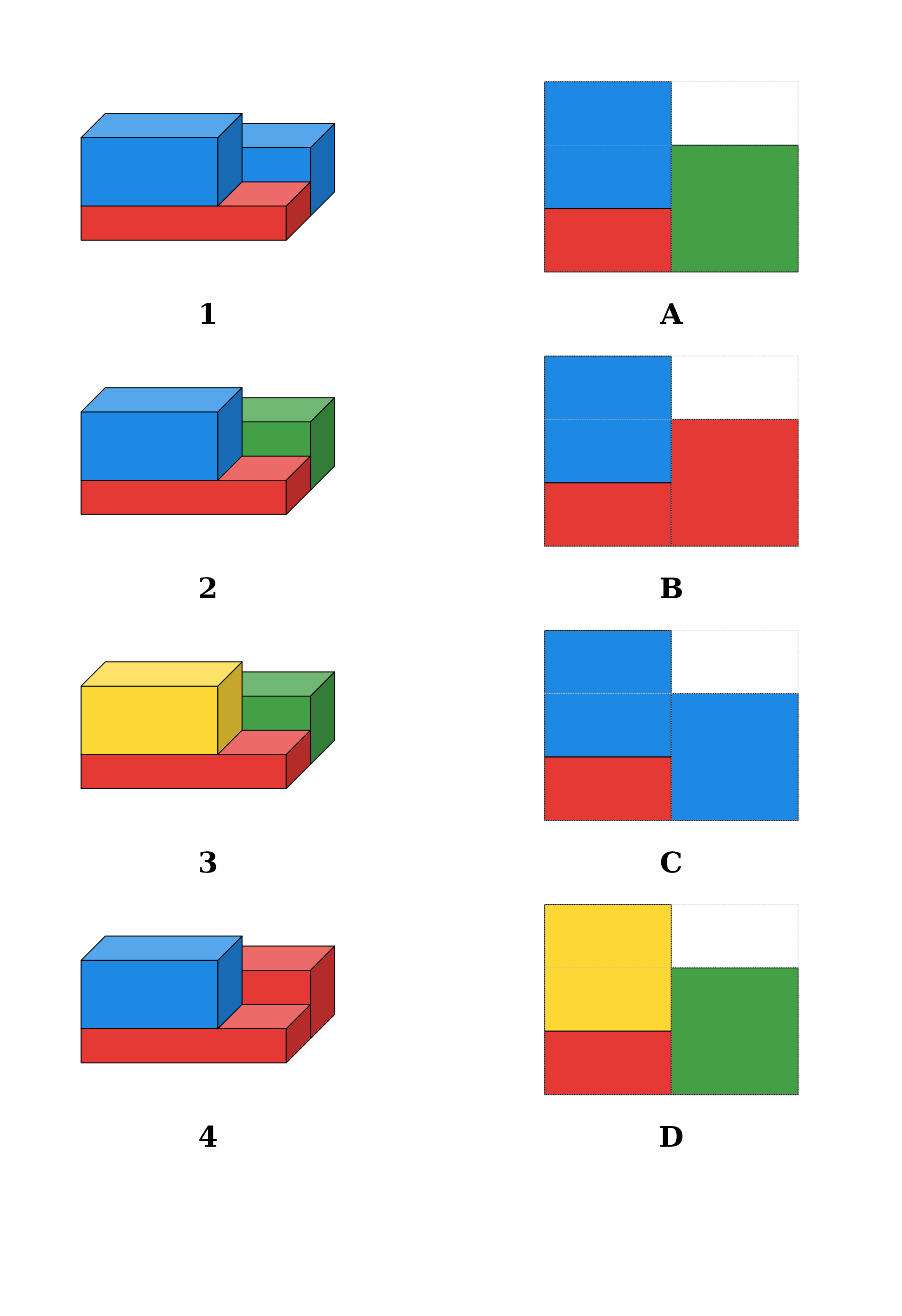
- Matching worksheet — several buildings and their views on one page, to pair up. The Matching settings further down the tab switch on when you choose it.

Set the Difficulty
Difficulty is Easy, Medium (the default) or Hard:
- Easy — two or three blocks, three answer options, and bold tricks such as a missing block or a building turned around.
- Medium — four or five blocks, four options, and subtler tricks such as two colours swapped or a quarter turn.
- Hard — six to eight blocks, up to three cubes tall with blocks stacked on blocks, four options, and the hardest tricks, including the mirror image.
Building a graded pack? Run one batch per level and keep them in order. On Productivity, Time Saver can run all the levels together, one row each — see the last step.
Colour or Colorable
Colours chooses the look of every block:
- Colour (the default) — blocks are filled in the block colours from the Style tab. Number of colours sets how many of the six colours a run uses, from 2 to 6.
- Colorable — blocks are drawn in outline only, so the page doubles as a colouring sheet once it is solved, and it prints cleanly in black and white.

On Colorable pages the generator leaves out the trick answers that only change colours, because there are no colours to compare — the tricks come from shape, position and direction instead.
Grid on the views draws a faint grid over each view, one square per cube, which helps younger children count squares and cubes.
Set Up a Matching Worksheet
With Format on Matching worksheet, four settings shape the page:
- Pairs — how many buildings to match with their views, from 3 to 6 (default 4).
- Extra answers — up to two pictures that match nothing, so a solver cannot finish the last pair by elimination.
- Arrangement — Two columns puts the buildings on the left and the shuffled views on the right, for drawing lines; Mixed grid shuffles everything into one numbered grid, like a classic worksheet.
- Answer key — Answer page only keeps the answers on the solution sheet; On the sheet prints them at the bottom of the page; On the sheet, upside down does the same, turned over, so a learner can check their own work.
The answer order is shuffled so no answer sits level with — or right after — its own question.
Choose the Blocks
The Blocks group lists the block types a building may use: Bricks, Planks, Cylinders and Roofs. Cubes are always used. All four are on by default. Cylinders and roofs leave the most readable marks — from above a circle and a dashed ridge line, from the front or side a dashed centre line, and a triangle where you see a roof end-on — so keep them on for younger solvers; turn them off for a pure cubes-and-bricks set.
Fine-Tune on the Advanced Tab (Creative)
The Advanced tab opens with Use difficulty preset, which is on by default — the difficulty then picks everything below it. Turn it off to set the details yourself:
- Blocks per building — 2 to 8.
- Highest stack (cubes) — 1 to 3.
- Answer options — 3 to 5, for multiple-choice pages.
- Wrong answers — tick the tricks you want: Mirror image, Turned around, Turned a quarter (square buildings only), A block missing, Cylinder moved or roof turned, A block in another colour, Two colours swapped, and Colour of the block underneath (top-view sheets only).
A multiple-choice page needs two to four different wrong answers, and a matching page needs a few different buildings, so keep enough tricks ticked to fill them. Mirror image, Turned around and Turned a quarter each make just one wrong answer per building, so pair them with a trick that varies — A block missing, Cylinder moved or roof turned, or one of the colour tricks. If none of the ticked tricks fits the sheet (only colour tricks on a Colorable sheet, say), the run uses A block missing; if the ticked tricks cannot fill the page, it tells you to turn on more.
This is where you build a focused drill — say, Mirror image with A block missing, for a learner who keeps reversing left and right.
Style the Page
The Style tab controls the look in plain groups: the font of the option letters, the canvas colour, Block colour 1 to 6, the Block fill (Colorable), and the lines — Block lines, Roof ridges and cylinder centre lines, the View grid and the Answer ring that marks the answer on the key.
Keep the block colours you use different from each other and from the canvas: a view is read by colour, so the run checks this before it generates and names the colour to change — two block colours that match, or a block colour that matches the canvas. For black-and-white printing, switch to Colorable rather than greying the colours.
Save the result as a preset from the buttons at the top of the screen, and the whole look comes back on the next pack with one click. The full styling workflow is covered in How to Customize Puzzle Designs in Puzzle Maker Pro.
Set the Title
Titles live on the Layout tab. The options are:
- Block Views — e.g. “Block Views”
- Top View — e.g. “Top View”
- Front View — e.g. “Front View” (for a front-view run)
- Side View — e.g. “Side View” (for a side-view run)
- Puzzle — e.g. “Puzzle”
- Custom — your own text. A new profile starts here, pre-filled with the title “Block Views” and the description “Which picture shows the top view of this building?” Leave that description as it is and each sheet prints its own question, naming its view — for example “Which building has this front view?” Type your own text and it prints exactly as you wrote it.
The same list also fills the puzzle’s description field. How the control works, and how to add numbering, is covered once in How to Create Smart Puzzle Titles in Puzzle Maker Pro.
The Layout tab also carries a Crop Output Image checkbox, which trims the exported image to the puzzle itself, and a Use branding on image toggle (off unless you turn it on) that paints your branding template onto this collection’s puzzle image.
Generate and Export
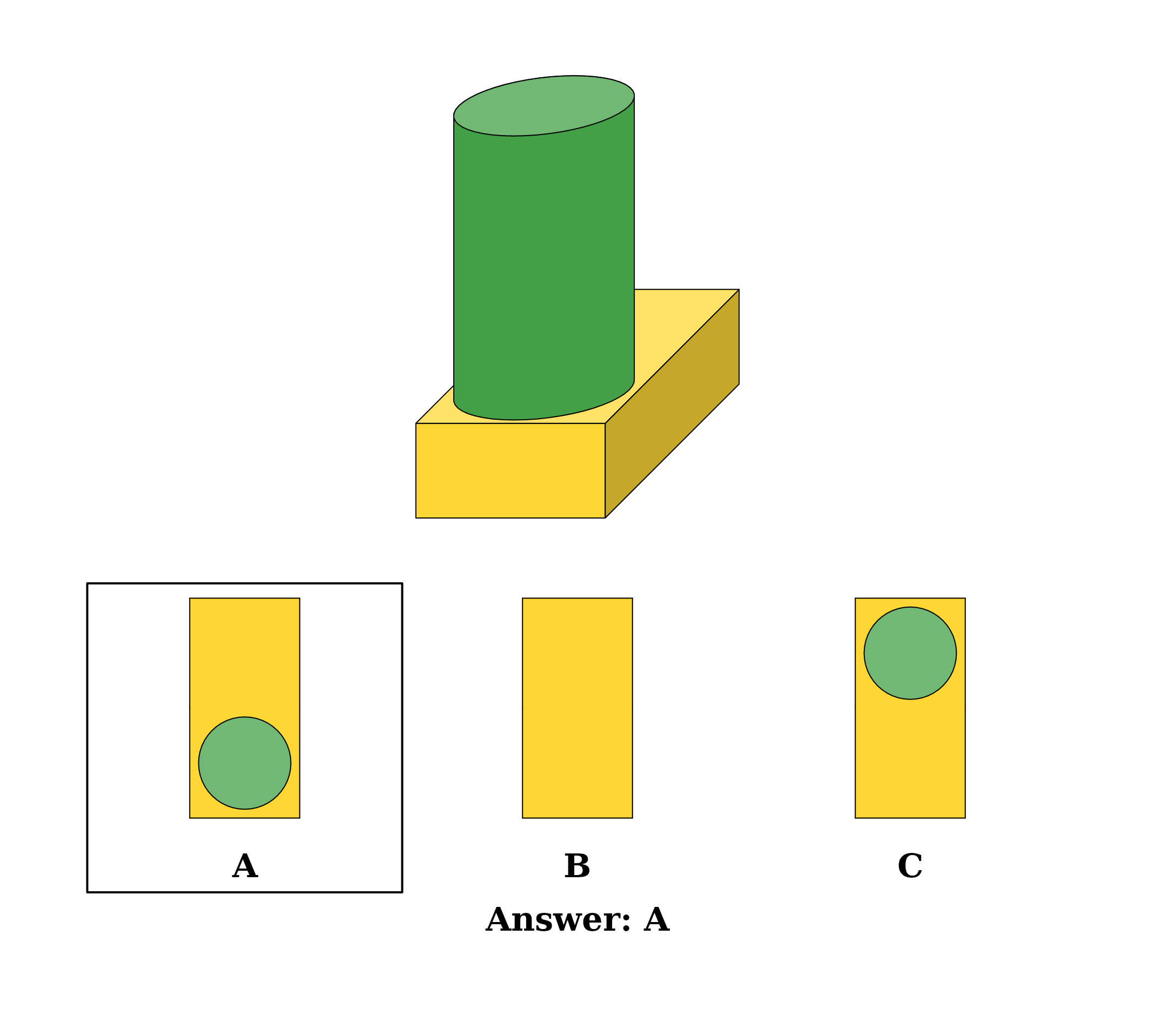
Press Create in the Create Puzzles panel. Each puzzle appears with its answer key — on a multiple-choice page, a ring around the right option and “Answer: A” underneath; on a matching worksheet, the pairs — and the run writes both to your output folder in whichever of JPG, PNG, SVG and print PDF you have ticked in the app’s output settings, which are shared by every module. SVG is the one to keep if you expect to rescale artwork later; PDF is the one to hand to a print layout.
On Productivity, tick JSON in the output settings and the run writes JSON too. On Creative + Interactive or Productivity + Interactive, tick HTML and it also exports the web-playable version for your own site — multiple-choice pages become tap-to-answer games, and matching worksheets become pair-them-up games.
Scale Up to a Book
Two features turn a run into a product. Time Saver (Productivity) runs many rows at once, each with its own question, view, format, difficulty, colours and quantity — set up one row per section of your pack, from Easy top-view pages to Hard side-view matching worksheets, and generate them together. Puzzle Book Studio (every edition) assembles the pages into a finished book — title page, table of contents, page numbers and the answer pages — and on Productivity it combines several collections into one book. See How to Batch Create Puzzles with Time Saver and Puzzle Book Studio Tutorials.
Outcome
You have a folder of Block Views pages with matching answer keys — top, front, side or mixed views, multiple choice or matching worksheets, in colour or for colouring in, at the difficulty you chose — in the formats your printer or platform wants, and a preset you can reuse for the next pack.
FAQ
Which edition do I need for matching worksheets, and for front, side or mixed views?
Matching worksheets come with every edition: Standard makes top-view puzzles — multiple choice in both directions and matching worksheets, in colour and as colouring pages. Front, side and mixed views, and the Advanced tab, need Creative or higher. You can upgrade later without starting over.
Can I print Block Views in black and white?
Yes — choose Colorable. The blocks are drawn in outline, the trick answers switch to shape, position and direction, and the page doubles as a colouring sheet — a good fit for a black-and-white KDP interior.
What formats can I export?
JPG, PNG, SVG and print PDF for every page, plus JSON on Productivity. The Interactive editions add the web-playable version.
Where do the answer keys come from?
Every puzzle is generated with its answer, and the run writes the key alongside it — a ring around the right option on multiple-choice pages, and the pairs on a matching worksheet. On a matching page you can also print the key on the sheet itself, the right way up or upside down.
How do I make a page that practises one particular mistake?
On Creative, turn off Use difficulty preset on the Advanced tab and tick just the tricks you want to practise, plus enough others to fill the answers — for example Mirror image with A block missing for a learner who reverses left and right, or, on a top-view sheet, Colour of the block underneath with A block missing for one who still pictures the blocks that are covered from above.
Which side is the side view?
The right-hand side — the side you can see in the 3D drawing — so the front of the building is on the left of the side view. A dashed line down the middle of a block marks a cylinder, and a triangle is a roof seen from its end.
Can a puzzle come out with two right answers?
No. Every wrong option is checked to look different from the answer on paper — on a front or side sheet the check compares the drawn pictures, so a change hidden behind another block never counts as a different answer — and every block of every drawn building is visible, so each question has exactly one answer.