
Styling and Branding Domino Logic Puzzles
Overview
Styling and branding give your Domino Logic puzzles their final personality — transforming them from functional grids into beautiful, themed logic experiences.
In this tutorial, you’ll learn how to adjust line styles, use the hand-drawn “sketch” effect, add colors or backgrounds, and apply consistent branding to your puzzles.
We’ll also cover how to include your logo or titles through Content Mapping, so every puzzle you create feels part of a polished series or educational collection.
Requirements
You’ll need:
- Puzzle Maker Pro – Domino Logic (Standard or Creator Edition)
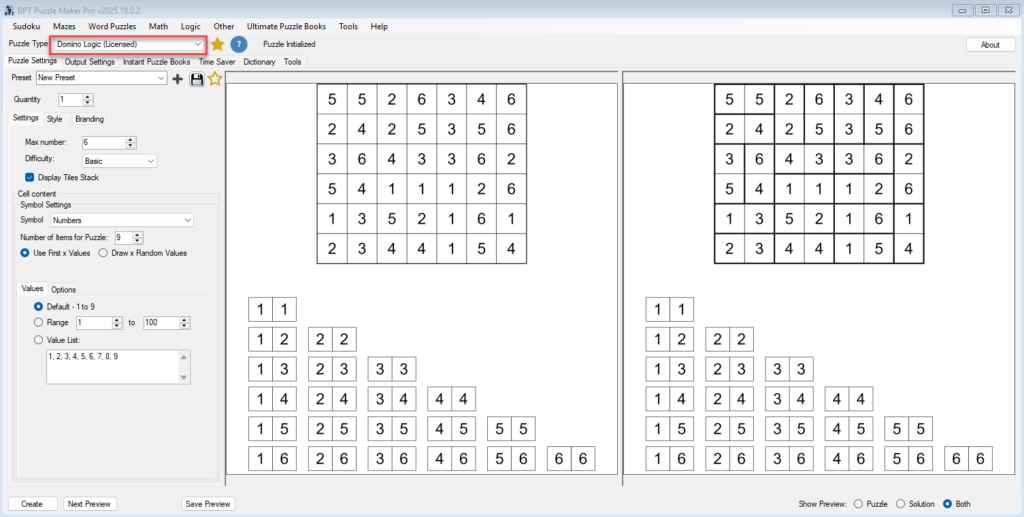
Step 1 — Select the Domino Logic module in Puzzle Maker Pro
Open Puzzle Maker Pro and select Domino Logic from the module list.
Load any saved preset or create a new puzzle with your preferred settings.
The preview window will update instantly to reflect every visual change you make, at full output quality.
Step 2 — Adjust Line Styles and Hand-Drawn Effects
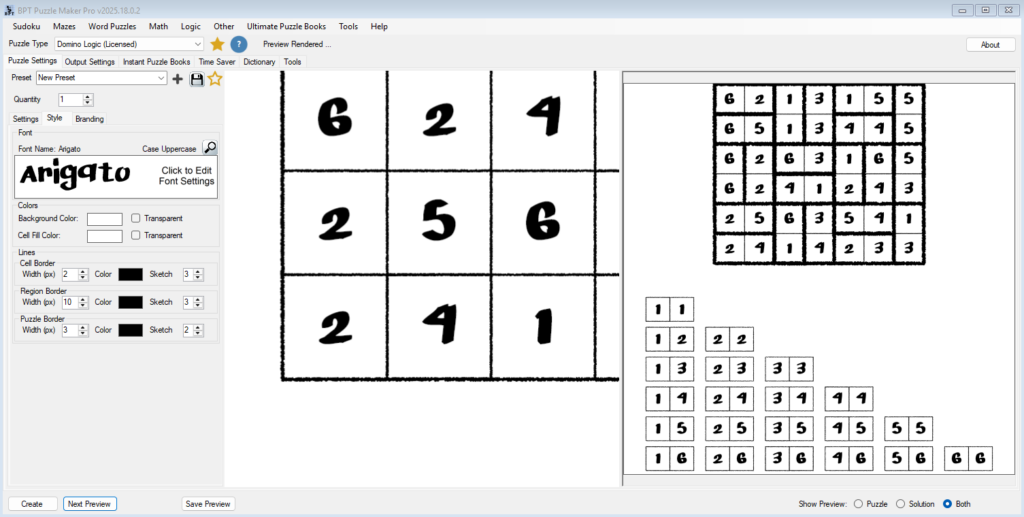
Under the Style tab, you’ll find all the line and border settings that define your puzzle’s structure.
You can customize:
- Cell Border – the lines separating each number or symbol.
- Region Border – highlights each domino pair (visible in solutions).
- Puzzle Border – the outer frame of the grid.
Each line has three controls:
Line Width, Line Color, and Sketch.
Use the Sketch option to simulate a hand-drawn pencil style, ideal for puzzles designed for kids or casual books.
Click Next Preview after each change to see the result immediately — the preview renderer uses the same quality as export.
Note: You can zoom in / out of the preview images by using the mousewheel
Step 3 — Set Colors and Backgrounds
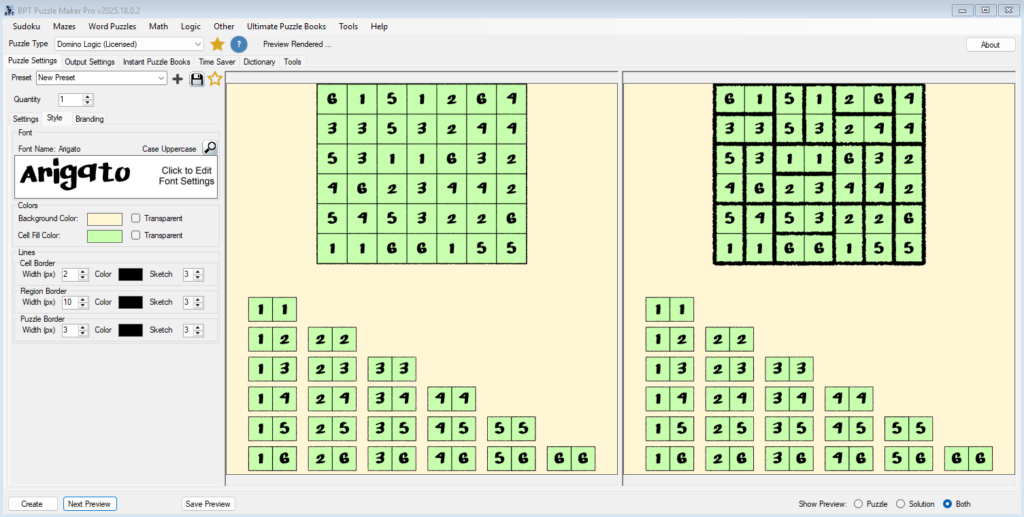
Visual variety can make your puzzles more engaging.
In the Style section, you can modify:
- Canvas Color – the background behind the puzzle grid.
- Cell Fill Color – the background inside each grid cell.
These colors help you theme puzzles for specific audiences — bright tones for children, clean neutral tones for professional puzzle books.
If you use color-based dominoes, keep enough contrast between the background and tile symbols to maintain readability in print and digital formats.
Step 4 — Customize Fonts and Content Alignment
If you’re using letters or numbers, click the Font Panel (showing the current font name, e.g., “Arial”).
This opens the full Font Editor, where you can change the font family, color, and positioning.
Font alignment is particularly helpful if you’re using decorative fonts that need slight baseline adjustments.
Try a friendly sans-serif for educational puzzles or a classic serif for professional collections.
Every font change appears instantly in the preview.
Step 5 — Apply Branding with Content Mapping
Branding turns individual puzzles into a consistent series.
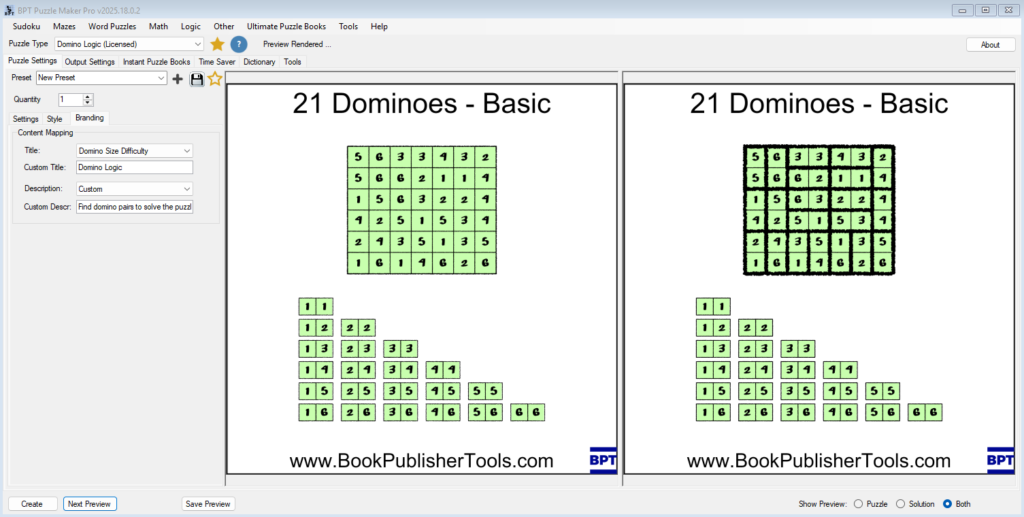
Go to the Branding tab to add titles, subtitles, and difficulty indicators automatically.
Under Content Mapping, choose what appears in each field:
- Grid Size
- Difficulty
- Grid Size + Difficulty
- Custom Text
You can also open Output Settings → Set Branding to load your saved layout, which includes your logo, title font, watermark, and alignment preferences.
After applying branding, click Next Preview to confirm placement and legibility.
Titles and logos should complement, not compete with, the puzzle grid.
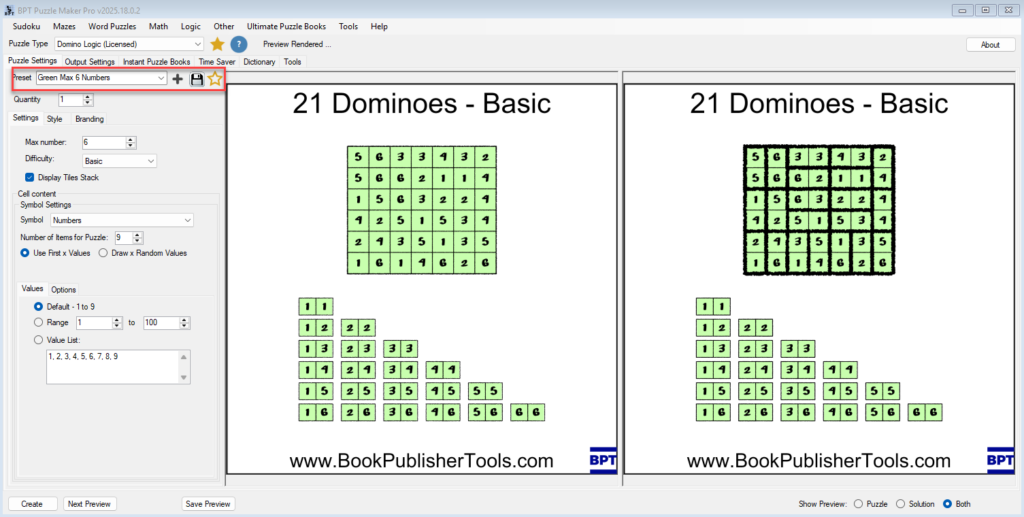
Step 6 — Save a Styled Preset
Once your styling and branding look perfect, save it as a Preset.
Presets store every visual detail — fonts, colors, borders, and branding layout — making it easy to apply your signature style to all future puzzles.
Later, when you use the Time Saver Add-On, these presets allow you to generate hundreds of puzzles with consistent styling automatically.
Tips
- Use Sketch lines with warm background tones for a hand-drawn, approachable look.
- Keep logos subtle and away from grid edges to preserve clarity.
- For color-based puzzles, test prints in grayscale to ensure contrast remains effective.
- Save separate presets for print (300 DPI) and online (96 DPI) to streamline exports.
Outcome
You now know how to style and brand your Domino Logic puzzles with full control over color, line work, and layout.
Your puzzles can now reflect your brand’s personality — whether you’re publishing educational resources, themed puzzle books, or printable packs.
In the next tutorial, we’ll focus on creating educational domino puzzles for kids using simplified grids, colors, and shapes.