
Getting Started with Domino Logic in Puzzle Maker Pro
Overview
This tutorial walks you through creating your first Domino Logic puzzle — from selecting the content type to exporting your first printable puzzle or complete puzzle book.
You’ll learn how to control difficulty, choose between numbers, colors, or images, and use Instant Puzzle Books to generate entire sets automatically.
By the end, you’ll have a professional-quality puzzle ready for print, digital distribution, or classroom use.
Requirements
You’ll need:
- Puzzle Maker Pro – Domino Logic (Standard or Creator Edition)
Step 1 — Select the Domino Logic module in Puzzle Maker Pro
Open Puzzle Maker Pro and select Domino Logic from your module list.
The interface loads with default settings and a preview window on the right.
That preview represents the final quality — every detail you see here (lines, colors, content) will be identical to your exported file.
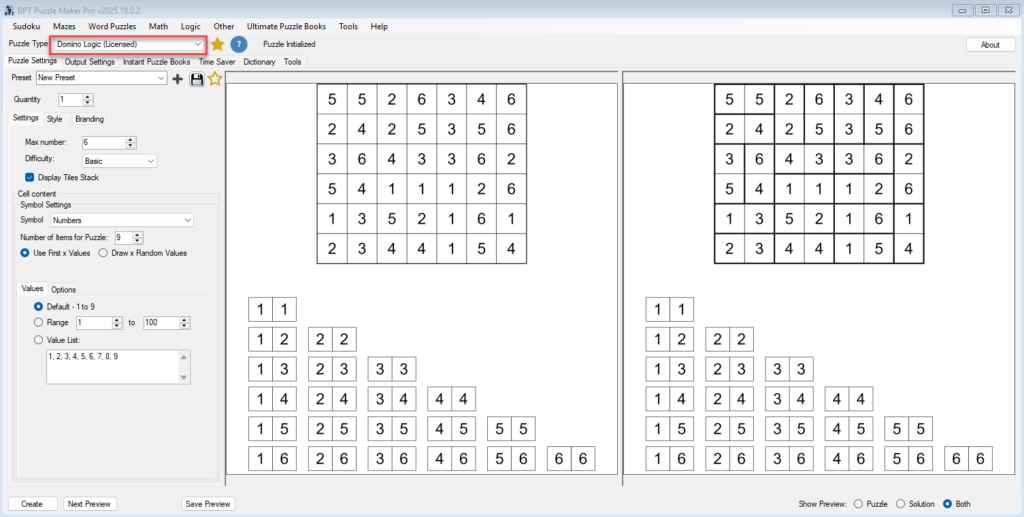
You’ll notice the Tile Stack displayed beside the grid — a visual reference of all dominoes in your puzzle set.
This helps solvers see which tiles remain unused, but you can hide it anytime using the Display Tile Stack toggle.

Step 2 — Choose Content Type
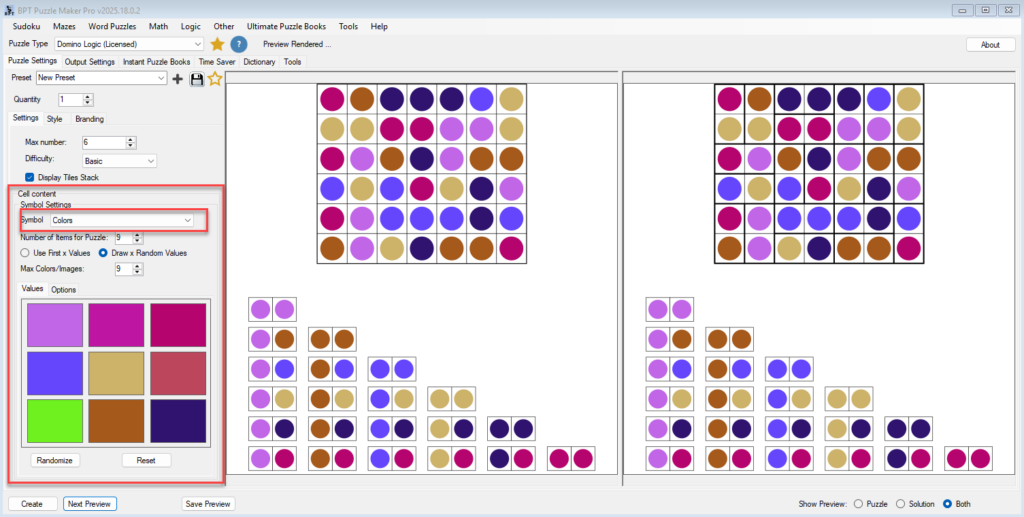
Domino Logic supports several content types, each changing the look and purpose of your puzzle.
- Numbers – the traditional logic style.
- Letters – great for alphabet or word-based puzzles.
- Colors – for vibrant, visual puzzles; perfect for kids or educational packs.
- Images – the most flexible option; use your own themed icons or photos.
To switch, simply select the desired content type from the dropdown menu.
When you choose Images, you can drag and drop files or entire folders into the image list — Puzzle Maker Pro automatically manages them for you.
If you’d like a more curated workflow, use the image list panel to load specific symbols or themes (animals, emojis, logos, etc.).
Step 3 — Set the Difficulty and Maximum Number
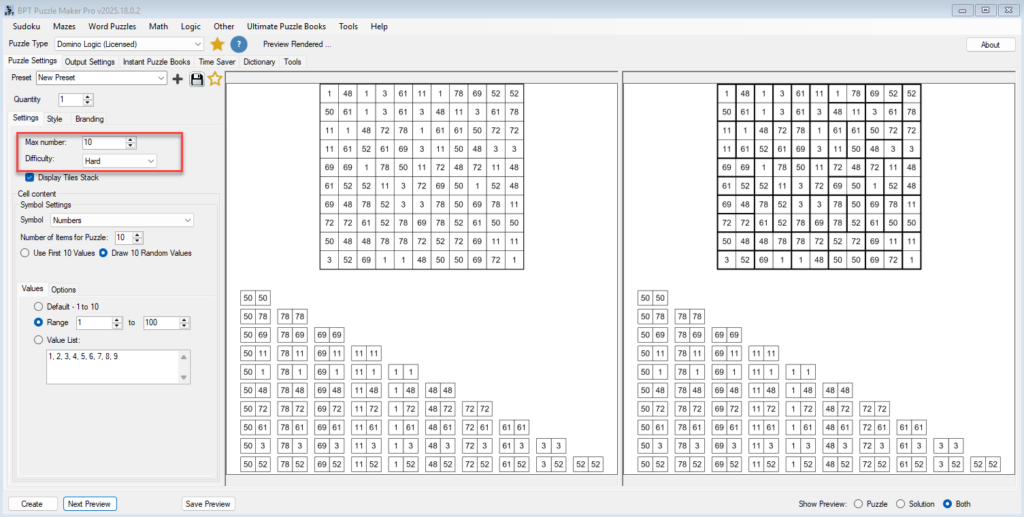
Every Domino Logic puzzle uses a set of dominoes from 1–1 to N–N, where N is your Maximum Number.
You can choose any value from 2 to 12, depending on how large or complex you want the puzzle to be.
Below the Max Number, you’ll find five difficulty levels:
- Trivial – easy, clearly guided placement clues.
- Basic – moderate logic steps.
- Hard / Extreme / Ambitious – require deeper reasoning and less visible structure.
Try starting with Basic or Hard — you’ll immediately see how clue density changes the logical challenge.
Note: You’ll find that it takes quite a bit longer to generate Hard / Extreme puzzles, especially with larger numbers of dominos.
After setting these values, click Next Preview to refresh the puzzle.
The preview updates instantly, showing your puzzle’s structure and logic pattern at full quality.
Step 4 — Customize the Look (Optional)
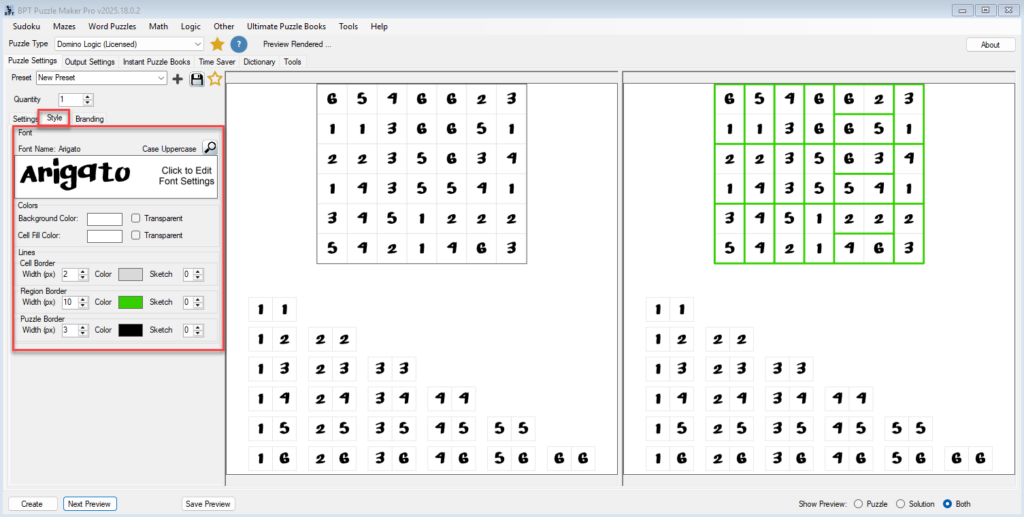
Before exporting, take a moment to personalize your puzzle’s appearance.
You can adjust:
- Font type and color for numbers and letters.
- Canvas and cell colors for background styling.
- Line styles and widths for cell, region, and puzzle borders.
- Sketch line option for a hand-drawn feel.
Even simple tweaks — such as a warmer background color or softer line width — make a big difference for themed puzzle books or educational worksheets.
Step 5 — Preview and Validate
Click Next Preview again after each change to see your puzzle update in real time.
Every preview is a complete render — what you see here is exactly what you’ll print or publish.
Because Domino Logic puzzles always have a unique solution, you can rely on each generated puzzle being ready to use immediately.
Step 6 — Create Puzzles and a Puzzle Book
When your puzzle looks right, you’re ready to create a set of puzzles.
To create Instant Puzzle Books, go to the Instant Puzzle Books tab and select the desired output format (PDF, Powerpoint or JPG images)
Then click Create and select the puzzle output formats:
- PNG / JPG – ideal for web or digital packs – one of the bitmap formats is required
- PDF – print-ready puzzles.
- SVG – scalable vector graphics for professional design software.
.
Tips
- Keep Max Number = 2 or 3 for small, child-friendly puzzles; increase to 6+ for advanced solvers.
- Combine content types (e.g., colored letters or shapes) for visual learning activities.
- Use Sketch lines to add a friendly, hand-drawn look to kids’ puzzles.
- Save your preferred settings as Presets for batch generation later.
Outcome
You’ve created your first Domino Logic puzzle and exported it successfully.
You now know how to adjust content, logic depth, and visuals — and even how to create a full puzzle book with Instant Puzzle Books.
In the next tutorial, you’ll learn how to style and brand your puzzles for consistency across products or classrooms.