
🧩 How to Create Puzzles and Use Puzzle Book Studio in Puzzle Maker Pro
📘 Overview
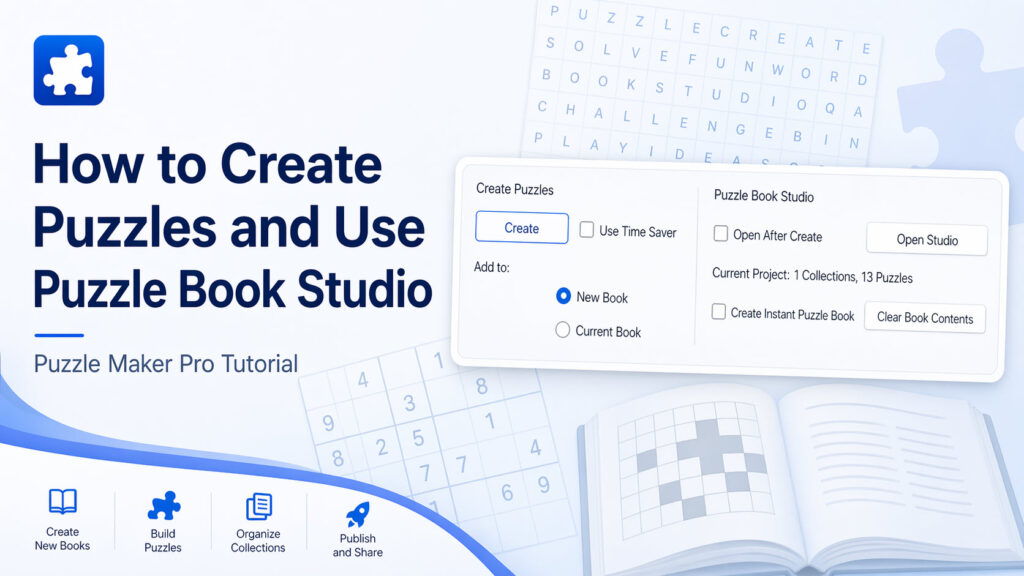
This tutorial explains how to generate puzzles and turn them into complete puzzle books using Puzzle Book Studio in Puzzle Maker Pro.
You’ll learn:
- When to use New Book vs Current Book
- How Time Saver affects book building
- What Create Instant Puzzle Book actually does
- How Collections structure your puzzle book
This is the core workflow that takes you from individual puzzles → finished puzzle products.
🧩 Required Modules
- Any Puzzle Maker Pro module
- Optional: Time Saver-enabled module OR Productivity Edition (required for Current Book)
- Puzzle Book Studio – Included in Puzzle Maker Pro for all products
⚙️ Preparation
Before you begin:
- Select your puzzle module
- Configure your puzzle settings
- (Optional) Set up Time Saver if you want batch creation
- Decide whether you are:
- Creating a new book
- Or building onto an existing one
🔢 Step-by-Step Guide
1. Set Up Your Puzzle
- Select the module
- Adjust puzzle settings
- Click Next Preview to test your setup
2. Choose How You Want to Create
In the Create Puzzles section:
- Click Create to generate puzzles
- Enable Use Time Saver if you want batch generation
3. Select Where Your Puzzles Go

Under Add to:
- New Book
- Starts a new puzzle book project
- Current Book(Time Saver or Productivity Edition required)
- Adds puzzles to your existing book
⚠️ Important:
- If you switch to or from a module without Time Saver, you must start a new puzzle book
4. Build Your Book with Collections
Each time you:
- Click Create with Current Book
👉 A new Collection is added
Example:
- “2 Collection, 24 Puzzles”
Why Collections matter:
- Each Collection can have its own layout
- You can build your book with step by step:
- Difficulty levels
- Different puzzle types
- Themed groups
5. Decide How the Puzzle Book Is Created
✅ Enable Create Instant Puzzle Book
- Automatically creates the puzzle book after clicking Create
- Uses your current book settings
- This is the classic Puzzle Maker Pro behavior
⚙️ Disable Create Instant Puzzle Book
- Puzzles are still created and added to your book
- The book is not automatically generated
You can still:
- Click Open Studio
- Or enable Open After Create
- Then manually generate/export your puzzle book
👉 This gives you more control over layout and structure
6. Open and Work in Puzzle Book Studio
Use:
- Open After Create → opens automatically
- Open Studio → open manually anytime
Inside Puzzle Book Studio you can:
- Adjust layouts per Collection
- Reorder puzzles
- Customize book structure
- Export final outputs (PDF, etc.)
7. Reset When Needed
- Click Clear Book Contents to remove all Collections
Use this when:
- Starting a fresh book without switching modules
- Cleaning up test projects
✅ Outcome
You now understand how to:
- Create puzzles and add them to a structured book
- Use Current Book correctly (and when it’s available)
- Build books using Collections
- Control automatic vs manual book creation
- Use Puzzle Book Studio to finalize your output
📚 Further Reading
- Puzzle Book Studio Layout Guide
- Output Settings for Print-Ready Puzzle Books