
Purpose
This tutorial explains how to style Akari puzzles to match your preferred look and publication format using the Style and Branding tabs.
Audience
Puzzle book creators, designers, and educators who want professional-looking puzzles for print, ebooks, or online use.
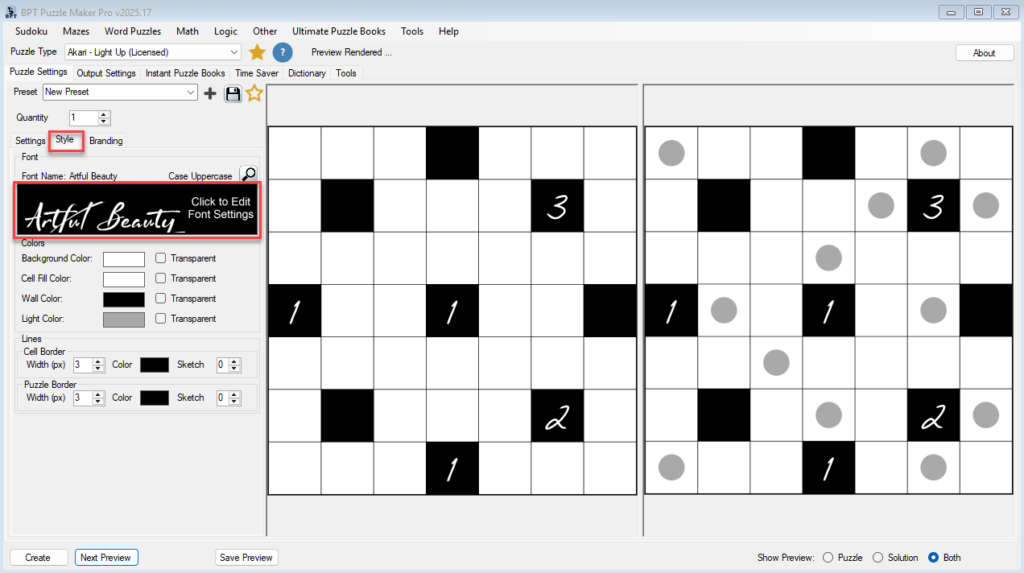
Step 1 – Open the Style Tab
- Set your Font Settings for numbered walls.
- Adjust Font Color.
Note: By default the font color is White, to contrast with the black squares.
Step 2 – Choose Colors
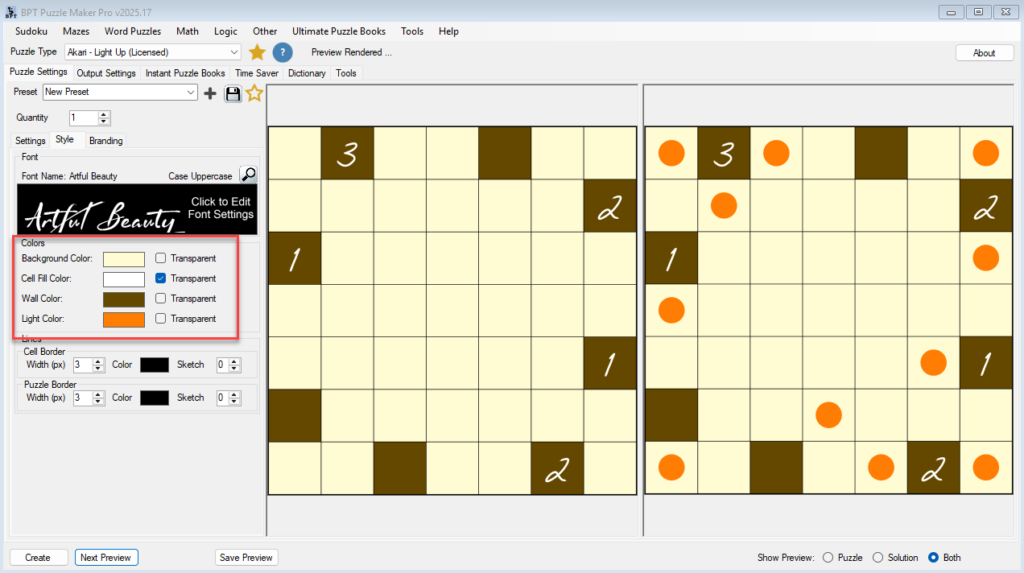
You can control the appearance of every puzzle element:
- Background Color – overall puzzle area.
- Cell Fill Color – empty white cells.
- Wall Color – black numbered or unnumbered cells.
- Light Color – indicates illuminated cells in the solution view.
Step 3 – Customize Lines
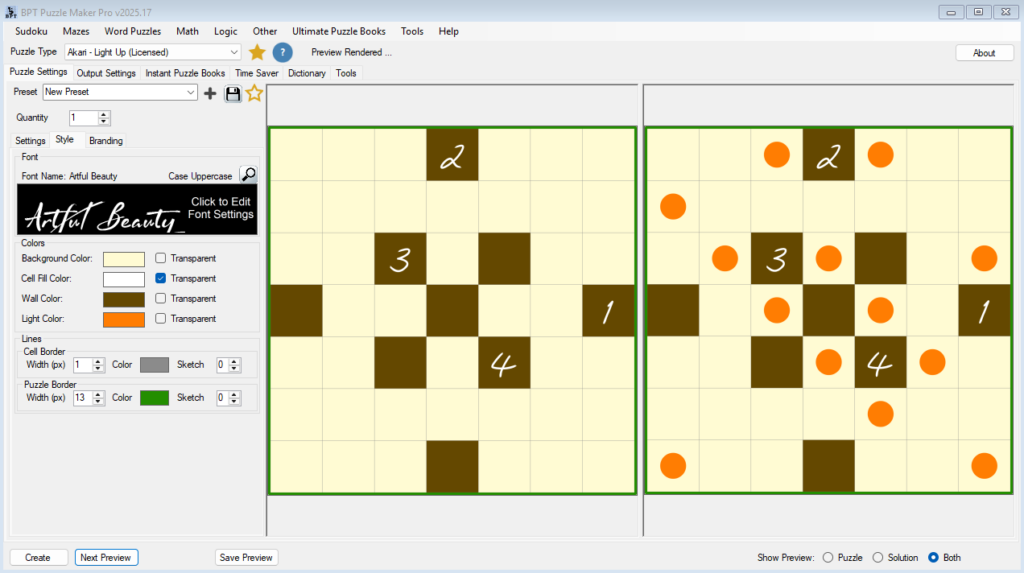
- Adjust Cell Border Width and Puzzle Border Width.
- Choose solid or sketched lines for a hand-drawn feel.
Step 4 – Add Branding
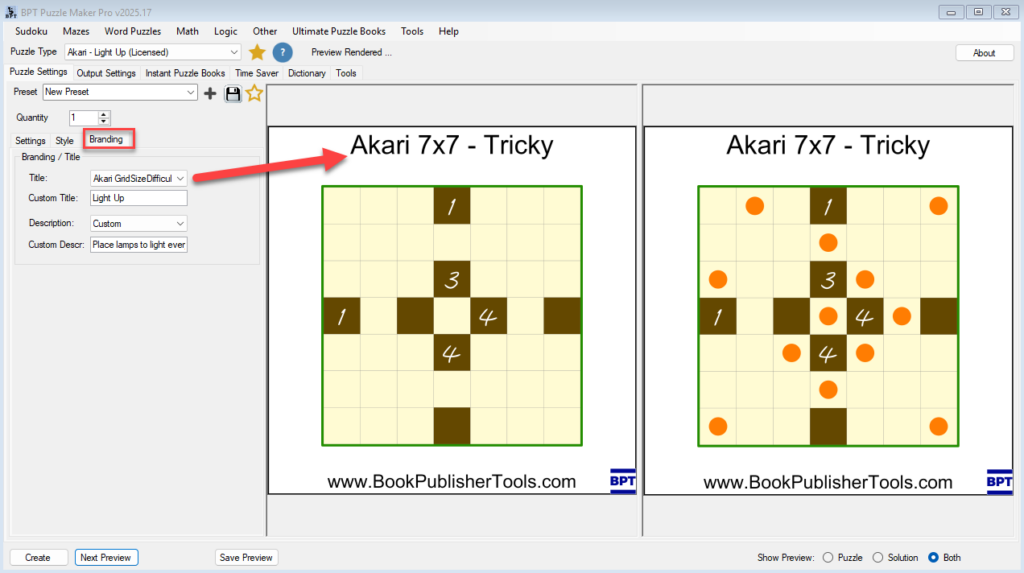
Switch to the Branding tab:
- (Enable Branding on the Output Settings tab, to aplpy the settings below
- Set Title and Description fields (Custom, Default, or Automatic).
- If branding is enabled globally, your Logo and Watermark will be applied automatically.
Step 5 – Preview and Save
- Use Next Preview to see how changes appear instantly.
- Save your styled puzzle for future use as a preset.
Notes
Styling presets can be reused across puzzles, ensuring consistent layouts for entire books or themed puzzle sets.