Tutorials

Unlock the full potential of puzzle creation with our comprehensive guides. Whether you’re a beginner wondering where to start or an experienced creator looking to refine your skills, these tutorials simplify every step. Learn how to use Puzzle Maker Pro to craft professional-quality puzzles that captivate your audience. Each guide is tailored to help you save time, unleash your creativity, and confidently produce puzzles that stand out in any context.

How Can I Create Books with Mixed Puzzle Books (plugin for Powerpoint)?

Getting Started This tutorial explains the steps to create puzzle books using Mixed Puzzle Books (plugin for Powerpoint). If you are using Puzzle Maker Pro, you can quickly create puzzles and puzzle books with a single mouse-click. However, there is a lot of puzzle-software available – free and commercial – that only creates the puzzles, […]

How Can I Create Books with Mixed Puzzle Books (plugin for Powerpoint)? Read More »
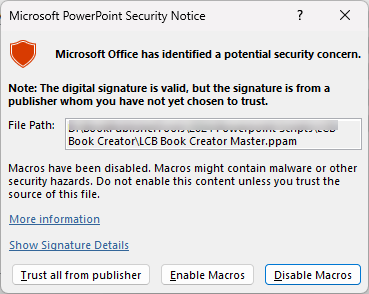
How to Enable Macros and Install Add-In’s in Powerpoint

This tutorial describes how to Enable Macros and Install Add-In’s in Powerpoint. It applies to: Whenever you use a Powerpoint file that contains macros, you’ll receive a warning in Powerpoint. There are two steps to take (just once) to allow the macros to work: Security Step 1 – Windows To let Windows know that you

How to Enable Macros and Install Add-In’s in Powerpoint Read More »

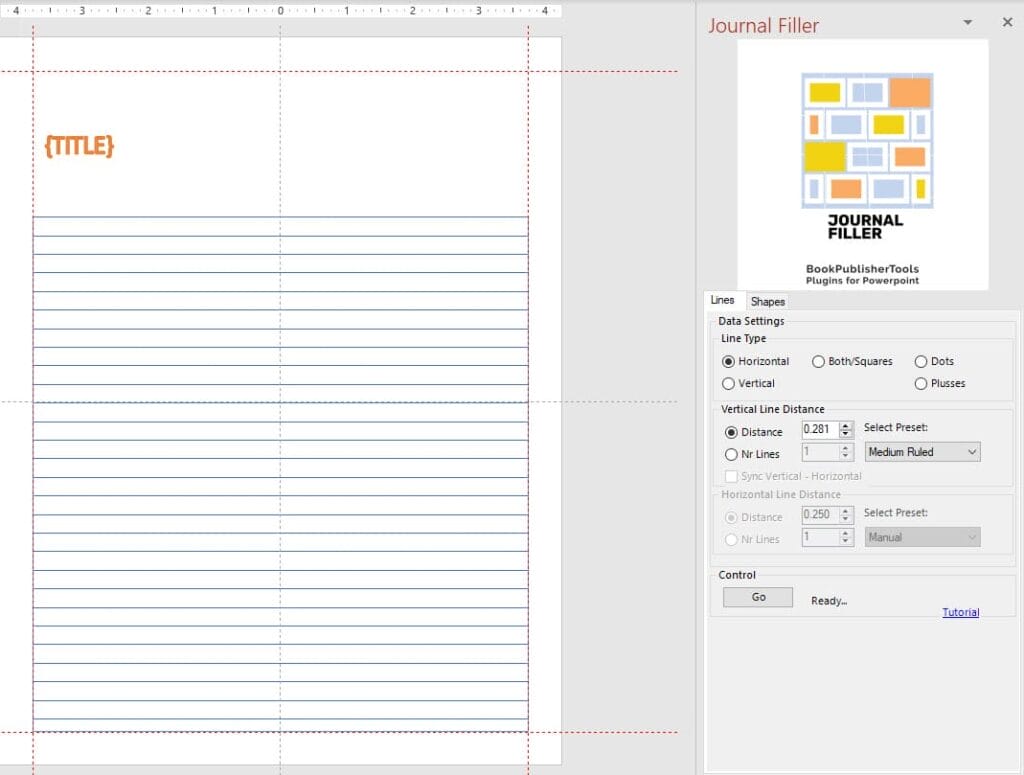
How can I quickly set up lines, squares or dots for my journal using Journal Filler Plugin for Powerpoint?

This tutorial will show you how to quickly fill a shape in Powerpoint with lines, dots or squares. As you know, each ‘page’ in Powerpoint is called a slide. That’s the terminology we will use in this tutorial. Overview The Journal Filler Plugin for Powerpoint will save you time with two different options: To use

How can I quickly set up lines, squares or dots for my journal using Journal Filler Plugin for Powerpoint? Read More »

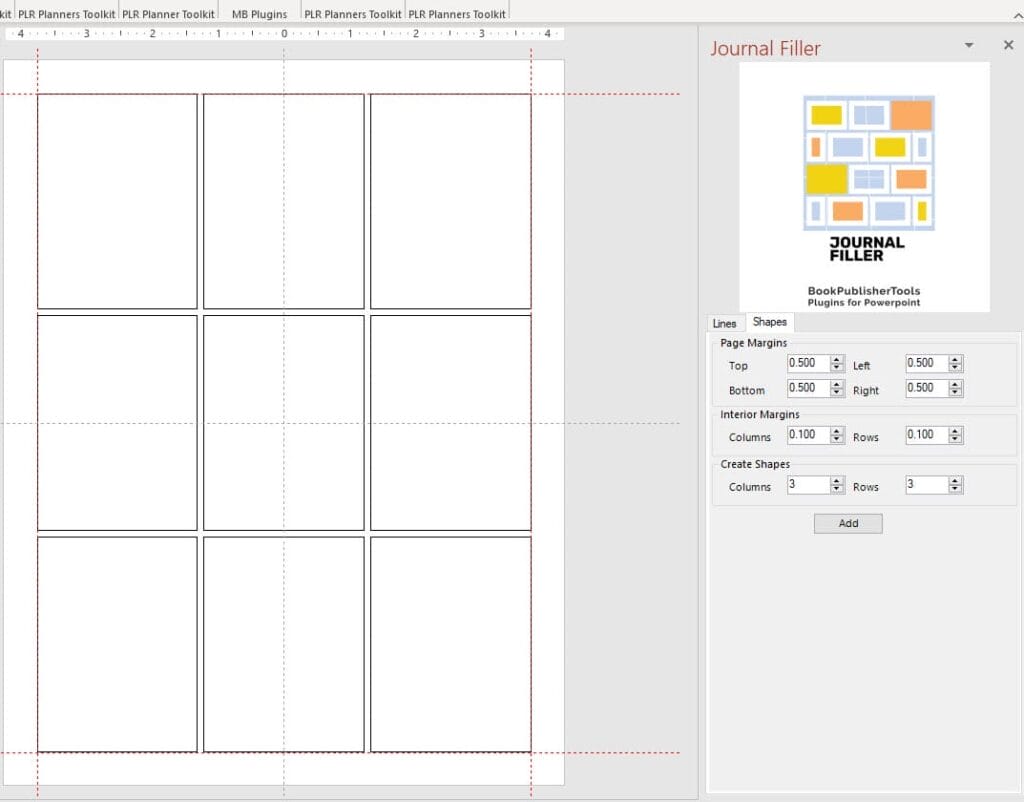
How can I quickly set up a layout with the Journal Filler Plugin for Powerpoint?

This tutorial shows you how to quickly create a tight layout in Powerpoint using the Journal Filler Plugin for Powerpoint. As you know, each ‘page’ in Powerpoint is called a slide. That’s the terminology we will use in this tutorial. Overview The Journal Filler Plugin for Powerpoint will save you time with two different options:

How can I quickly set up a layout with the Journal Filler Plugin for Powerpoint? Read More »

How to Use LCB Book Creator (Powerpoint product)

This tutorial describes how to Use LCB Book Creator (Powerpoint product). It applies to: For the Reseller / White Label product, the screenshots may look slightly different because of product customisation. for the Source Code product, this tutorial shows how the scripts and macros work after delivery. First Things First – Handling Security Issues If

How to Use LCB Book Creator (Powerpoint product) Read More »

How to use the Manual mode in Mixed Puzzle Books (plugin for Powerpoint)

This tutorial explains the Manual mode in Mixed Puzzle Books (plugin for Powerpoint) Overview of the Manual process Using Mixed Puzzle Books with Manual Layout adds a few steps to the Automatic process: Some of the steps are identical to the “Auto” approach, some are different: In addition to that, you have to click the

How to use the Manual mode in Mixed Puzzle Books (plugin for Powerpoint) Read More »

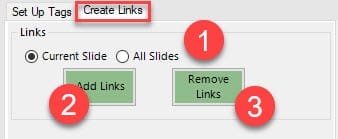
Getting Started with Planner Links (Plugin for Powerpoint)

Getting Started with Planner Links (Plugin for Powerpoint) This plugin for Powerpoint offers an easy way to add links to your Digital Planners. Digital Planners, planners that are shared as PDF’s, usually have a table of contents or another way to navigate inside the document, that relies on links. For each shape or text in

Getting Started with Planner Links (Plugin for Powerpoint) Read More »

Getting Started with Sticker Factory (Plugin for Powerpoint)

Getting Started with Sticker Factory (Plugin for Powerpoint) With Sticker Factory you can save your the shapes (or groups) on your slide(s) as separate PNG images in 96DPI or 300DPI. With Sticker Factory Pro you can also automatically add the sticker borders and even create additional slides with sticker shapes. If you haven’t installed the

Getting Started with Sticker Factory (Plugin for Powerpoint) Read More »

Shopping Cart