
How to Use the License Manager in Puzzle Maker Pro
Overview
The License Manager in Puzzle Maker Pro makes sure your purchased modules are activated and ready to use. You’ll see it automatically the first time you start the software, or you can open it anytime from the Help → License Manager menu. This tutorial walks you through first-time setup, updating licenses after new purchases, and solving common errors.
Required Modules
- License Manager is built into Puzzle Maker Pro — no extra modules needed.
- You’ll need access to the member area: https://bookpublishertools.com/members/bpt-licenses.
Preparation
Before you start:
- Install Puzzle Maker Pro on your computer.
- Have your member area login details ready.
- Make sure you have an internet connection (for online activation).
Start Puzzle Maker Pro, and if needed, click Help -> License Manager to open the License Manager Window

For security reasons, the data has been blurred.
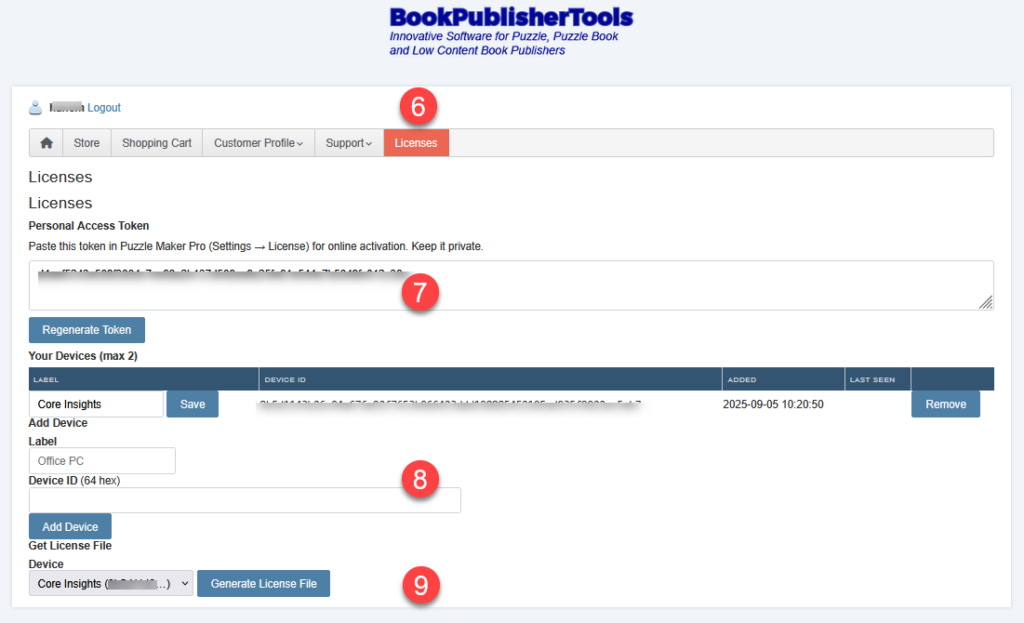
The Licenses tab in the Member Area:
Step-by-Step Instructions
A. First-Time Activation
- Log in to the Member Area
- Open bookpublishertools.com/members/bpt-licenses.
- Go to the Licenses tab. (see image below) [6]
- Copy Your Personal Access Token (PAT)
- Copy the PAT from the Licenses page (item [7]
- Paste it into the Personal Access Token field in Puzzle Maker Pro’s License Manager. [2]
- Register Your Device
- In the License Manager window, copy the Device ID (a 64-character string). [3]
- Add this Device ID to your Licenses page in the member area. [8]
- You can register up to two devices. Give each one a clear name (e.g., Home PC, Laptop).
- Activate Your Licenses
- Online activation (recommended): click Download Licenses in the License Manager. [4]
- Offline activation: in the member area, click Generate License File. Copy the generated text into the License Information field in Puzzle Maker Pro. [9] [5]
- Confirm Activation
- The top of the License Manager window will show:
- Status (e.g., License OK – 4 module(s))
- Your registered email in the Licensed To: field.
- The top of the License Manager window will show:
B. Activating New Licenses
Whenever you buy new modules or renew a subscription:
- Open the License Manager in Puzzle Maker Pro.
- Update your license in one of two ways:
- Download Licenses for instant update (online).
- Copy/Paste a new license file from the member area (offline).
- If using Copy/Paste, make sure you select the correct Device ID.
C. Handling Errors
- No licenses activated: Your subscription may have expired. Renew and then update licenses.
- Unknown PAT: Copy the latest Personal Access Token from the member area.
- Unknown Device ID: Check you haven’t exceeded the two-device limit.
- Internet errors: Use offline activation instead.
- Other issues: Contact support at [email protected].
Outcome
After completing these steps, Puzzle Maker Pro will recognize your licenses. Your purchased modules will be activated, and you’ll see your license status and registered email at the top of the License Manager window.