
How to Batch Create Picture Mazes Using Time Saver (Multiple Themes at Once)
Overview
“I want to create a whole set of puzzles in one go instead of setting them up one by one.”
In this tutorial, you’ll use the Time Saver workflow to generate multiple Picture Maze variations at once. Instead of manually changing settings for each puzzle, you’ll define rows that control themes, quantities, and difficulty—then generate everything in a single run.
By the end, you’ll have a repeatable system for producing full puzzle sets quickly.
Required Modules
Preparation
Before you begin:
- Prepare multiple image folders (e.g. Cats, Dogs, Fruits, Space)
- Create at least one working preset (recommended for consistency)
Step-by-Step
Step 1: Add your main image folders
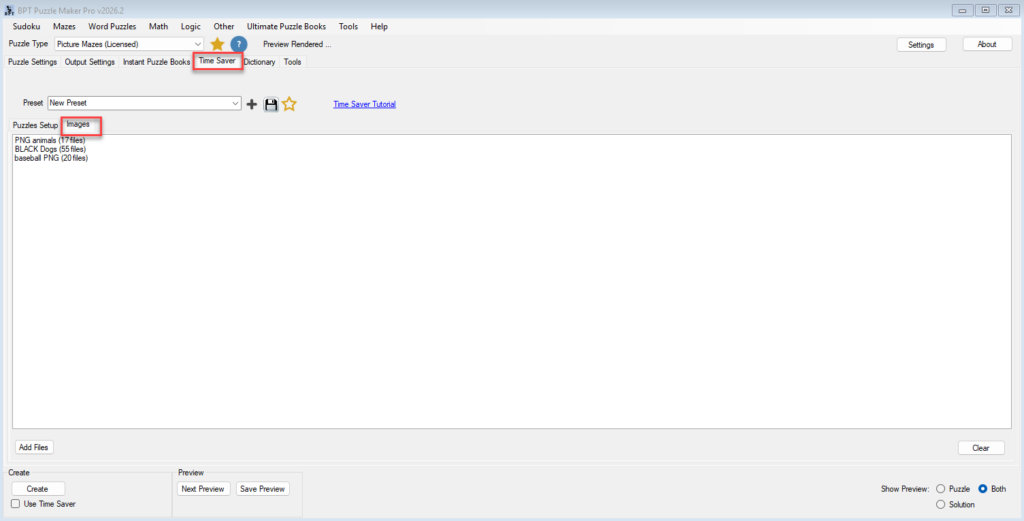
Go to the Time Saver → Images tab.
- Add all folders you want to use (e.g. Cats, Dogs, Fruits)
- These act as your master pool for all batch rows
This is the foundation for automatic theme switching.
Step 2: Create your batch rows
Go to Time Saver → Puzzles Setup.
You can add rows in two ways:
- Add Row with Current Settings → uses your current setup
- Add Rows (Select Presets) → creates rows from saved presets
Each row represents a group of puzzles with its own configuration.
Step 3: Set path and noise sources per row
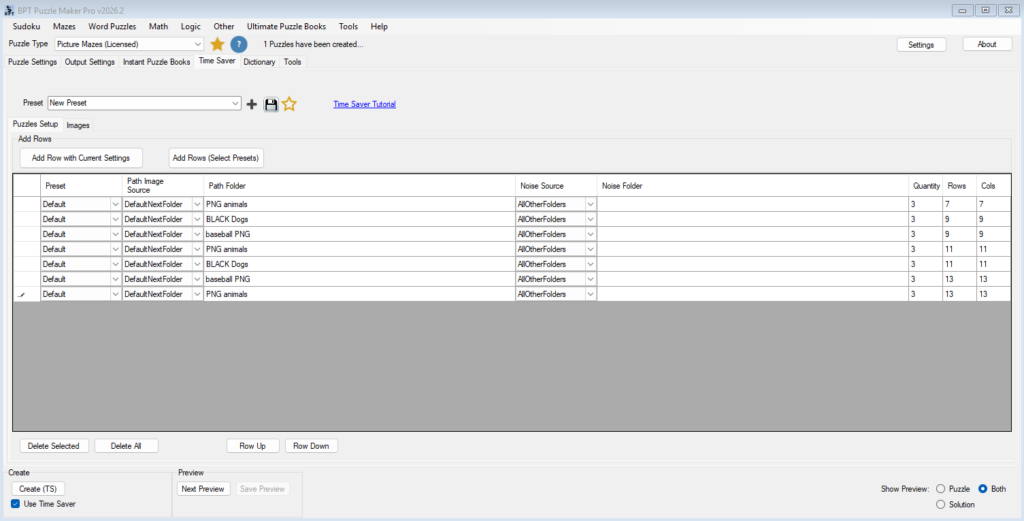
For each row, define how images are used:
- Path Image Source
DefaultNextFolder→ cycles through your folders automaticallyCustomFolder→ manually choose a folder- Noise Source
AllOtherFolders→ uses all remaining folders as noiseCustomFolder→ manually assign noise
Example:
- Row 1 → Path: Cats, Noise: Dogs + Fruits
- Row 2 → Path: Dogs, Noise: Cats + Fruits
This creates instant variation without manual rework.
Note: If “Keep Noise Squares Empty” is selected for the puzzle preset / settings, the noise source selected in the Time Saver will not be applied.
Step 4: Set quantity and grid size per row
Customize each row’s output:
- Set Quantity (number of puzzles)
- Adjust Rows and Cols for difficulty
Example:
- Row 1 → 10 puzzles, 9×9 grid (easy)
- Row 2 → 10 puzzles, 13×13 grid (hard)
This lets you mix difficulty levels in one batch.
Step 5: Organize your rows
Before generating:
- Use Row Up / Row Down to reorder
- Remove unused or incorrect rows
Order matters when using automatic folder rotation.
Step 6: Run the batch
Once everything is set:
- Enable Time Saver
- Click Create (TS)
The system will generate all rows in sequence.
Step 7: Save your batch setup
After a successful run:
- Keep your row configuration for reuse
This becomes your production template for:
- Puzzle books
- Printable bundles
- Classroom sets
Outcome
You can now generate full sets of Picture Mazes in one run by:
- Rotating image themes automatically
- Mixing difficulty levels
- Controlling output per row
This transforms your workflow from manual creation to scalable production.