
Getting Started with Box Code
Overview
This tutorial shows how to create your first Box Code (Polybius Box) puzzle.
You will learn the basic workflow: entering words, choosing encoding, previewing the puzzle, and generating output.
This guide focuses on the essentials.
Symbol variations, styling, branding, and batch workflows are covered in separate tutorials.
Required Module
- Puzzle Maker Pro – Box Code (Lite, Creative or Business)
Preparation
Before you start, decide:
- Whether you want a single word, multiple words, or a short phrase
- Whether you want one puzzle or multiple puzzles generated at once
Step-by-Step: Create Your First Box Code Puzzle
1. Select the Box Code puzzle type
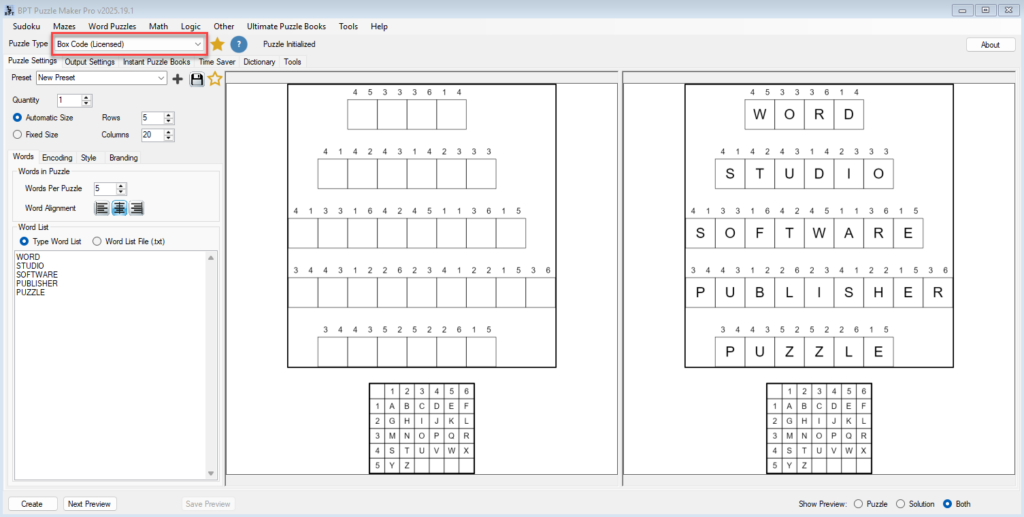
From the Puzzle Type dropdown, select Box Code.
The preview area will initialize with a default puzzle and solution.
2. Set the number of puzzles
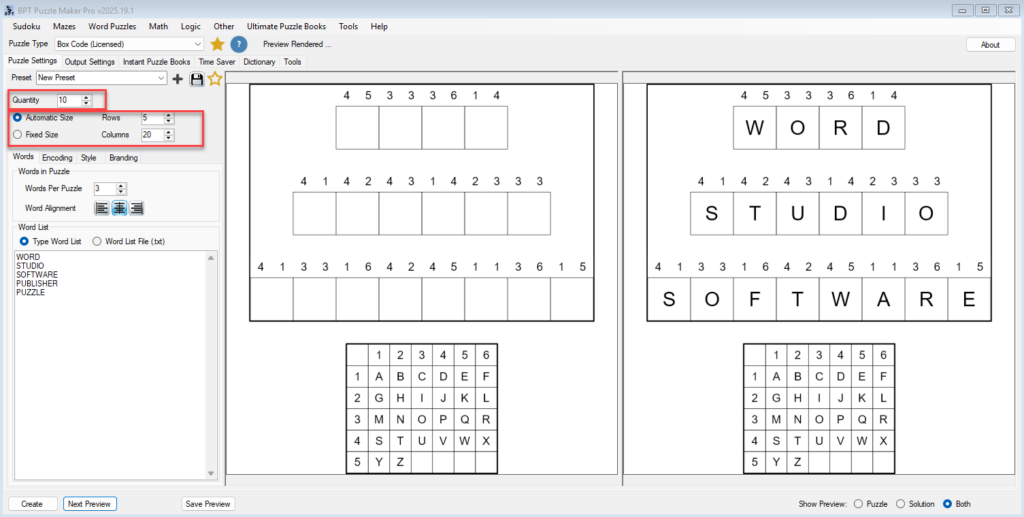
Use Quantity to define how many puzzles you want to generate.
- Each puzzle can reuse the same words
- Encoding can change per puzzle, depending on settings
This is useful when creating multiple puzzle pages quickly.
3. Choose automatic or fixed size
- Automatic Size lets the software calculate a suitable layout
- Fixed Size allows you to control rows and columns manually
For most cases, Automatic Size is recommended when starting.
4. Enter your words
Open the Words tab.
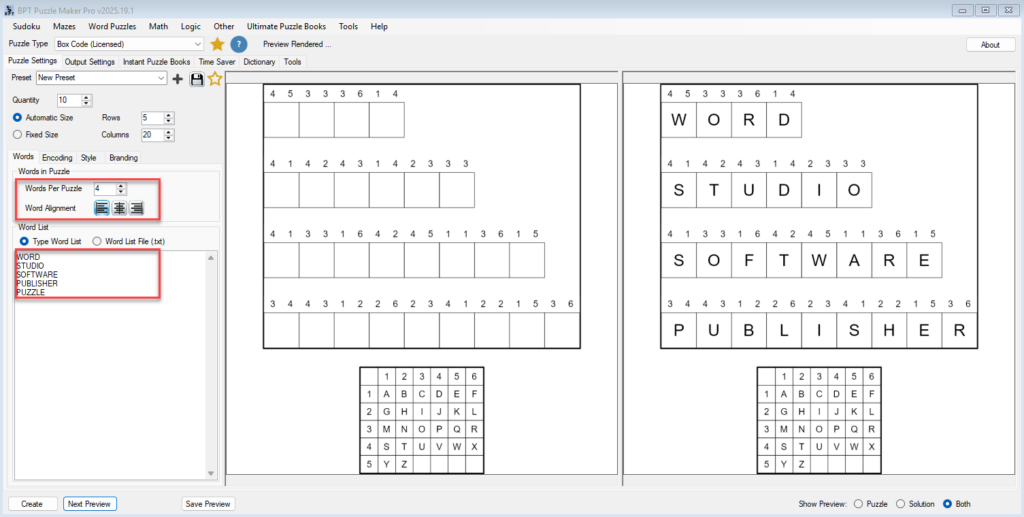
- Choose how many words appear per puzzle (1–5)
- Enter words directly, one per line
or - Load a word list from a text file
Each word will be encoded into coordinates and displayed as its own row.
5. Preview puzzle and solution
At the bottom of the screen, choose what to preview:
- Puzzle – encoded version only
- Solution – decoded letters
- Both – puzzle and solution side by side
Use Next Preview to generate the next puzzle using the same words but updated encoding (if enabled).
6. Create the final output
When you are satisfied with the preview:
- Click Create
- The puzzle and solution are generated using your global Output Settings
You can now export images or include the puzzle in a puzzle book.
Tips
- Start with one word to understand how the encoding works
- Use Both preview mode while learning
- If the layout feels tight, increase puzzle columns or switch to Automatic Size
- Save your settings as a preset once you find a layout you like
Outcome
After completing this tutorial, you can:
- Create basic Box Code puzzles
- Enter words and control layout size
- Preview puzzles and solutions
- Generate ready-to-use puzzle output