
Time Saver and Production Workflows (Business Edition)
Overview
This tutorial explains how to use Time Saver to manage production workflows for Box Code puzzles.
Time Saver does not replace standard puzzle generation.
Instead, it lets you combine multiple generation configurations into a single, structured run using a row-based table.
This is especially useful when working with:
- multiple presets
- multiple word lists
- different layouts for different words or phrases
Required Module
Important Concept: What Time Saver Is (and Is Not)
- Standard Box Code can already generate hundreds of puzzles using long word lists.
- Time Saver does not unlock quantity.
- Time Saver organizes production.
Each row in Time Saver represents one generation configuration.
Step-by-Step: Using Time Saver
1. Enable Time Saver
Open the Time Saver tab and enable:
- Use Time Saver to generate puzzles
The Time Saver table becomes active.
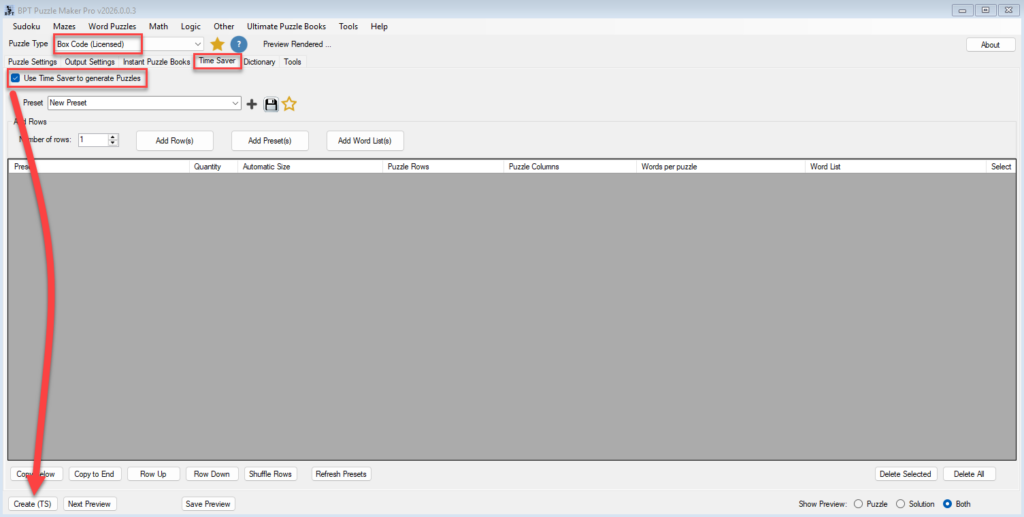
2. Understand the Time Saver table
Each row defines:
- Quantity
- Automatic or Fixed size
- Puzzle rows
- Puzzle columns
- Words per puzzle
- Optional preset
- Optional word list
All rows are processed in one generation run.
3. Preset behavior per row
For each row:
- Preset selected
→ All settings from that preset are used, settings in the table overrule the preset - No preset selected
→ The current UI settings are used, settings in the table overrule the ‘current UI settings’.
This allows mixing preset-based and ad-hoc configurations.
4. Word list behavior per row
For each row:
- Word list selected
→ That file is used for this row. - No word list selected
→ The word list from the preset is used.
This avoids duplicating word lists unnecessarily.
5. Adding rows efficiently
Time Saver includes helper buttons:
- Add N rows
Adds empty rows using current settings. - Add Presets
Adds one row per selected preset.- Preset is set
- Word list is not set
- Add Word Lists
Adds one row per selected word list file.- Word list is set
- Preset is set to default
This makes it easy to build production tables quickly.
6. What you can change per row
Without using presets, you can adjust per row:
- Quantity
- Automatic vs Fixed size
- Puzzle rows
- Puzzle columns
- Words per puzzle
This is typically used to:
- handle longer words or phrases
- adjust layout density
- vary page structure within a book
7. What requires separate presets
The following settings cannot be changed inline per row and require separate presets:
- Encoding randomization behavior
- Code box size
- Symbol type (numbers, colors, images)
- Color palettes
- Other encoding-related options
Presets act as configuration containers for these settings.
8. Run the production workflow
Once your table is ready:
- Click Create (TS)
- All rows are processed sequentially
- Output follows your global Output Settings
This produces a structured, repeatable set of puzzles with minimal manual switching.
Tips
- Use presets for encoding and visual variations
- Use rows for layout and content variation
- Keep one preset per “style” or “encoding logic”
- Use Time Saver when mixing multiple word lists in one run
- Save presets frequently to avoid reconfiguration
Outcome
After completing this tutorial, you can:
- Use Time Saver to manage production workflows
- Combine multiple presets and word lists in one run
- Adjust layouts per row without duplicating settings
- Produce consistent, repeatable puzzle output
- Scale puzzle creation without losing control