
Code Variations: Encoding Settings and Legend Size
Overview
This tutorial explains how Encoding settings control how Box Code puzzles work and look.
You will learn how to change the legend (code box), choose different symbol types, use a custom alphabet, and randomize the encoding for each puzzle.
These settings define the core variation of a Box Code puzzle.
Required Module
- Puzzle Maker Pro – Box Code Lite, Creative or Business
Preparation
Have at least one word entered in the Words tab so changes in encoding are visible in the preview.
Step-by-Step: Encoding and Legend Settings
1. Open the Encoding tab
All Box Code variations are controlled from the Encoding tab.
2. Choose the alphabet
At the top of the Encoding tab, define the Alphabet.
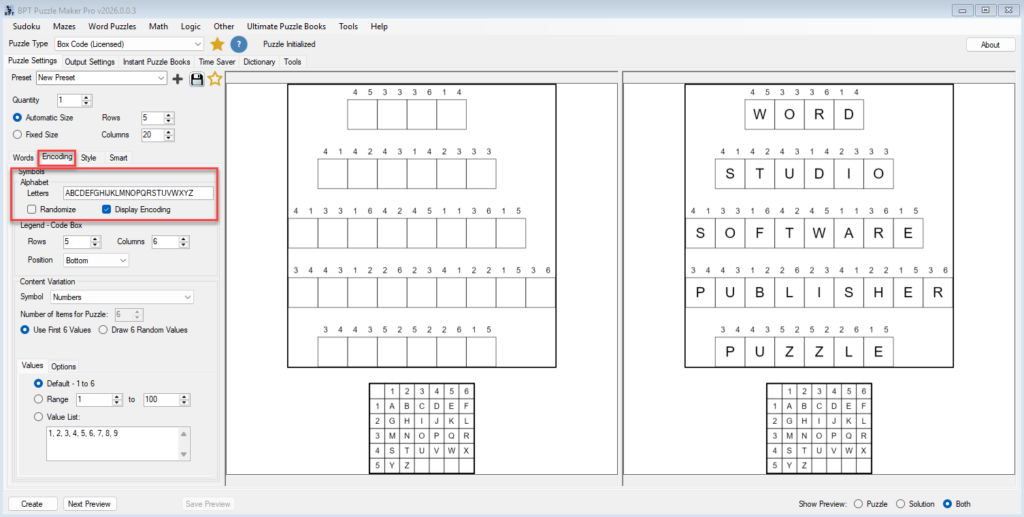
- By default, this contains the standard A–Z alphabet
- You can edit this field to:
- Remove letters
- Change order
- Use a custom character set
By default, the legend grid is filled using this alphabet. you can switch this off by unchecking “Display Encoding”
3. Enable or disable randomization
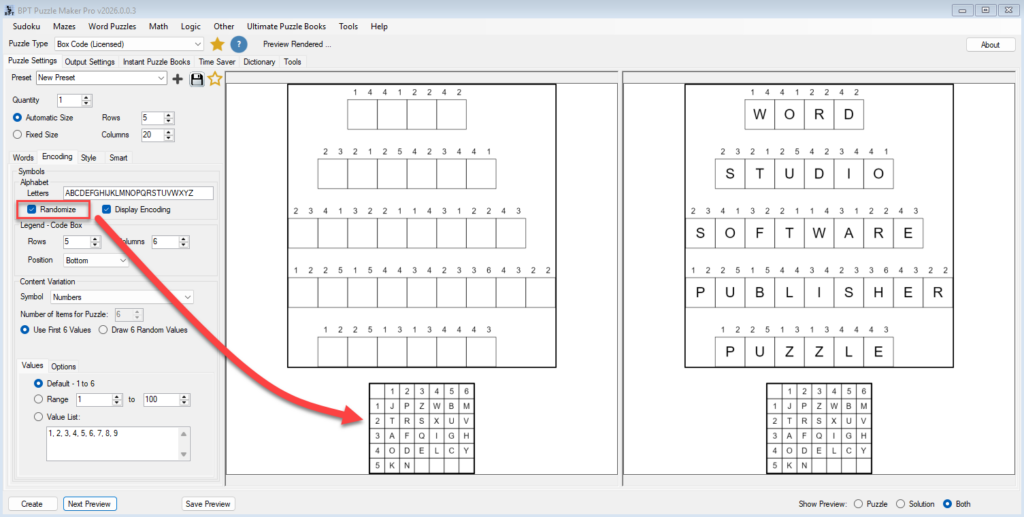
Use the Randomize option to control how the code box is generated.
- Disabled:
The same legend mapping is reused for every puzzle. - Enabled:
The legend is randomized for each generated puzzle image.
This is especially useful when:
- Creating multiple puzzle pages
- Generating puzzle books
- Avoiding repeated solutions with the same word list
4. Set the legend (code box) size
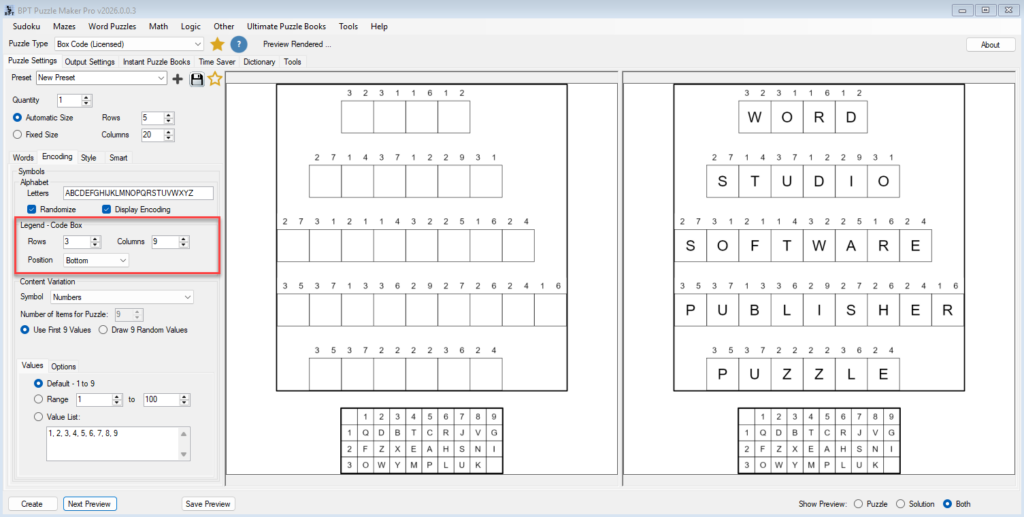
Under Legend – Code Box, define:
- Rows
- Columns
This determines how many coordinate combinations are available.
Examples:
- 5×5 for classic Polybius-style puzzles
- 4×8 or 6×6 for alternative layouts or larger alphabets
The legend automatically adjusts to the chosen size.
5. Choose legend position
Set where the legend appears relative to the puzzle:
- Top
- Bottom
- Left
- Right
This allows you to adapt puzzles to different page layouts or formats.
6. Select the symbol type
This option is available in the Creative and Business Editions.
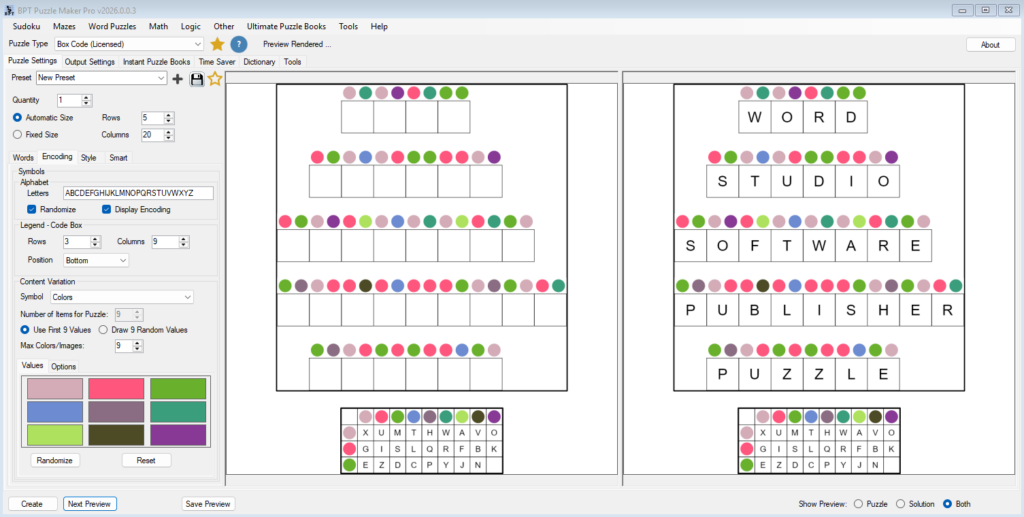
Under Content Variation, choose how coordinates are represented.
Available options include:
- Numbers
- Letters
- Colors
- Images
The puzzle logic remains the same; only the visual representation changes.
7. Control the number of symbols used
Use Number of Items for Puzzle to define how many distinct symbols are used.
- You can use the first N values
- Or draw N random values
This allows you to control difficulty and visual complexity.
8. Preview different variations
Use Next Preview to see how encoding changes affect the puzzle.
- Words stay the same
- Encoding changes based on legend size, symbols, and randomization
This makes it easy to test variations quickly.
Tips
- Use Randomize when generating multiple puzzles from the same word list
- Smaller legend grids are easier for kids and beginners
- Colors and images work well for thematic or visual puzzles
- Keep legend position consistent within a puzzle book for clarity
Outcome
After completing this tutorial, you can:
- Customize the legend size and position
- Use a custom alphabet
- Randomize the code box per puzzle
- Switch between numbers, letters, colors, or images
- Create visually distinct Box Code variations