
Purpose
This tutorial explains how to apply creative visual styles to Akari puzzles, including hand-drawn effects and isometric grids.
Audience
Designers and publishers who want distinctive puzzle visuals for themed books, magazines, or social media.
Step 1 – Activate Hand-Drawn Mode
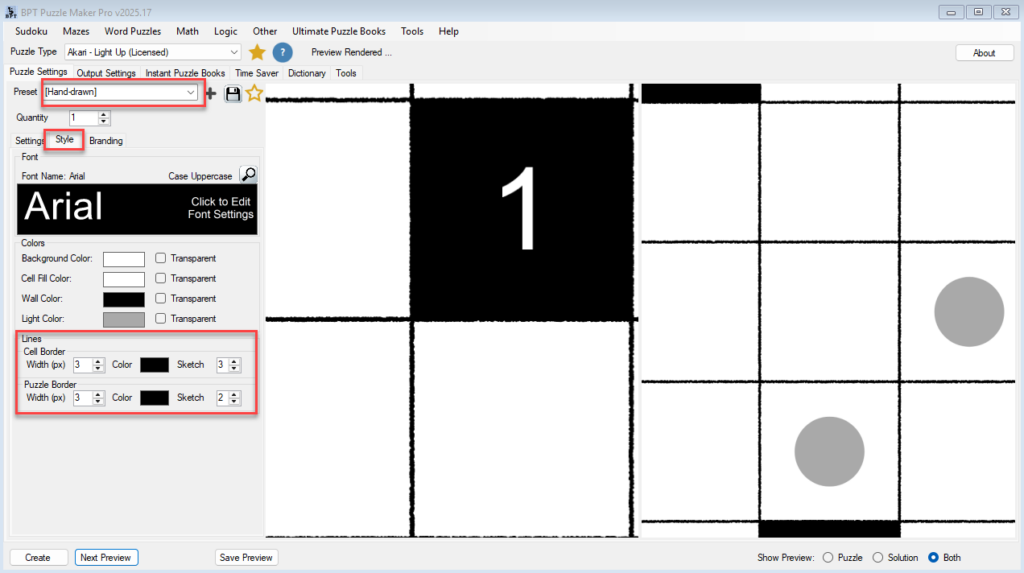
- In the Style tab, locate the Sketch option next to Cell and Puzzle Border lines.
- Set Width and Sketch intensity to introduce slight irregularities that mimic pencil or pen lines.
- Optionally use the [Hand-drawn] system preset to modify the line style. This preset only adjusts the Sketch level, no other settings are changed
- Use low sketch values for subtle effects suitable for print.
Step 2 – Enable Isometric Grid
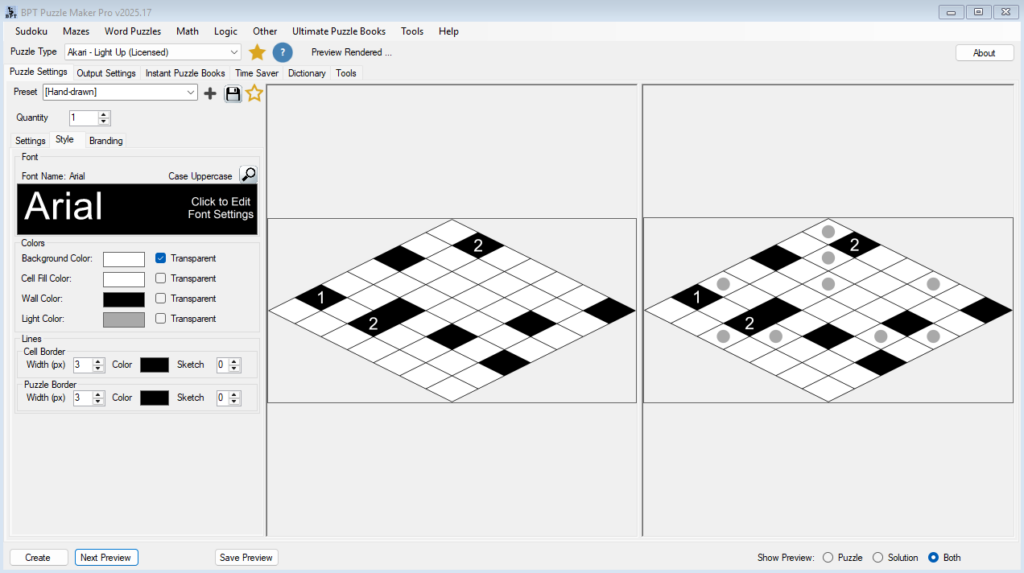
- In the Settings tab, set Grid Style → Isometric.
- The puzzle will render with angled lines for a pseudo-3D look.
- Ideal for themed collections or modern graphic layouts.
Step 3 – Adjust Colors for 3D Effect
- Use soft grays or pastel tones for background and light cells.
- Avoid pure black borders in isometric mode to maintain readability.

Step 4 – Preview the Puzzle
Click Next Preview to see the updated grid.
You can switch between hand-drawn and isometric to compare effects.
Notes
Hand-drawn mode works best for printable puzzles.
Isometric mode offers a modern visual twist but should be used consistently within a puzzle series.